 Ayesha Khan
Creating your first TikTok Shop FBT inbound order is an important step when you want to send inventory to TikTok’s fulfillment warehouses. Through Fulfilled by TikTok (FBT), eligible sellers can store their products in TikTok’s fulfillment network, where TikTok handles storage, order processing, packing, and delivery to customers.
Before TikTok can receive your products, you need to create an inbound order in the FBT portal. This process involves selecting your products, entering inventory quantities, choosing a packing method, adding carton details, and providing shipment information.
In this guide, we’ll explain how to create your first TikTok Shop FBT inbound order step by step, using screenshots from our video tutorial to help you follow the process.
What Is a TikTok Shop FBT Inbound Order?
A TikTok Shop FBT inbound order is a shipment request that tells TikTok which products you plan to send to its fulfillment warehouse and how the inventory is packed.
It records important shipment information, including:
- Products and SKUs being sent.
- Total units included in the shipment.
- Number of cartons or pallets.
- Quantity of units in each carton.
- Carton weight and dimensions.
- Shipping method and destination warehouse.
- Tracking information.
Once you create an inbound order, TikTok can use these details to prepare for receiving and processing your inventory.
For example, if you plan to send 100 units of a product, you must tell TikTok how those units are packed. You might place all 100 units in one carton or distribute them across two cartons containing 50 units each.
Accurate information helps prevent quantity discrepancies and receiving delays.
What You Need Before Creating a TikTok Shop FBT Inbound Order
Before starting, make sure your products are ready for inbound shipment and the necessary information is available.
Here is what you should prepare:
- Matched products: Your products must be available and correctly matched in the FBT Goods section.
- Product quantities: Know how many units you plan to send.
- Packing information: Decide whether you are using individual units, cartons, or an eligible pallet configuration.
- Carton details: Have the actual weight and dimensions of each carton.
- Shipping information: Confirm your shipping method, carrier, and estimated arrival time.
- Tracking details: Keep your tracking numbers or freight information available once the shipment is arranged.
Important: TikTok’s inbound requirements can vary depending on your account, shipment type, and destination. Check the current instructions in your FBT portal before preparing your inventory.
How to Create Your First TikTok Shop FBT Inbound Order
Follow these steps to create an inbound order and register your products with TikTok FBT.
Step 1: Open the FBT Inbound Section
Log in to your TikTok Shop Seller Center and access the Fulfilled by TikTok portal.
Navigate to the Inbound section. You will find three main sections:
- Inbound Orders
- Return Orders
- Inbound Incidents
Select Inbound Orders to view your existing shipments and create a new inbound order.
This section helps you manage incoming inventory and monitor shipments sent to TikTok’s fulfillment network.
Step 2: Understand the Inbound Order Statuses
Before creating a shipment, familiarize yourself with the different statuses displayed in the Inbound Orders section.
The dashboard organizes orders according to their progress.
You may see statuses such as:
Status | What It Means |
|---|---|
Working | You are entering product and shipment information. |
Ready to ship | Product and packing details have been completed. |
To be received | The shipment has been submitted and is awaiting warehouse receipt. |
Receiving | The warehouse is processing and checking the inventory. |
Partially received | The warehouse has received some of the expected inventory. |
Received | The warehouse has completed receiving the shipment. |
Cancelled | The inbound order has been cancelled. |
The dashboard also displays information such as:
- Plan ID
- Order ID
- Goods
- Creation time
- Order status
- Inbound time
- Available actions
You can open individual orders to review their details and copy relevant order information.
In the video, some orders are already marked as received, while others are cancelled. One order also displays a missing tracking ID notification.
If your tracking information is unavailable when you initially prepare the order, check the portal’s requirements and update it as soon as you receive the correct details. Do not leave required shipment information incomplete.
Step 3: Click Create Inbound Order
Once you understand the dashboard, select Create Inbound Order to start a new shipment.
TikTok will guide you through several stages of the process, including:
- Adding products.
- Confirming shipment and packing details.
- Printing the required documents.
- Adding tracking information.
You must complete the required information at each stage before proceeding to the next one.
Start by adding the products you want to send to the FBT warehouse.
Step 4: Add Products to Your Inbound Order
Click Add Products to open your available product list.
Select the products you plan to send to TikTok FBT.
In the video tutorial, the product was matched during the previous setup process. It is now available for selection in the inbound order.
Before adding a product, check that:
- The product is correctly matched.
- The correct SKU or product variant is selected.
- The product information is accurate.
- The inventory is ready for shipment.
TikTok’s official inbound instructions require sellers to select eligible matched goods. Products marked as unmatched cannot be added through the standard inbound process.
After selecting the required product, confirm your selection and proceed to the packing details.
Step 5: Select Your Packing Type and Enter Product Quantity
After adding your product, TikTok will ask how you plan to pack the inventory.
The packing configuration tells TikTok how your units are arranged before reaching the warehouse.
For example, you may select an individual-unit configuration or use an existing carton packing template, depending on the options available in your account.
In the video, the seller enters 100 units as the total order quantity.
This means the shipment contains 100 individual product units.
You can then create a packing template or use the available carton configuration to explain how those units are distributed.
What is the difference between units, cartons, and pallets?
Understanding these terms will help you enter the correct information.
- Units: Individual products being sent to TikTok.
- Cartons: Boxes containing one or more individual product units.
- Pallets: Larger platforms used to organize and transport multiple cartons together.
For example:
- 100 units in one carton means all products are packed in a single box.
- 100 units in two cartons means each carton contains 50 units.
- Multiple cartons can be arranged on a pallet for an eligible freight shipment.
The quantities you enter must reflect how your supplier or warehouse has physically packed the products.
Step 6: Create or Manage Your Carton Packing Template
Once you have entered the product quantity, configure the carton packing information.
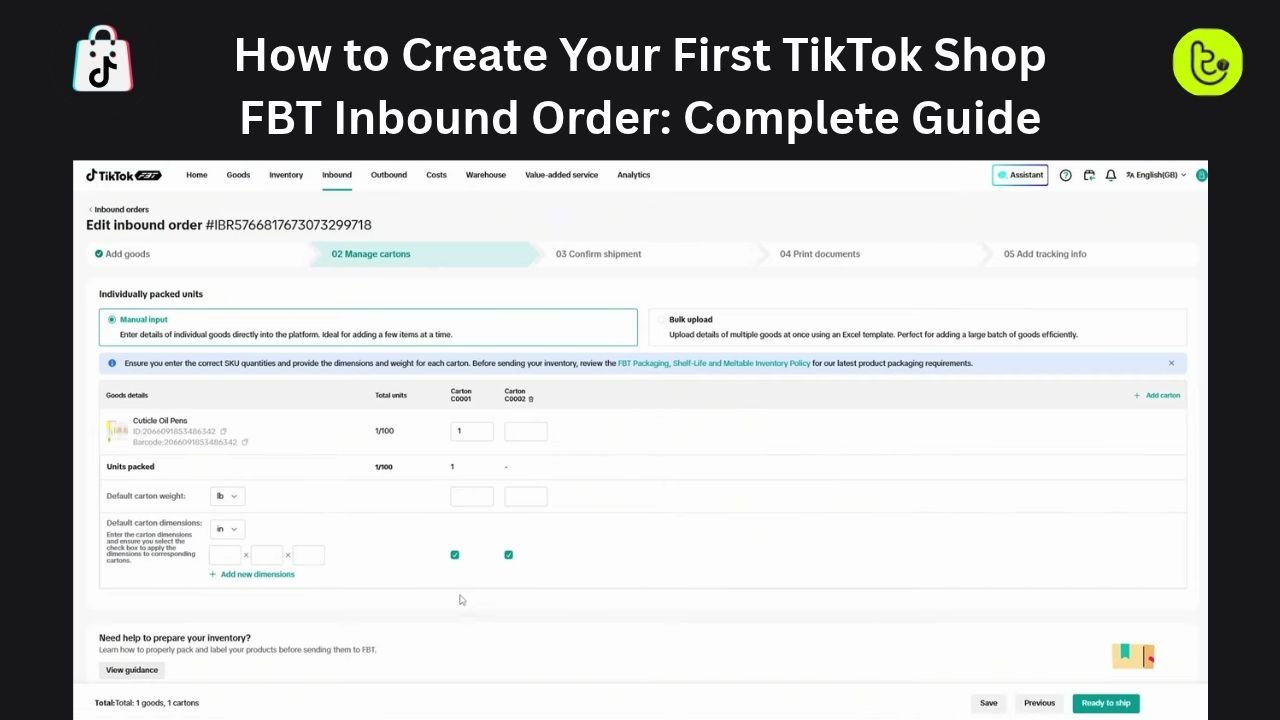
A carton packing template records how many units are packed in each carton, along with the carton weight and dimensions.
In the video example, the seller enters 100 units in one carton initially. The demonstration then changes the arrangement to two cartons containing 50 units each.
This helps explain how TikTok calculates the total shipment quantity from the carton configuration.
You can also delete an unnecessary packing configuration or use the available print option.
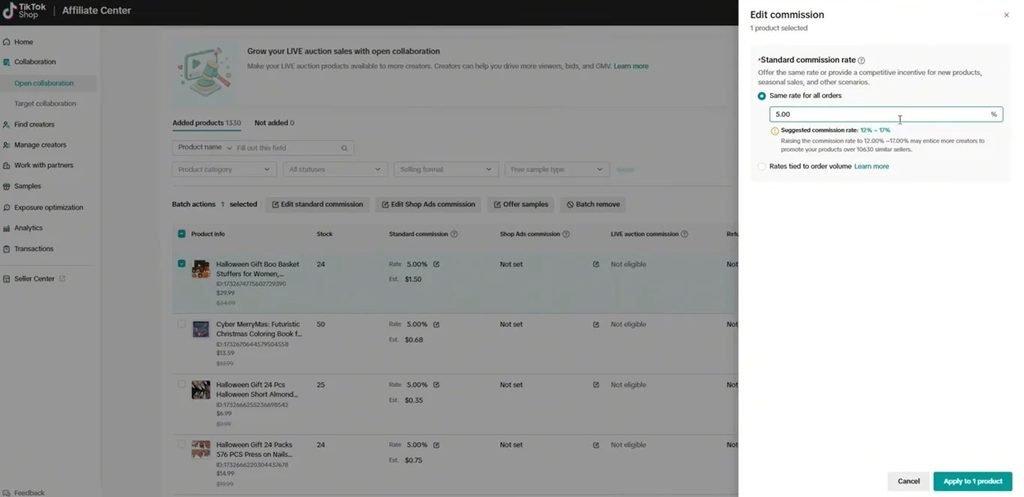
If you regularly send the same product in identical carton configurations, maintaining a reusable template can make future inbound shipments easier.
Make sure the information in the template reflects your actual packaging.
Step 7: Enter the Number of Units in Each Carton
Now enter how many product units are packed inside each carton.
In the video, the seller enters 100 units in one carton initially. The demonstration then changes the arrangement to two cartons containing 50 units each.
This helps explain how TikTok calculates the total shipment quantity from the carton configuration.
For example:
Packing Arrangement | Units Per Carton | Total Units |
|---|---|---|
One carton | 100 | 100 |
Two cartons | 50 | 100 |
Four cartons | 25 | 100 |
The total number of units must remain consistent with the quantity entered in the inbound order.
If you are sending 100 units in two cartons, make sure each carton contains exactly 50 units.
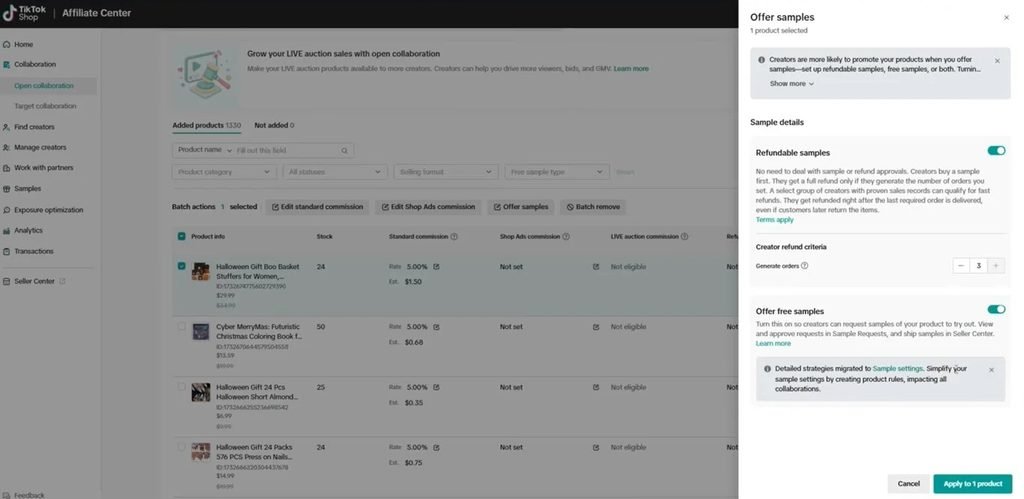
Step 8: Add Carton Weight and Dimensions
TikTok also requires carton information to help the warehouse prepare for receiving and handling your shipment.
You will need to enter:
- Carton weight: The actual weight of the packed carton.
- Carton length: The length of the carton.
- Carton width: The width of the carton.
- Carton height: The height of the carton.
The video shows weight fields with gram and kilogram options, while carton dimensions are entered in inches.
Use the actual measurements of the packed carton rather than estimates.
For example, if you are sending two cartons, measure each one and enter the correct details for the relevant packing configuration.
Incorrect dimensions or weights can cause discrepancies during warehouse processing.
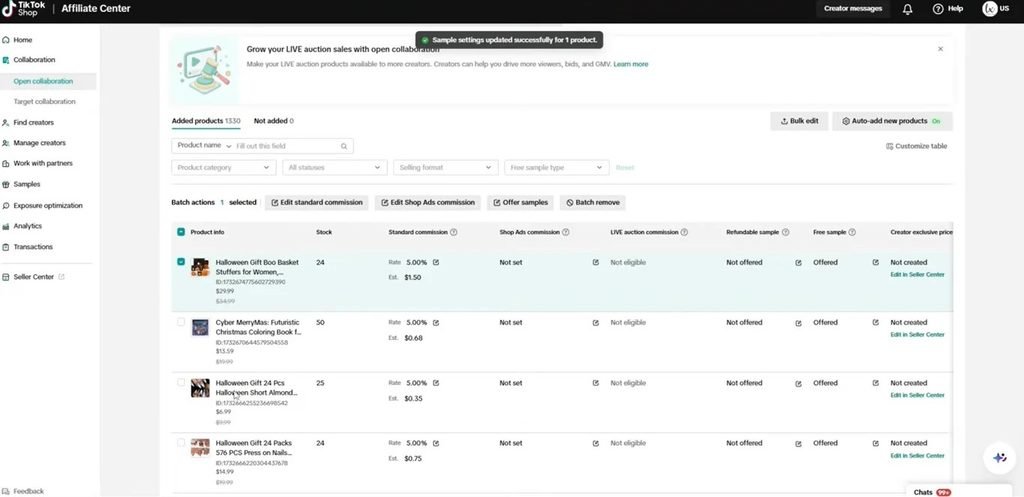
Step 9: Add More Cartons if Required
If your inventory is distributed across several cartons, use the option to add another carton.
In the video, the seller changes the arrangement from one carton containing 100 units to two cartons containing 50 units each.
The dashboard then displays two cartons with a combined quantity of 100 units.
You can add more cartons when your shipment requires them. However, if you need to create a larger bulk shipment, the portal may require you to use its bulk-upload process or request the applicable access.
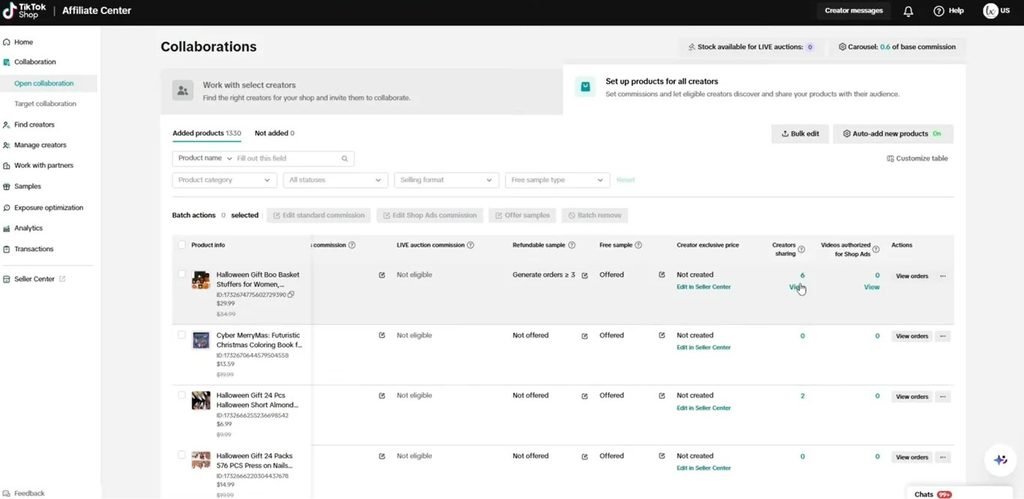
Before proceeding, check that:
- The total unit quantity is correct.
- The number of cartons is accurate.
- Each carton contains the declared quantity.
- Weight and dimensions reflect the physical packaging.
These checks help prevent receiving discrepancies when your inventory reaches the warehouse.
What Happens After Creating the Carton Details?
Once you have entered the product and carton information, the next stage is to confirm the shipment and arrange delivery to the assigned FBT warehouse.
The remaining steps depend on your shipping method and the options available in your account.
Important: The following steps explain the official FBT workflow. They are additional instructions and are not shown in the supplied video footage.
Step 10: Confirm Packing Details
Review the complete packing information before confirming it.
Check the product quantity, carton count, and packing specifications.
Once everything is correct, select the available option to confirm packing or proceed to shipment.
TikTok’s official inbound guidance instructs sellers to verify the carton or pallet quantities and product unit counts before moving forward.
Avoid confirming the shipment if the physical packing arrangement does not match the information entered in the portal.
Step 11: Select Your Shipping Method and Destination
After confirming the packing information, proceed to the shipping configuration.
Depending on the options available in your FBT account, you may be asked to select a delivery arrangement, such as:
- Single HUB
- Dual HUB
- Direct to Fulfillment Center (FC)
You will also need to select the applicable shipping method.
TikTok’s US FBT guidance identifies two main load types:
Small parcel: Used for shipments sent through eligible parcel carriers, such as UPS, USPS, FedEx, or DHL.
Freight: Used for truck deliveries. Freight shipments follow pallet and receiving requirements specified by TikTok.
The available destination and shipment options depend on your inbound plan. Follow the warehouse allocation displayed in your account and confirm that your supplier or freight forwarder can deliver to the assigned location.
Step 12: Print the Required Shipping Documents and Labels
After confirming your shipping information, proceed to the document and labeling stage.
Depending on your shipment type, TikTok may require carton labels or pallet labels.
Print the labels provided through the FBT portal and attach them according to TikTok’s instructions.
Before dispatching the inventory, check that:
- Labels are printed clearly.
- The correct labels are attached to the corresponding cartons or pallets.
- Carton and pallet quantities match the inbound order.
- Product barcodes and other required labels are in place.
Do not use incorrect or unrelated labels because they can create problems during warehouse identification and receiving.
Step 13: Add Tracking Information
Once your shipment has been arranged, update the tracking details in the FBT portal.
For small-parcel shipments, enter the courier and tracking number associated with the shipment.
If your order contains multiple cartons with separate tracking numbers, enter all required tracking details.
For freight shipments, provide the applicable shipment information, such as pallet quantity and the PRO number if supplied by your carrier.
Submit the information once all required fields are complete.
TikTok uses the tracking information to monitor incoming shipments and provide visibility into their delivery progress.
Step 14: Monitor Your Inbound Order Status
After submitting your shipment details, return to the Inbound Orders dashboard to monitor its progress.
Depending on the shipping arrangement, you may see statuses such as:
- To be received
- Delivered
- Arrived at HUB
- Internal transit
- Receiving
- Received
These statuses help you understand where your inventory is in the fulfillment process.
Once the warehouse completes receiving and processing your products, the order should show the completed receiving status in the portal.
If the quantity received differs from the quantity declared, review the inbound order details and follow the available process to investigate the discrepancy.
Common Mistakes to Avoid When Creating TikTok Shop FBT Inbound Orders
Your first inbound shipment requires careful attention to product and packing information. Avoid these common mistakes:
1. Selecting unmatched products
Make sure the products are correctly matched in the FBT Goods section before creating an inbound order. Unmatched products cannot be added through the standard inbound workflow.
2. Entering incorrect quantities
The number of units in your cartons must match the total quantity declared in your inbound order. Always double-check the calculation.
3. Providing estimated carton dimensions
Use the actual weight and dimensions of the packed cartons. Incorrect measurements can create receiving and handling issues.
4. Forgetting tracking information
Update tracking numbers as soon as they become available. Missing or inaccurate information can reduce shipment visibility.
5. Attaching incorrect labels
Print the labels generated for the relevant shipment and attach them to the correct cartons or pallets.
6. Ignoring warehouse allocation
Follow the destination assigned by TikTok. Sending inventory to an incorrect warehouse can result in inbound exceptions.
7. Failing to arrange freight appointments
For applicable palletized truck deliveries, book the required warehouse appointment before the shipment arrives.
How Tiksly Can Help With TikTok Shop FBT Inbound Orders
Creating an FBT inbound order involves several operational steps, from product matching and inventory preparation to shipment tracking and warehouse coordination.
If you are new to TikTok Shop or managing multiple products, these tasks can become difficult to handle alongside daily store operations.
Tiksly provides TikTok Shop management and virtual assistance services to support sellers with their store operations.
Here’s how our team can help:
- Product and listing management: We help manage product information, listings, and store operations.
- Inventory coordination: We support inventory planning and coordination to help sellers manage stock more effectively.
- Order and supplier coordination: Our team can assist with supplier communication, order processing, and shipment tracking.
- FBT operational support: We help sellers manage relevant fulfillment tasks and understand the processes involved in sending inventory to TikTok’s fulfillment network.
- Ongoing store management: We support daily TikTok Shop operations so sellers can focus on product growth and sales.
Conclusion
Creating your first TikTok Shop FBT inbound order becomes easier when you understand each stage of the process. Start by selecting matched products, entering the correct inventory quantity, and configuring your carton packing details. Then confirm the shipment, prepare the required labels, and submit your tracking information.
Accuracy is important throughout the process. Incorrect product quantities, carton measurements, or shipment details can lead to warehouse receiving issues and delays.
If you need support with TikTok Shop operations, inventory coordination, or FBT management, Tiksly can help. Book a consultation with Tiksly experts to discuss your store’s requirements and get professional guidance on managing your TikTok Shop.
FAQs
1. How do I create an inbound order on TikTok Shop FBT?
Log in to the FBT portal, navigate to Inbound Orders, and select Create Inbound Order. Add your matched products, enter the total quantity, configure the carton packing details, confirm the shipment, print the required labels, and submit your tracking information.
2. What information is required to create a TikTok Shop FBT inbound order?
You generally need matched product details, SKU information, total inventory quantity, carton count, units per carton, carton weight, dimensions, shipping method, destination, and tracking information. The exact requirements depend on your shipment type and the options available in your FBT account.
3. Can I send multiple cartons in one TikTok Shop FBT inbound order?
Yes. You can configure multiple cartons within an inbound order when the available packing workflow supports your shipment. Enter the actual number of units in each carton and ensure that their combined quantity matches the total product quantity.
4. What is the difference between individual units, cartons, and pallets in TikTok FBT?
Individual units are the products being shipped. Cartons are boxes containing those units, while pallets are platforms used to transport multiple cartons together. Your packing configuration must accurately reflect how your inventory is physically arranged.
5. How long does TikTok Shop FBT take to receive an inbound shipment?
Receiving time depends on the shipping method, destination warehouse, delivery schedule, and warehouse processing. You can monitor the shipment through the Inbound Orders dashboard. The order is marked as received once the warehouse completes its receiving process.