 Ayesha Khan
If you manage a TikTok Shop with a team, you may need to give employees or virtual assistants access to your Fulfilled by TikTok (FBT) section. However, you might find that the FBT dashboard is available through your main account but missing when you log in with a sub-account.
This usually happens because the sub-account does not have the necessary permissions to access the relevant Seller Center features. The main shop account administrator can resolve this by creating a sub-account, assigning the appropriate role and permissions, and sending an account activation invitation.
In this guide, you’ll learn how to give sub-accounts access to TikTok Shop FBT, configure permissions, and verify that the new user can successfully access the FBT dashboard.
Why Can’t You Access TikTok Shop FBT Through a Sub-Account?
TikTok Shop allows store owners to create sub-accounts for employees, virtual assistants, and other team members who help manage daily operations. Each sub-account receives access according to the roles and permissions assigned by the shop owner.
However, having access to the general Seller Center dashboard does not automatically mean that a user can access every section, including FBT.
For example, a sub-account might be able to access certain shop management features but still be unable to open the FBT dashboard or manage inventory.
This can happen because:
- Missing permissions: The assigned role does not include the required FBT-related access.
- Limited account access: The sub-account has permission to view certain sections but cannot access or edit others.
- Incomplete activation: The user has not accepted the invitation and activated their sub-account.
- Incorrect role configuration: The main account administrator has not assigned the appropriate permissions.
To resolve the issue, you need to configure the sub-account through the main Seller Center account.
How to Give Sub Accounts Access to TikTok Shop FBT: Step-by-Step Guide
You must use the main TikTok Shop account to create a sub-account and assign its permissions. The sub-account user cannot grant themselves additional access.
Follow these steps to provide the required access.
Step 1: Log In to Your Main TikTok Shop Account
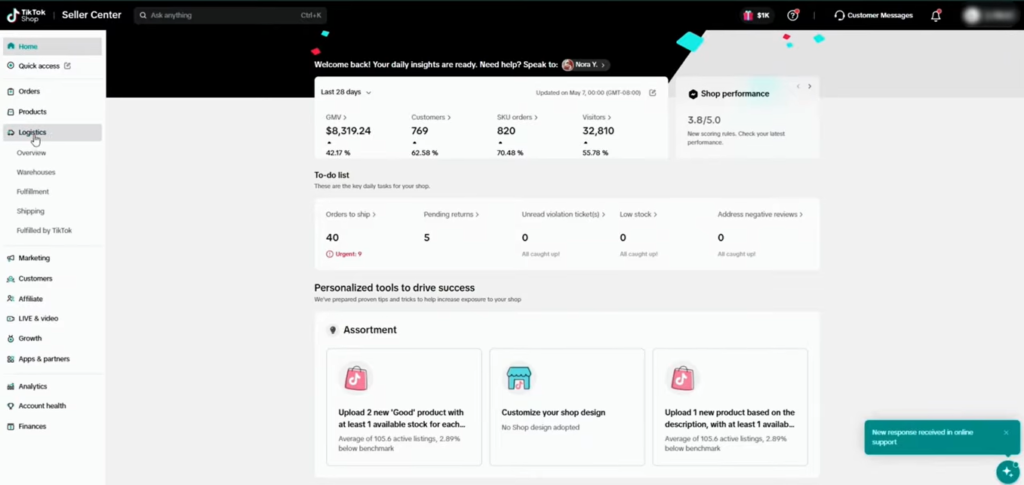
First, open TikTok Shop Seller Center and log in using your main shop administrator credentials.
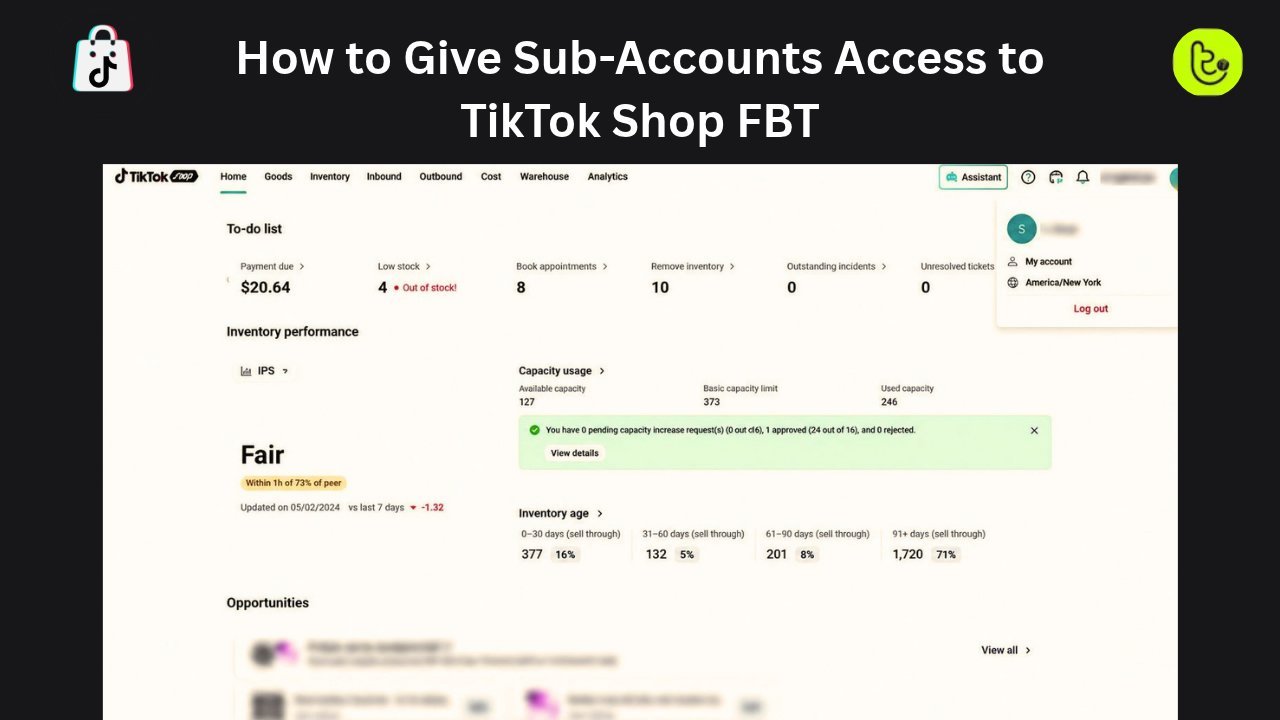
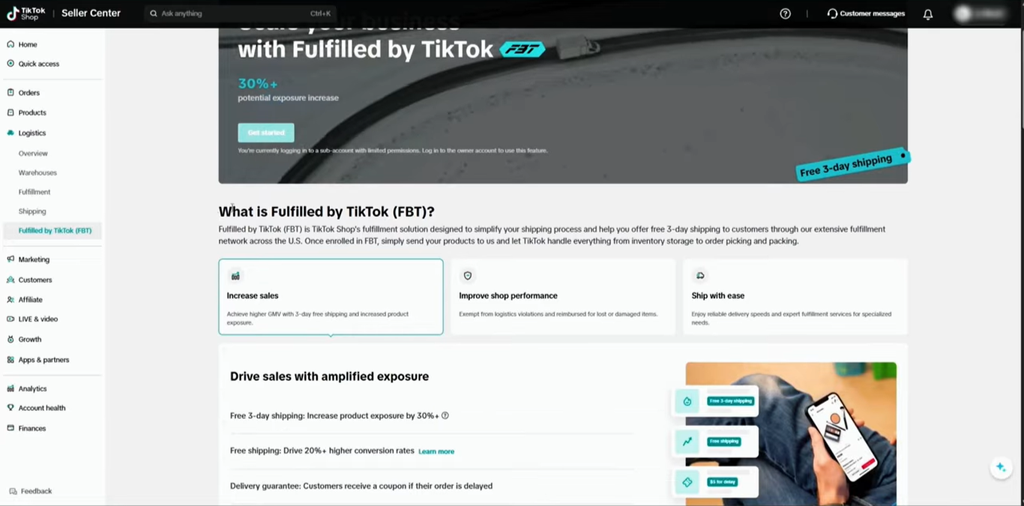
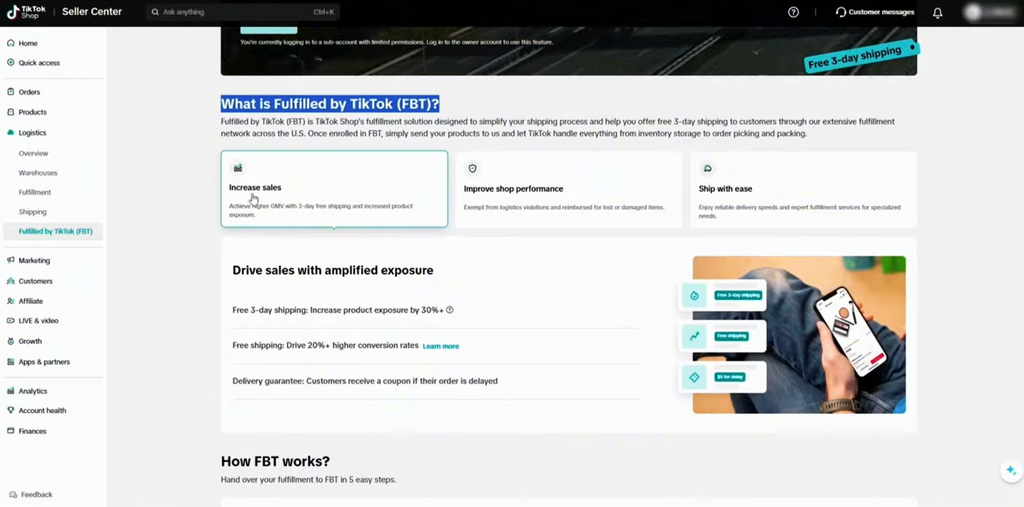
Once logged in, open your shop dashboard. You should be able to see the available Seller Center sections, including the FBT section if your store has access to the program.
Source: Tiksly
The main account is responsible for managing users and controlling their access. If you are currently logged in through a sub-account, switch to the main account before proceeding.
Step 2: Open Account Management
After accessing the main dashboard, navigate to your account settings.
In the interface shown in the video:
- Click My Account.
- Open Account Management.
- Find the section for managing user access or sub-accounts.
TikTok Shop interfaces can differ by marketplace and account version. In the current Seller Center documentation, the corresponding route is generally
My Account → Account Settings → User Management.
Source: Tiksly
This section allows the shop owner to add users, assign roles, and manage their permissions.
Step 3: Add a New Sub-Account
Once you open the user management section, look for the option to add a new sub-account.
Depending on your Seller Center version, this option may appear as Add Sub Account, Add User, or Create New.
Click the relevant option to begin the process.
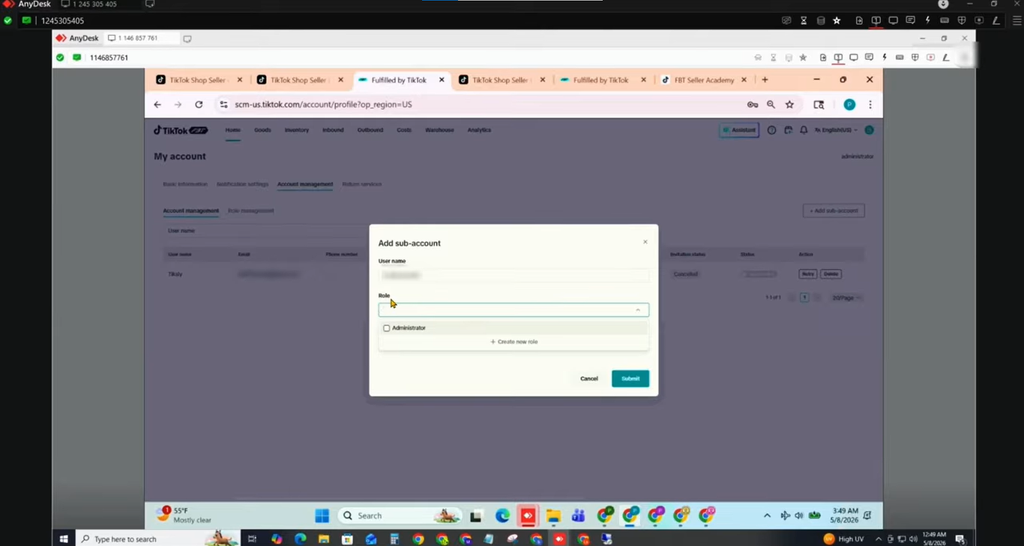
You will need to provide the details of the person who requires access to your TikTok Shop.
Source: Tiksly
Enter the required username or user details. Make sure you use the correct email address because TikTok Shop will send an activation invitation to the new user.
Step 4: Assign the Appropriate Role and Permissions
This is one of the most important steps in the process.
After entering the sub-account details, you need to select the role and permissions that determine which Seller Center sections the new user can access.
In the video, the administrator demonstrates selecting permissions related to inventory, warehouse operations, and other available sections.
Follow these instructions:
- Open the role selection section.
- Review the available default roles.
- Select a suitable role if its permissions cover the required tasks.
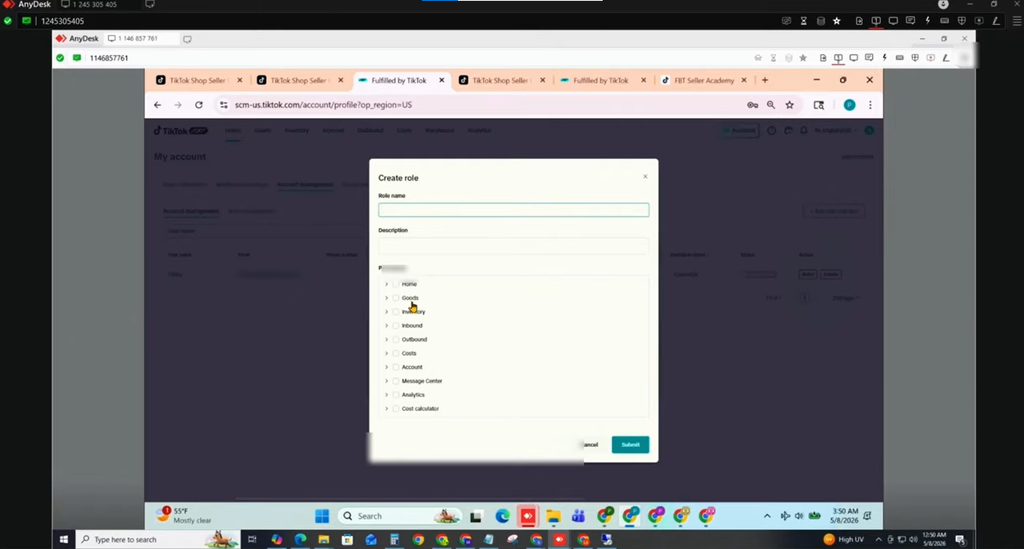
- If the available roles do not provide the necessary access, look for the option to create a custom role.
- Select the relevant permissions for the user’s responsibilities.
- Save the role configuration.
Source: Tiksly
Source: Tiksly
When creating a custom role, enter a descriptive role name and select the permissions relevant to the user’s responsibilities.
For example, if an employee needs to help with FBT inventory and warehouse operations, review the available inventory and warehouse-related permissions.
Important: TikTok Shop permissions and menu options can vary by marketplace. Selecting inventory or warehouse permissions does not automatically guarantee FBT access. Check the available permissions in your own Seller Center and verify the resulting access after activation.
Step 5: Enter the Sub-Account Email Address
After configuring the role, enter the email address associated with the person who needs access.
Before submitting the invitation, check that:
- The email address is correct.
- The user has not already been added to the same store using that email.
- The appropriate role has been selected.
- The required permissions have been configured.
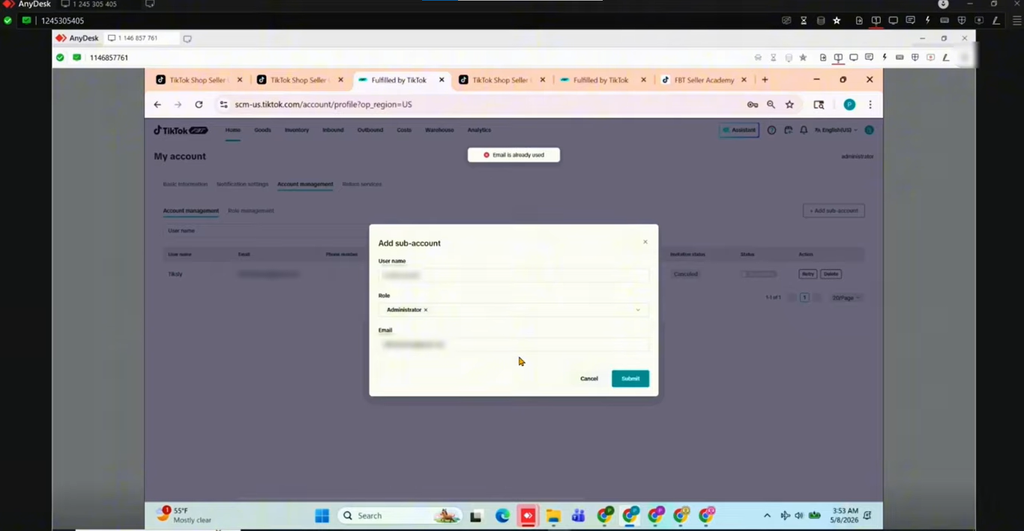
In the video, the first invitation attempt produces an error because the email address has already been used. The administrator then removes the cancelled invitation and repeats the process.
Source: Tiksly
If you receive an email-related error, check whether the address is already associated with an existing user or invitation. Resolve the existing record before trying again.
Step 6: Send the Account Activation Invitation
Once all the details are correct, submit the new sub-account invitation.
TikTok Shop will send an activation email to the address you entered.
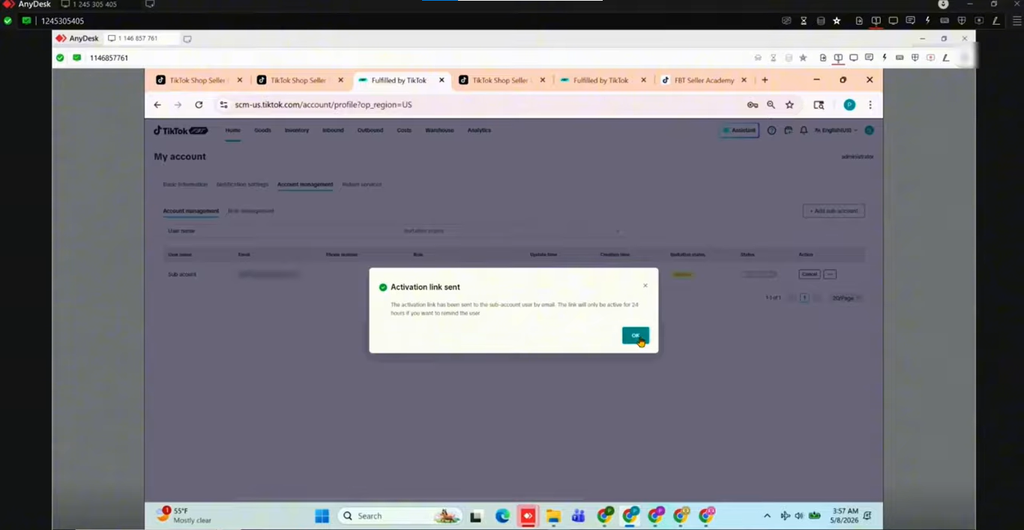
In the video, the Seller Center displays a confirmation message indicating that the activation link has been sent.
Source: Tiksly
Ask the invited user to check their inbox and open the activation link.
TikTok’s Seller Center guidance states that invited users must activate their accounts within 120 hours. If the invitation expires, the main account administrator may need to send a new one.
Step 7: Activate the Sub-Account and Set a Password
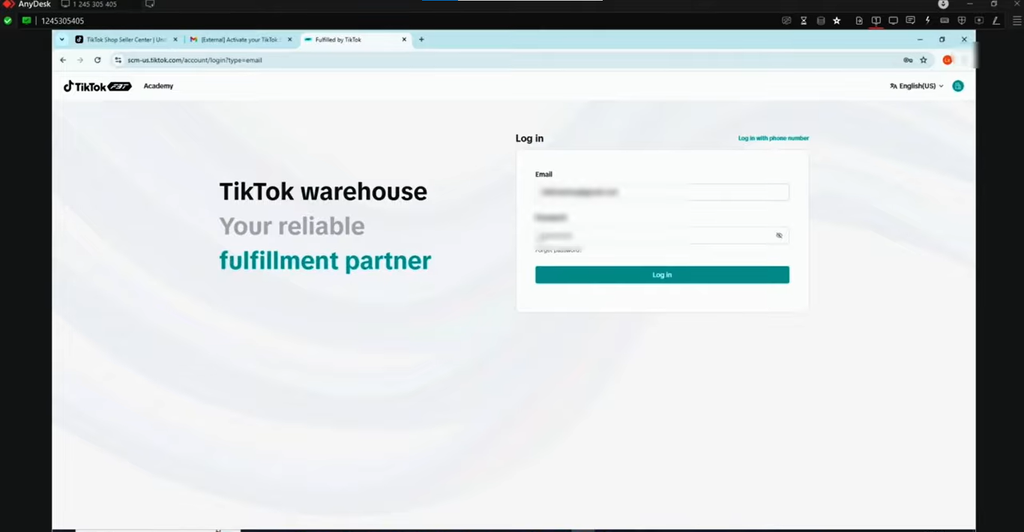
After receiving the invitation, the sub-account user needs to complete the activation process.
They should:
- Open the activation email.
- Click the activation link.
- Follow the on-screen instructions.
- Create a password for the account.
- Complete the activation process.
Source: Tiksly
Once the account has been activated, the user can log in using their assigned credentials.
Step 8: Log In and Verify FBT Access
The final step is to verify that the sub-account can access the relevant FBT sections.
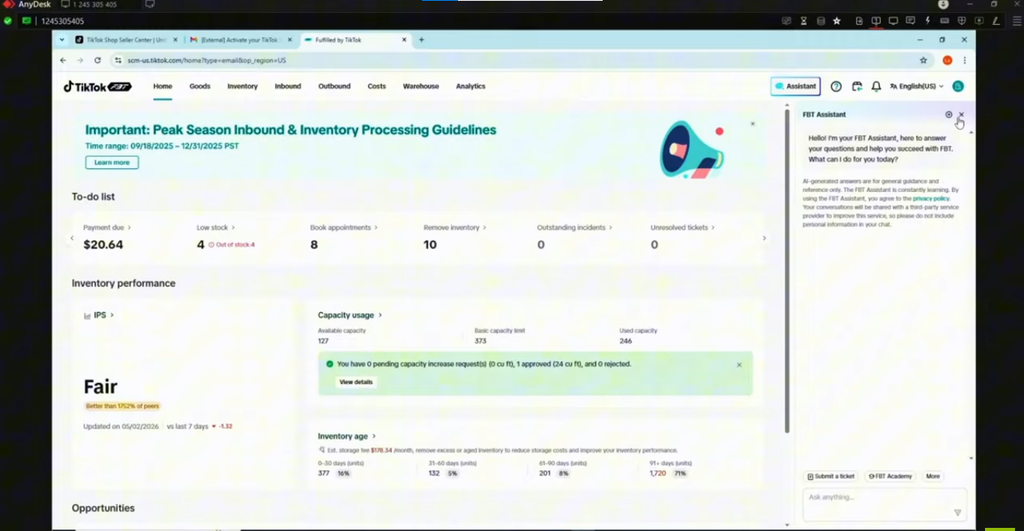
Log out of the main account and sign in using the newly activated sub-account credentials.
Open the Seller Center dashboard and check whether the required FBT sections are visible.
Source: Tiksly
If the required sections are available, the setup has worked.
The sub-account can now perform the tasks allowed by its assigned permissions without requiring the main account credentials.
What Permissions Should You Give a TikTok Shop FBT Sub-Account?
The permissions you assign should depend on the tasks the employee or virtual assistant needs to perform.
For example:
| Team responsibility | Permissions to review |
| Inventory monitoring | Inventory viewing |
| Warehouse operations | Warehouse-related access |
| Inventory updates | Inventory editing, where available |
| Order management | Order viewing and management |
| Fulfillment operations | Relevant shipping and fulfillment permissions |
TikTok Shop separates some permissions into viewing-only and viewing-and-editing access. Its official documentation also explains that sub-accounts receive permissions through assigned roles rather than through individually assigned permissions.
If the default roles do not cover the required responsibilities, the shop owner can create a custom role and assign it to the sub-account.
You can read TikTok’s official Seller Center access management guide for additional information.
What to Do If Your Sub-Account Still Cannot Access FBT
Sometimes, a sub-account can log in successfully but still cannot open the FBT dashboard. If this happens, review the following points before creating another account.
1. Check the Assigned Role
Ask the main account administrator to review the sub-account’s assigned role. Confirm that it includes the permissions required for the FBT-related tasks.
If necessary, update the role or create a custom one.
2. Verify Account Activation
Check whether the user has completed the activation process through the invitation email. An invitation that has not been activated will not provide access to Seller Center.
3. Check for Email Conflicts
If TikTok Shop displays an email-related error, check whether the address is already associated with another user or store invitation. Use an eligible email address that is not already assigned to that store.
4. Review Viewing and Editing Permissions
A user may be able to open a section but cannot make changes because their role only allows viewing.
Ask the administrator to check whether the required permissions include editing access.
5. Confirm FBT Availability for Your Store
Check that your main shop account has access to FBT and that the relevant FBT features are available for your marketplace. Sub-account permissions cannot provide access to a feature that is unavailable to the main shop.
6. Contact TikTok Shop Support
If the main account has access, the sub-account is activated, and the relevant permissions have been assigned, but FBT remains unavailable, contact TikTok Shop Support. Provide the shop details, the sub-account role, and screenshots of the access issue.
How Tiksly Can Help With TikTok Shop FBT Management
Setting up sub-account permissions is one part of managing a TikTok Shop with a team. Sellers also need to monitor inventory, review warehouse activity, track orders, and maintain accurate stock records.
Tiksly helps brands manage these operational responsibilities through its TikTok Shop management services.
Our team can support your shop with:
- Inventory tracking: Monitor stock records and inventory levels to help identify products that need attention.
- Order monitoring: Track outbound orders and review fulfillment activity.
- Warehouse operations: Support routine FBT-related operational tasks and inventory coordination.
- Shop management: Handle daily store activities, product listings, customer support, and operational tasks.
- Performance monitoring: Review shop performance and identify areas that need attention.
If you are managing a growing store, having an organized team and clearly defined account permissions can make daily operations easier to coordinate.
Conclusion
Giving sub-accounts access to TikTok Shop FBT requires the main account administrator to create a user, assign the appropriate role, configure the necessary permissions, and send an activation invitation. Once the user activates the account, they can log in and check whether the required FBT sections are available.
Remember to review the permissions carefully and provide access according to each team member’s responsibilities. If the FBT dashboard remains unavailable, check the account configuration and contact TikTok Shop Support when necessary.
Need help managing your TikTok Shop FBT operations, inventory, or daily store activities? Book a 1:1 consultation with Tiksly experts to discuss your store’s requirements and get guidance on managing your TikTok Shop more effectively.
FAQs
1. How do I give someone access to my TikTok Shop?
Log in to your main TikTok Shop Seller Center account, open Account Settings and User Management, and select Add User or Create New. Enter the person’s email address, assign an appropriate role, and submit the invitation. The new user must activate their account before logging in.
2. Can I give a sub-account access to TikTok Shop FBT?
Yes, you can provide a sub-account with the permissions available for the relevant FBT-related tasks. The main account administrator must assign an appropriate role and configure the required permissions. Availability depends on the shop’s marketplace and Seller Center configuration.
3. Why can’t my TikTok Shop sub-account access FBT?
Your sub-account may not have the required permissions, may not have completed account activation, or may have a role with limited access. Ask the main account administrator to review the assigned role and check whether the FBT-related features are available to the main shop.
4. Can I customize permissions for a TikTok Shop sub-account?
Yes. TikTok Shop allows shop owners to create custom roles and select the permissions associated with them. You can configure these roles according to your team’s responsibilities and assign them to relevant sub-accounts.
5. How do I activate a TikTok Shop sub-account?
Open the invitation email sent by TikTok Shop and click the activation link. Follow the instructions to set a password and complete the account setup. TikTok’s access management guidance specifies a 120-hour activation window for the invitation. If it expires, ask the main account administrator to send another invitation.