 Ayesha Khan
If your TikTok Shop FBT Inventory Performance Score is low or your warehouse is running out of space, you need to review your inventory health and capacity usage. TikTok Shop’s Inventory Performance Score (IPS) helps you identify stock-related issues, while Capacity Management shows how much storage space your store uses and what capacity may be available for future shipments.
This guide explains how to improve your TikTok Shop FBT inventory performance, monitor warehouse capacity, review goods inventory, and submit a capacity increase request through Seller Center. You will also learn how to manage slow-moving stock, resolve stranded inventory, and reduce stockout risks.
What Is TikTok Shop FBT Inventory Performance?
Fulfilled by TikTok (FBT) is TikTok Shop’s fulfillment service. It allows eligible sellers to store their products in TikTok’s fulfillment network, where the platform handles storage, packing, and shipping.
TikTok Shop FBT inventory performance measures how efficiently you manage the products stored in FBT warehouses. The Inventory Performance Score evaluates four key areas: sell-through rate, excess and aged inventory, stranded inventory, and low-stock rate.
These metrics help you understand whether your stock is selling efficiently, occupying unnecessary warehouse space, unavailable for purchase, or at risk of running out.
A stronger inventory position helps you make better replenishment decisions and manage warehouse space more effectively. TikTok Shop also links inventory health with capacity allocation, making IPS an important metric to monitor as your store grows.
How to Check Your TikTok Shop FBT Inventory Performance Score
You can review your IPS directly through the FBT system or Seller Center interface available to your account.
Step 1: Open Inventory Performance Score
Log in to your TikTok Shop seller account and open the FBT system.
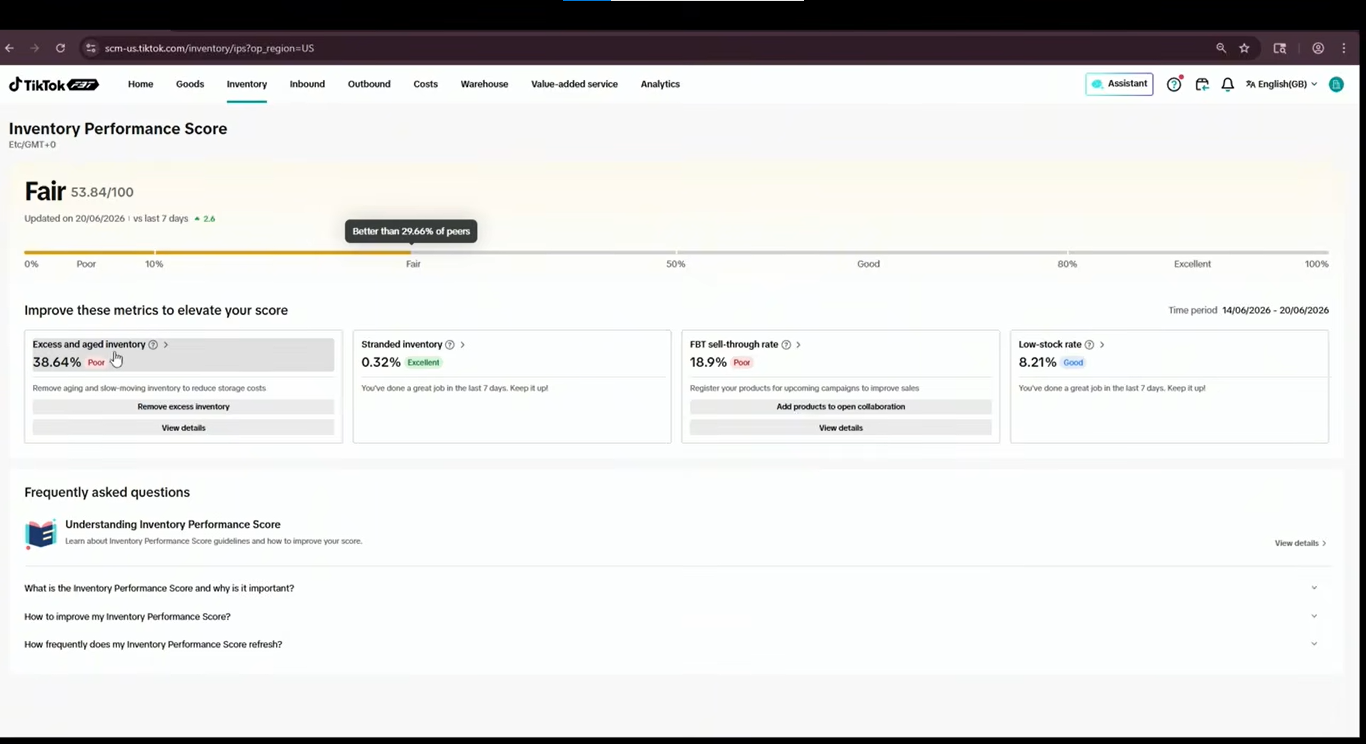
Navigate to Inventory → Inventory Performance Score to view your current score and the detailed metrics behind it.
Step 2: Review Your Current Score
Check your overall rating and identify which metrics need improvement. In the example shown in the video, the score is rated Fair, and the dashboard recommends improving specific inventory metrics.
Source: Tiksly
Your overall rating provides a starting point, but you should also review each metric separately. A low sell-through rate requires a different response from a high low-stock rate.
Step 3: Identify the Metrics Affecting Your Score
TikTok Shop’s US FBT guidance identifies four primary IPS metrics:
| Metric | What It Measures | What You Should Do |
|---|---|---|
| Sell-through rate | How efficiently your inventory sells | Prioritize products with consistent sales and manage replenishment based on demand |
| Excess and aged inventory | The proportion of inventory that is slow-moving or has remained in storage too long | Review slow-selling products and reduce unnecessary stock |
| Stranded inventory | Inventory that is unmatched or defective and unavailable for normal sale | Match goods to the correct SKUs and address defective units |
| Low-stock rate | The proportion of SKUs at risk of running out | Monitor inventory levels and replenish popular products in time |
Review these metrics regularly to identify the actions that can improve your inventory health.
How to Improve TikTok Shop FBT Inventory Performance
Improving your IPS requires you to address the inventory problems identified in your dashboard. Here is how to approach each metric.
1. Improve Your FBT Inventory Sell-Through Rate
Sell-through rate measures how effectively your stored inventory converts into sales. TikTok Shop calculates this metric using FBT units sold during the previous 30 days relative to average FBT inventory units during the same period.
A low sell-through rate may indicate that you are holding too much stock compared with the demand for your products.
To improve your sell-through rate:
- Prioritize proven sellers: Send products with consistent sales performance to FBT rather than allocating excessive space to untested products.
- Review sales data: Identify which products sell regularly and which have declining demand.
- Plan replenishment carefully: Use historical sales and expected demand to determine how much stock to send.
- Use affiliate campaigns: Consider working with relevant affiliates who can introduce your products to potential buyers.
- Review promotional opportunities: Eligible campaigns and advertising may help increase sales of products with excess stock.
For example, if one product sells consistently while another sits in storage for weeks, prioritize restocking the better-performing product. Before sending additional units to the warehouse, review demand for the slower-selling item to avoid unnecessary storage costs. TikTok Shop influencer outreach services can help brands connect with relevant creators to increase product visibility and sales. However, plan influencer campaigns around available inventory to meet increased demand without running out of stock.
2. Reduce Excess and Aged Inventory
Excess and aged inventory occupies storage space that could be used for products with stronger demand. It may also increase your storage costs, depending on the applicable FBT fee rules.
TikTok Shop’s US guidance defines excess inventory using inventory age and turnover conditions. The official criteria include inventory that has been available for more than 90 days and has turnover days exceeding 90 days or has recorded no sales in the previous 30 days.
To reduce excess and aged inventory:
- Review products with low sales and high inventory levels.
- Reduce replenishment for products that are already overstocked.
- Consider eligible promotions or affiliate campaigns to increase sales.
- Evaluate whether slow-moving stock should be returned through the available inventory exit process.
- Cancel unnecessary inbound orders when the platform allows it.
Removing excess inventory can free up capacity for products that sell more consistently. Before taking action, check the current inventory status, return options, and applicable costs in your FBT account.
3. Resolve Stranded Inventory
Stranded inventory refers to units that cannot be sold normally because they are unmatched or defective. These units can occupy warehouse capacity without contributing to sales.
In the video walkthrough, this issue is described in connection with unmatched or defective FBT inventory. The exact labels and available actions may vary depending on your Seller Center interface.
To resolve stranded inventory:
- Open the relevant inventory section in your FBT system.
- Identify goods that are unmatched or marked as defective.
- Check whether each FBT Goods ID is correctly matched to the corresponding product SKU.
- Complete the required matching process for unmatched goods.
- Follow the available return or corrective process for defective inventory.
- Recheck the inventory status after taking action.
TikTok Shop advises sellers to match goods promptly and remove defective inventory through the applicable process. Short-term unmatch and rematch operations are treated differently from inventory left unmatched for an extended period.
Accurate product matching also helps maintain reliable inventory records. Integrating inventory management software with TikTok Shop can help synchronize product data and inventory levels, reducing discrepancies between your warehouse and TikTok Shop.
4. Reduce Your Low-Stock Rate
A low-stock rate measures the proportion of FBT SKUs at risk of running out of stock. A high rate can indicate that popular products need replenishment before the remaining inventory is exhausted.
According to TikTok Shop’s US guidance, a product is considered low stock when its inventory turnover days fall below the threshold calculated from 10 days plus the store’s historical average inbound lead time.
To reduce your low-stock rate:
- Monitor products with strong and consistent sales.
- Review available stock and inbound shipment status.
- Estimate replenishment requirements using sales history.
- Allow sufficient time for shipments to reach the warehouse.
- Prioritize products with a higher risk of stockouts.
- Avoid sending more inventory than your expected demand and available capacity justify.
For example, if an affiliate campaign is generating more orders than usual, review the remaining inventory before expanding the campaign. If replenishment takes time, arrange the next shipment early enough to reduce the risk of running out.
You can also review TikTok Shop’s stock management guidance for information about stock levels, forecasts, and alerts.
How to Check TikTok Shop FBT Warehouse Capacity
TikTok Shop’s Capacity Management feature helps sellers monitor storage allocation and plan incoming inventory. It also provides information about current and upcoming capacity limits.
Step 1: Open Capacity Management
Log in to the FBT system and navigate to Inventory → Capacity Management. Depending on your account interface, you may also find a shortcut on the homepage.
Step 2: Review Your Capacity Usage
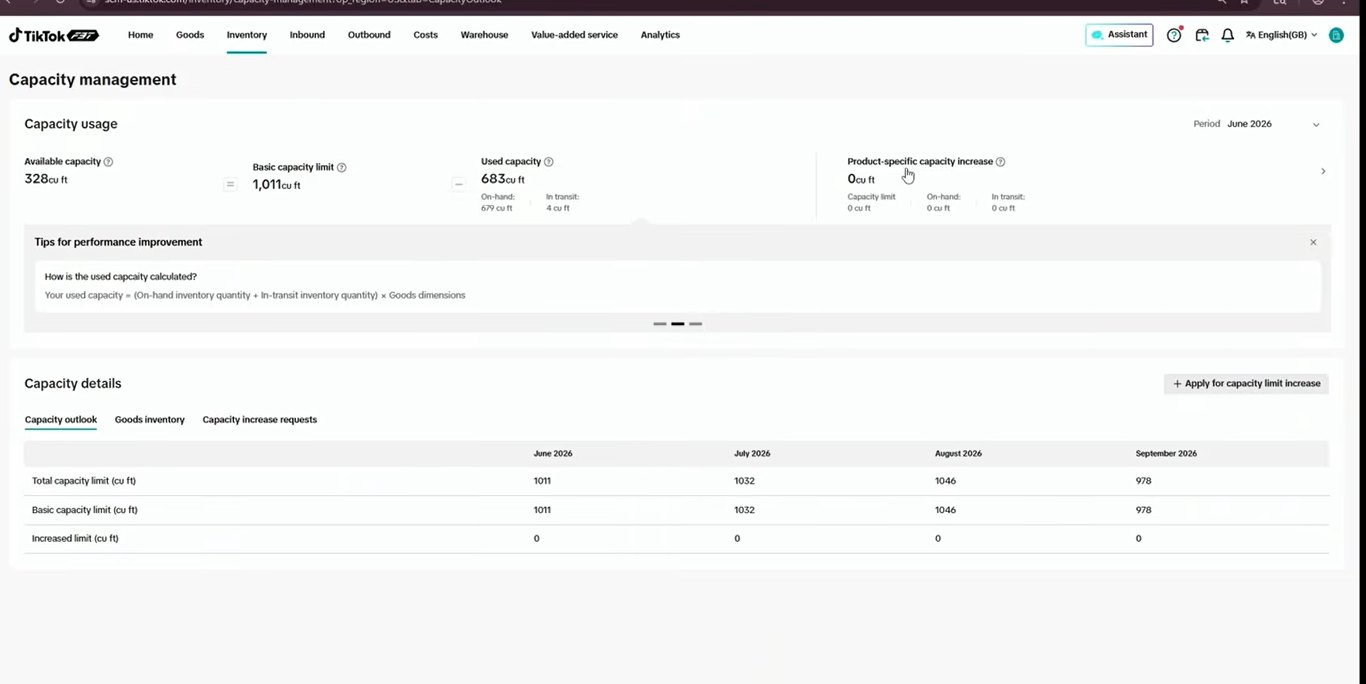
The Capacity Management dashboard provides information about your allocated capacity and the amount currently being used.
Source: Tiksly
Review the following fields:
- Basic capacity limit: The baseline capacity allocated to your store.
- Used capacity: The capacity occupied by warehouse inventory and confirmed inbound shipments in transit.
- Capacity usage: An overview of how much of your allocated capacity is being used.
- Product details: Information about how individual goods contribute to capacity usage.
- Capacity outlook: Available information about current and upcoming capacity limits.
The distinction between used capacity and physical stock on hand is important. TikTok Shop’s US guidance states that both inventory already in the warehouse and confirmed in-transit inbound shipments count toward capacity usage.
This means a warehouse may have limited remaining capacity even when some of your inventory has not arrived yet.
Step 3: Check Your Future Capacity
TikTok Shop’s US Capacity Management guidance provides current-month capacity information and estimates for the following three months.
Use this outlook to plan replenishment and prepare for expected sales increases. Check the available capacity before arranging large shipments or preparing stock for a promotion.
If your capacity is nearly full, review slow-moving inventory and unnecessary inbound orders before requesting additional space.
How to Request a TikTok Shop FBT Capacity Increase
If your existing capacity is insufficient for planned inventory, you can check whether your account allows you to request additional capacity.
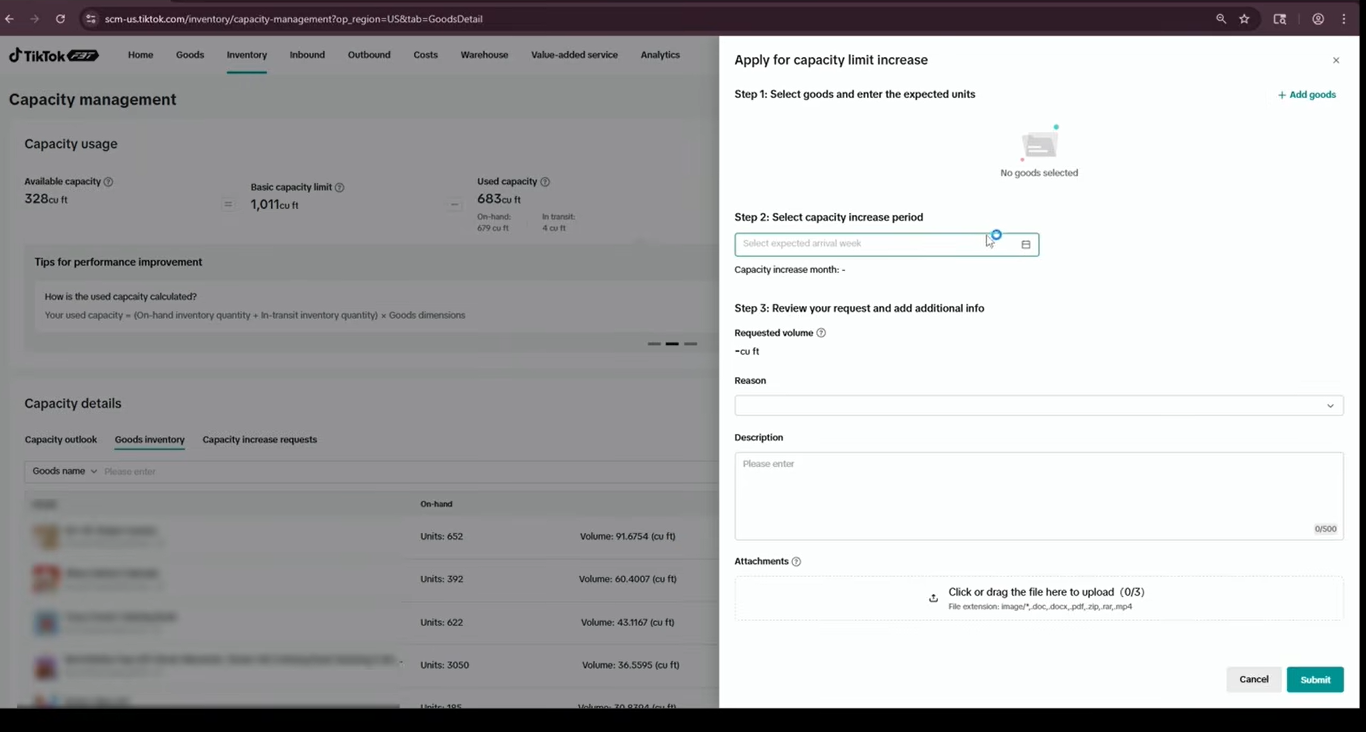
The request process shown in the video involves selecting goods, choosing a requested period, entering the required volume, explaining the reason, attaching supporting documents, and submitting the request.
Approval is subject to TikTok Shop’s review and applicable capacity rules. A request does not guarantee additional storage.
Step 1: Open the Capacity Increase Request Form
Go to Capacity Management and select the option to request additional capacity.
Source: Tiksly
Step 2: Select the Goods
Choose the products for which you need additional capacity. Confirm that the selected goods correspond to your actual inventory and replenishment plans.
If you need more space for several products, review each product’s current stock and expected demand before submitting the request.
Step 3: Select the Capacity Increase Period
Choose the period for which you need additional capacity.
Plan the requested dates around your expected inbound shipments, promotional campaigns, or other business requirements. The available periods and options depend on the form displayed in your account.
Step 4: Enter the Requested Volume
Enter the additional capacity you need for the selected goods. Base your estimate on expected sales, current inventory, inbound shipments, and the amount of stock you plan to send.
Requesting a realistic volume supported by your inventory plan makes it easier to explain your requirements.
Step 5: Select a Request Reason
The video shows several reasons that may be available in the request form, including:
- New product plans
- Upcoming campaigns
- Lead-time extensions
- Increased affiliate activity
- Other reasons
Choose the reason that best describes your situation. Your account may display different options.
Step 6: Add a Description and Supporting Documents
Explain why you need additional capacity and how the requested volume supports your inventory plan.
Where the form allows or requires supporting documents, attach relevant evidence, such as sales reports, demand forecasts, or campaign plans.
For example, if you expect demand to increase during a planned promotion, explain the expected inventory requirement and provide relevant supporting information.
Make sure the description, requested volume, and attachments are consistent with each other.
Step 7: Review and Submit Your Request
Before submitting, confirm that:
- The correct goods are selected.
- The requested period is accurate.
- The volume reflects your inventory requirements.
- The request reason is appropriate.
- The description explains why additional capacity is necessary.
- Required supporting documents are attached.
Submit the request once everything is correct.
How to Check Your FBT Goods Inventory
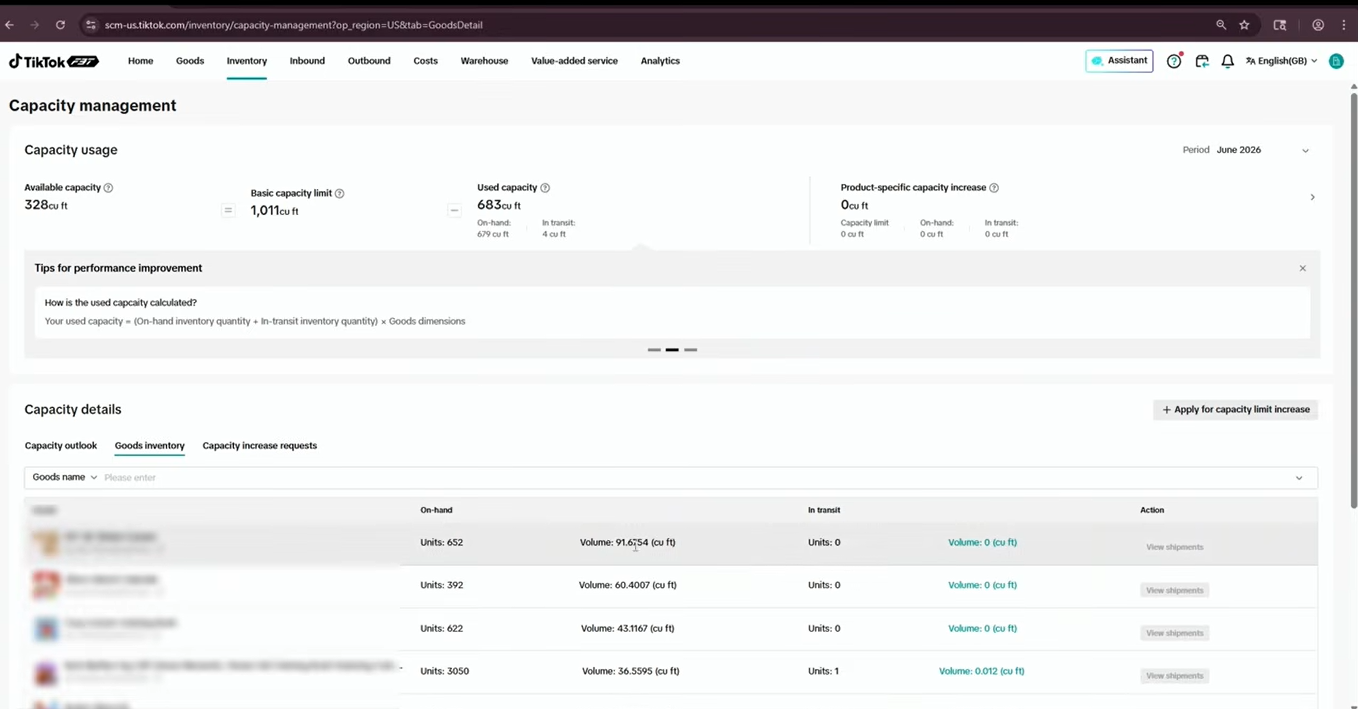
The Goods Inventory section helps you review individual products and understand how they use your allocated capacity.
Source: Tiksly
Depending on your account interface, the table may display the following information:
- Goods name: The product or goods entry associated with the inventory.
- Units on hand: The quantity currently recorded in warehouse inventory.
- Volume: The storage volume associated with the goods.
- In-transit inventory: Inventory associated with incoming shipments.
- Capacity used: The capacity attributed to the goods.
Review these figures before planning additional shipments. They can help you identify products that occupy significant storage space and determine whether your replenishment plans are realistic.
For example, if a slow-selling product occupies a large portion of your allocated capacity, consider reducing future replenishment or reviewing the available inventory exit options.
At the same time, avoid removing stock solely because it occupies space. Consider sales demand, expected replenishment lead times, and the potential consequences of running out of a product.
How to Track a Capacity Increase Request
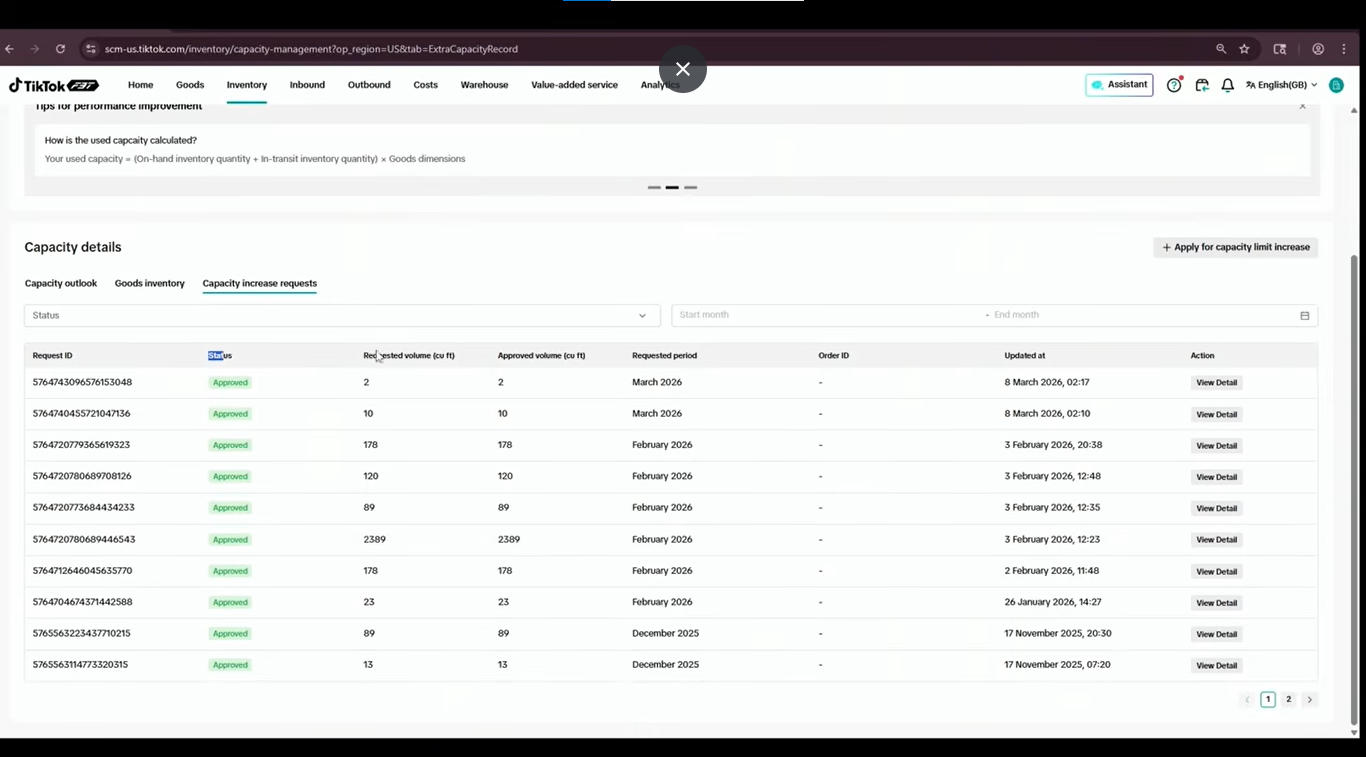
After submitting your request, return to the Capacity Increase Request section to review its status.
Source: Tiksly
The request history shown in the video includes fields such as:
- Request ID
- Request status
- Requested volume
- Approved volume
- Requested period
- Last updated date
In the video example, the request status is Approved, and the approved volume is displayed alongside the requested amount.
Check your own account to confirm the current status and approved volume. If your request is pending, monitor it for updates. If it is rejected or the approved amount is lower than requested, review any explanation available and reassess your inventory requirements.
Do not plan shipments on the assumption that additional capacity has been approved until you have confirmed the allocation in your account.
How to Manage FBT Capacity More Effectively
Checking your capacity dashboard is only one part of inventory management. You also need a process for deciding what to replenish, what to remove, and when to send stock.
Use these practices to manage your inventory more efficiently.
Review Capacity Before Creating Inbound Orders
Check your available capacity before arranging a new shipment. Remember that confirmed inbound inventory can count toward capacity usage before it reaches the warehouse.
If your capacity is limited, review the shipment schedule and determine whether an existing inbound order is still necessary.
Remove Unnecessary Inventory and Inbound Orders
Slow-moving stock and unnecessary inbound orders can consume capacity that you need for other products.
Review the available inventory exit options and cancel eligible inbound orders that you no longer need. Check the relevant policies and order status before taking action.
Plan Stock Around Expected Demand
Use sales history, campaign schedules, and replenishment lead times to determine how much inventory you need.
Avoid overstocking products based on temporary demand spikes. At the same time, ensure that your best-selling products have enough stock to support expected sales.
Monitor IPS and Capacity Regularly
TikTok Shop’s US guidance states that capacity is updated monthly, on the fifth, while IPS is updated weekly. Sellers should check the current dashboard for their latest score, allocation, and capacity outlook.
The official guidance also describes an additional capacity incentive for eligible sellers whose IPS rating is Excellent and whose sales have grown by more than 50% week over week. The stated conditions and allocation dates apply to the US program and may change, so check the latest platform guidance before relying on an incentive.
For the complete rules, refer to TikTok Shop’s official FBT Capacity Management guide.
Conclusion
Improving TikTok Shop FBT inventory performance starts with understanding your IPS metrics and addressing issues such as slow sell-through, excess or aged inventory, stranded stock, and low inventory levels.
Review your Capacity Management dashboard before shipping new inventory. Monitor available capacity and in-transit stock, remove unnecessary inventory, and request additional capacity when needed.
Tiksly can help you manage your store operations and inventory processes. Book a free 1:1 consultation with Tiksly experts to discuss your store’s needs and growth goals.
FAQs
1. How do I improve my TikTok Shop FBT Inventory Performance Score?
Review your Inventory Performance Score in Seller Center and address the metrics that need improvement. Focus on increasing sell-through rates, reducing excess and aged inventory, resolving stranded inventory, and replenishing products at risk of running out.
2. What is a good Inventory Performance Score on TikTok Shop?
TikTok Shop uses performance ratings to help sellers assess inventory health. Aim for an Excellent rating by improving your inventory metrics and following the recommendations in your Seller Center dashboard. Check the current FBT guidance for any capacity incentives linked to your rating.
3. How do I request more warehouse capacity on TikTok Shop FBT?
Open Capacity Management in Seller Center and select the capacity increase request option, if available. Choose the relevant goods, enter the requested volume and period, select a reason, provide a description, and attach supporting documents when required. Submit the request and monitor its status.
4. Why is my TikTok Shop FBT inventory unavailable for purchase?
Inventory may be unavailable because it is unmatched, defective, or affected by another inventory issue. Check the inventory status in Seller Center, confirm that goods are linked to the correct product SKUs, and follow the corrective actions provided by TikTok Shop.
5. How can I reduce excess inventory in TikTok Shop FBT warehouses?
Review your sales history to identify slow-moving products, reduce unnecessary replenishment, and consider eligible promotions to increase sales. Where appropriate, use the available inventory removal options to free up warehouse capacity for products with stronger demand.