 Ayesha Khan
Managing your TikTok Shop FBT warehouse and cost billing helps you monitor warehouse information, track fulfilment expenses, and review outstanding bills. TikTok Shop’s Fulfilled by TikTok (FBT) service handles eligible order fulfilment through its warehouse network, while the seller dashboard provides access to relevant warehouse and billing information.
In this guide, you will learn how to manage the TikTok Shop FBT warehouse, navigate the Cost Center, review monthly and daily bills, understand fee breakdowns, and monitor billing records.
What Is TikTok Shop FBT Warehouse Management?
Fulfilled by TikTok (FBT) is a fulfilment service that allows eligible sellers to store inventory in TikTok’s fulfilment network. TikTok handles designated fulfilment activities, including picking, packing, and shipping customer orders, according to the service terms.
FBT warehouse management involves reviewing available warehouse information and monitoring the costs associated with storing and fulfilling products. Sellers can use the relevant dashboard sections to review warehouse details, check fees, and examine billing records.
Effective FBT management helps sellers understand their fulfilment expenses and identify billing discrepancies that may require further investigation.
How to Manage Your TikTok Shop FBT Warehouse
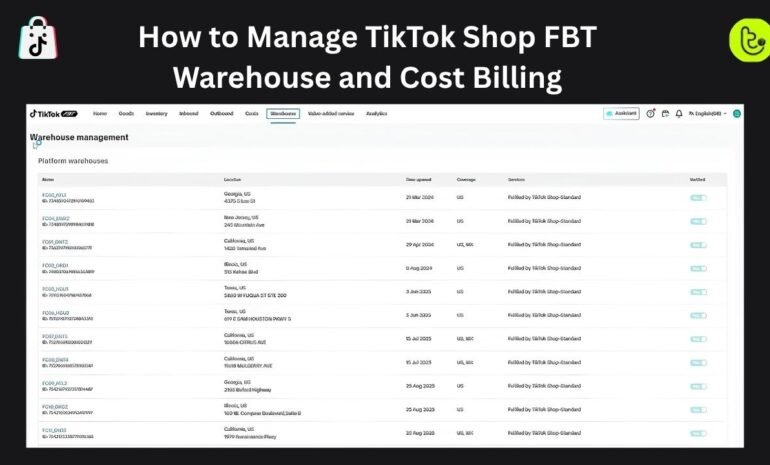
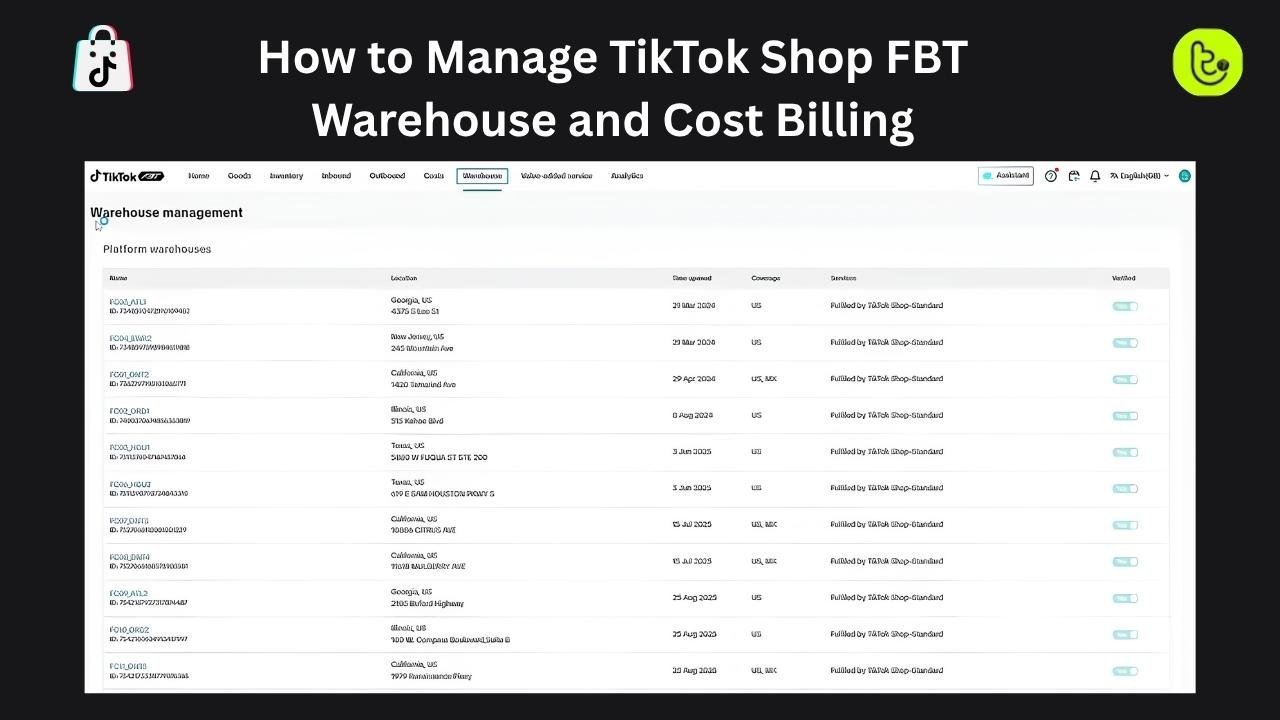
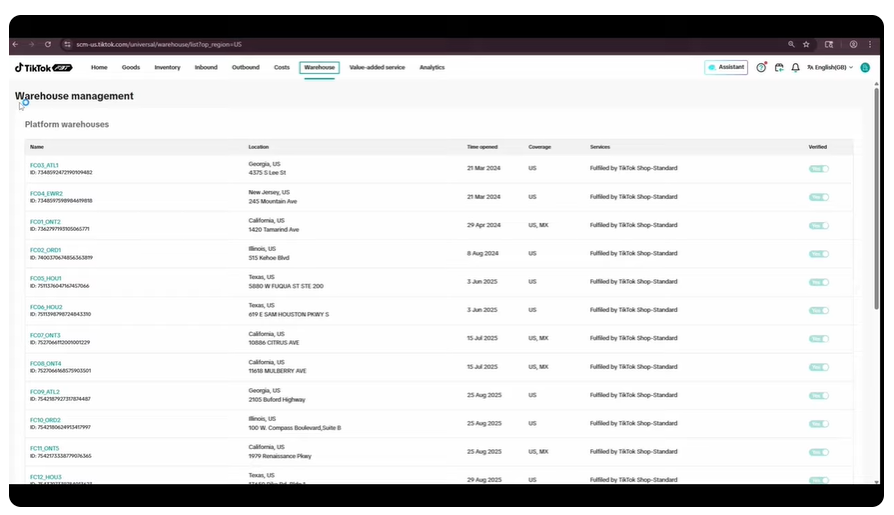
The Warehouse section of the TikTok Shop FBT dashboard displays information about available warehouse locations and services. As demonstrated in the video, sellers can review warehouse names, locations, opening hours, coverage, and other available details.
Step 1: Open the Warehouse Section
Log in to your TikTok Shop Seller Center and access the FBT dashboard. Navigate to the Warehouse section to view the warehouse information available to your account.
Source: Tiksly
Alt text: TikTok Shop FBT warehouse management dashboard showing warehouse locations and service information.
Step 2: Review Warehouse Locations and Services
Examine the information displayed for each warehouse. The available details can help you understand which facilities and services are listed in your FBT dashboard.
Pay attention to the following fields:
- Warehouse name: Identifies the warehouse listed in the dashboard.
- Warehouse location: Shows the location information available for the facility.
- Opening hours: Displays the operating hours where provided.
- Service coverage: Shows the coverage information available for the warehouse.
- Available services: Identifies the services displayed for that location.
Use these details to understand the warehouse information available to your account. Warehouse availability and service coverage may depend on your marketplace, account eligibility, and the services offered by TikTok Shop.
How to Check TikTok Shop FBT Costs in the Cost Center
The Cost Center is an important section for reviewing FBT billing information. In the video walkthrough, this section displays the account overview, payable amounts, outstanding balances, monthly bill records, and a graph showing fee information.
Reviewing these figures regularly helps you keep track of fulfilment expenses and investigate unexpected charges.
Step 1: Open the Cost Center
Navigate to the Cost Center from your TikTok Shop FBT dashboard. Start with the account overview to review the billing information displayed for your account.
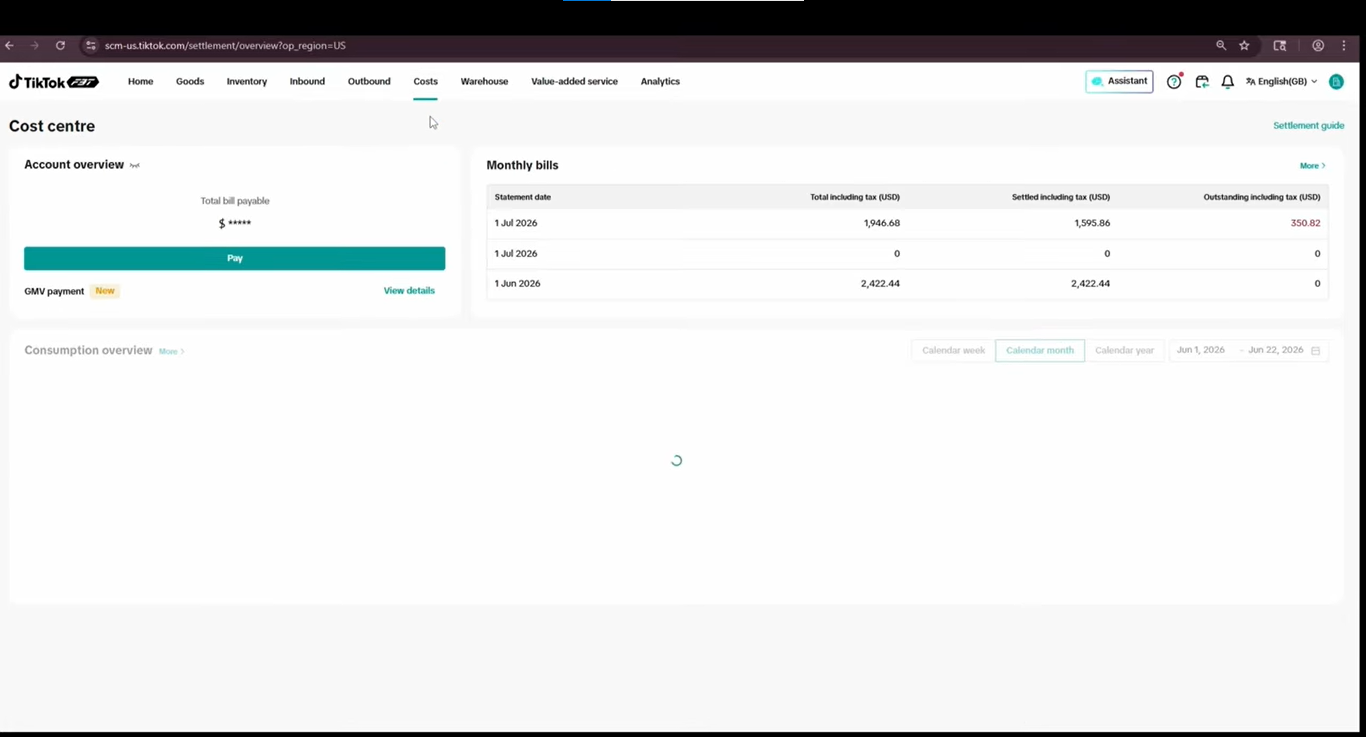
Source: Tiksly
Alt text: TikTok Shop FBT Cost Center showing payable amounts, outstanding balances, and monthly billing records.
Step 2: Review Payable and Outstanding Amounts
The account overview can help you understand your current billing position. Depending on the information available in your dashboard, you may see:
- Total bill payable
- Tax-inclusive amounts
- Outstanding balances
- Monthly billing records
- Fee summaries
Check the billing period associated with each amount before comparing figures. Also, distinguish between charges that have been settled and those that remain outstanding.
If you identify an unexpected amount, open the detailed billing records to investigate the relevant charges.
Step 3: Examine the FBT Fee Graph
The video also demonstrates a fee graph with weekly and monthly views. This can help you review billing activity over different periods.
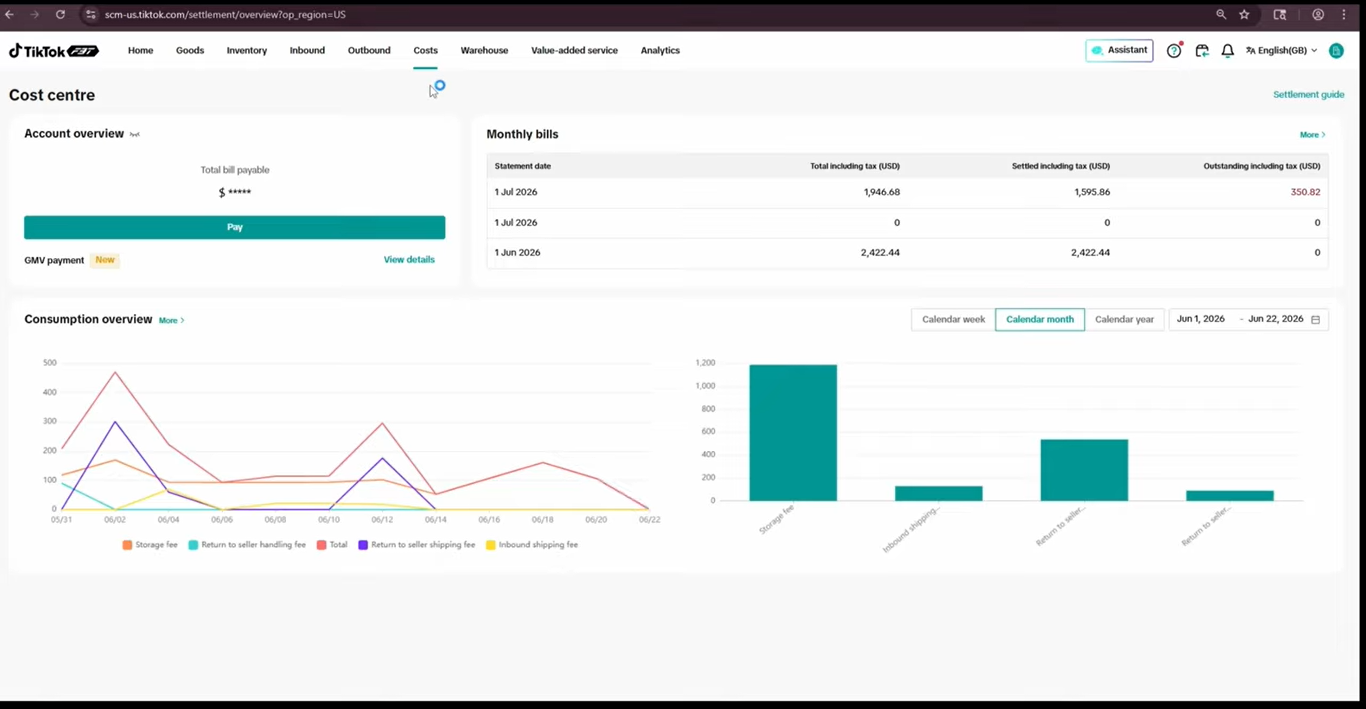
Source: Tiksly
Alt text: TikTok Shop FBT fee graph displaying billing activity and available storage and shipping fee categories.
The walkthrough refers to several fee categories, including:
- Storage fees: Charges associated with storing inventory under the applicable FBT pricing rules.
- Inbound shipping fees: Charges associated with moving inventory into the fulfilment network, where applicable.
- Return-to-seller fees: Charges associated with returning inventory to the seller, depending on the applicable service and fee rules.
The exact charges depend on the service used and the applicable rate card. For current US FBT pricing, refer to the official TikTok Shop FBT Rate Card and Frequently Asked Questions.
Reviewing these categories separately can help you understand the components of your fulfilment expenses.
How to Use the TikTok Shop FBT Billing Center
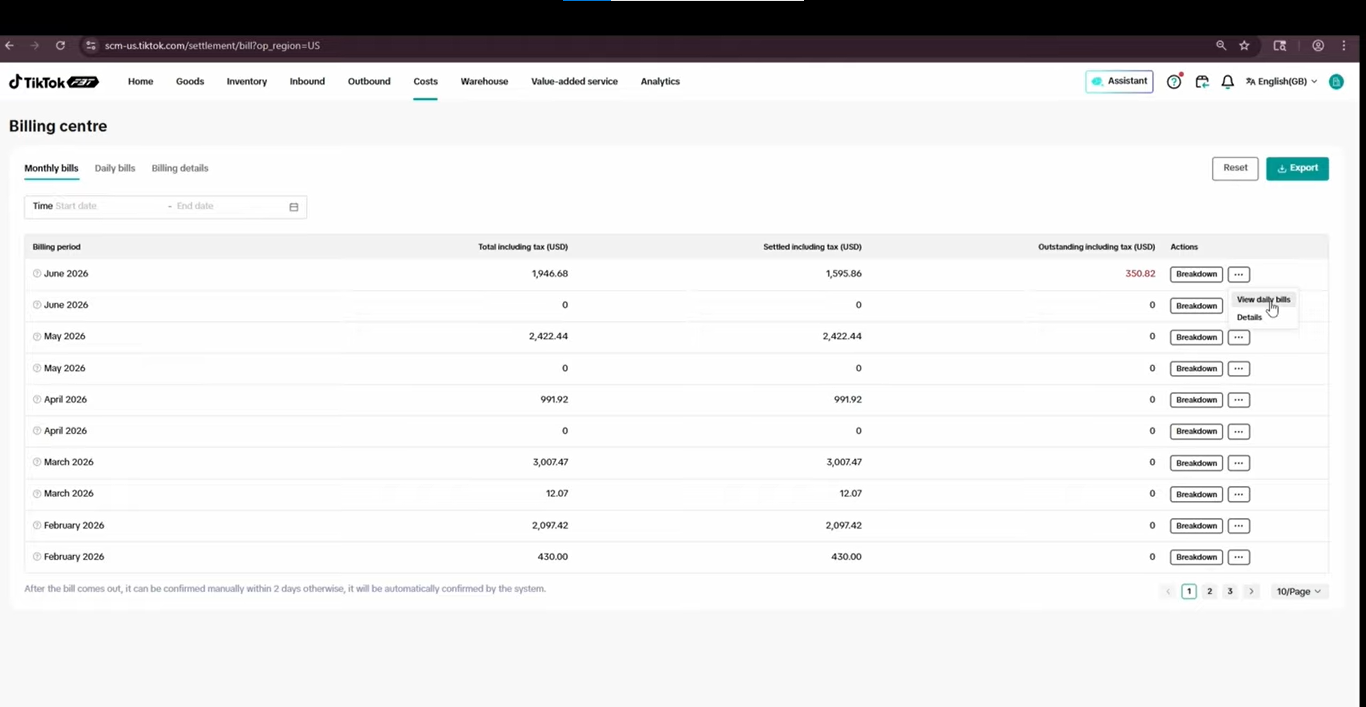
The Billing Center provides access to billing information at different levels of detail. In the video, the seller demonstrates monthly bills, daily bills, billing details, and options for selecting a billing period.
These views can help you examine billing activity and investigate charges within a specific reporting window.
Step 1: Open the Billing Center
Navigate to the Billing Center in your TikTok Shop FBT dashboard. Review the available options for viewing monthly bills, daily bills, and detailed billing information.
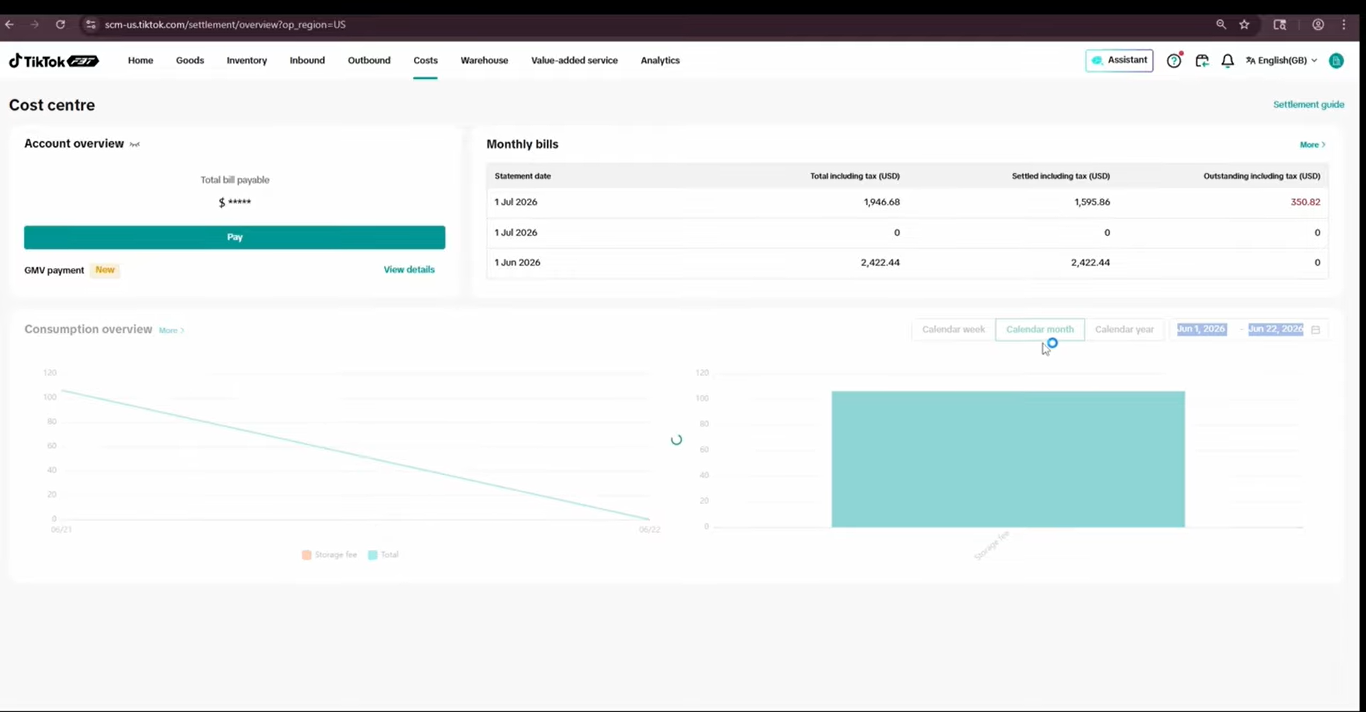
Source: Tiksly
Alt text: TikTok Shop FBT Billing Center displaying monthly bills, daily billing records, and billing period filters.
The available options may vary depending on your account and the current interface. Use the labels displayed in your own dashboard when following these steps.
Step 2: Select the Billing Period
Choose the relevant billing period using the available filters. Check the figures shown for that period, including the total amount, tax-inclusive figures, settled amounts, and outstanding balance where available.
Selecting the correct period is important when reviewing fulfilment expenses. Comparing different billing periods without accounting for their dates can lead to inaccurate conclusions.
Step 3: Review Monthly Bill Details
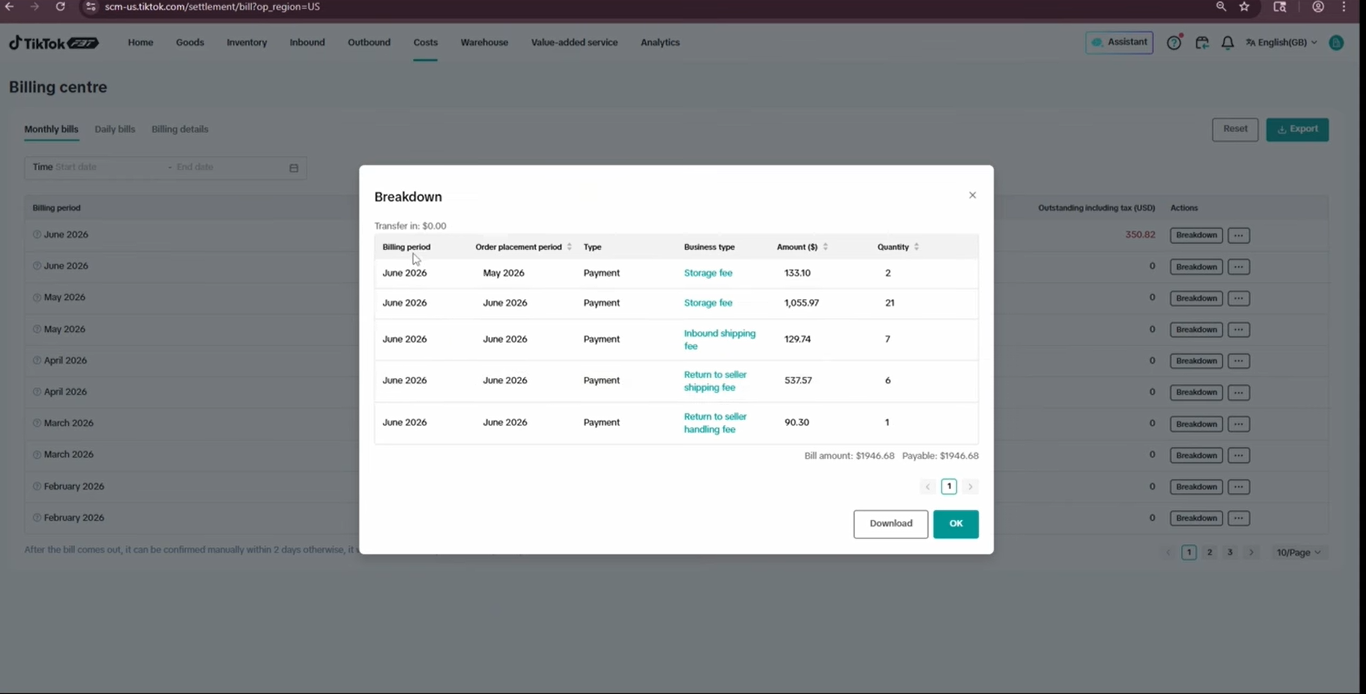
Open the monthly bill you want to examine. The video uses June 2026 as an example and demonstrates how to view the billing information and related fee breakdown.
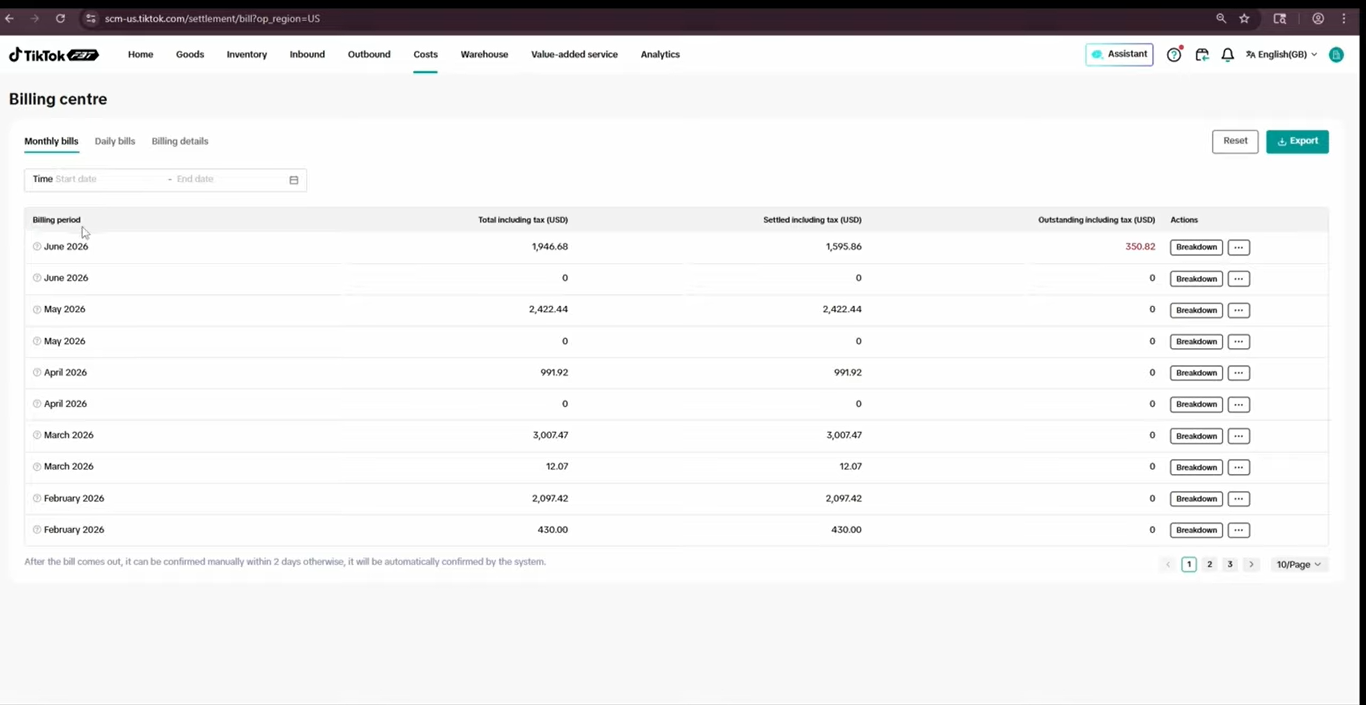
Source: Tiksly
Alt text: TikTok Shop FBT monthly billing details showing tax-inclusive amounts, outstanding balances, and fulfilment fee categories.
Depending on the billing record, the breakdown may include storage, inbound shipping, return-to-seller charges, and applicable taxes. Check the labels in the actual record rather than assuming every bill contains the same categories.
Review the individual charges to understand how they contribute to the total. If an amount appears incorrect, retain the relevant billing details so you can investigate it further.
How to Check TikTok Shop FBT Daily Bills
Monthly billing summaries provide an overview of charges over a broader period. Daily billing records can help you investigate individual entries and understand the details behind a particular charge.
Step 1: Open the Daily Bills View
Navigate to the daily bills section of the Billing Center. Select the relevant date or period and open the available billing details.
Use the date filters carefully so you examine the correct transaction period.
Step 2: Review Transaction and Tax Information
The video demonstrates a daily billing view containing transaction-related information, document details, business type, and tax information.
Source: Tiksly
Alt text: TikTok Shop FBT daily billing records showing transaction information, document details, and taxes.
Use these records to investigate individual charges and compare them with the corresponding monthly summary. If the figures differ, check whether you are comparing the same billing period, transaction type, and fee category.
For additional guidance on understanding TikTok Shop financial records, see the platform’s official guide to accessing settlement reports.
Best Practices for Managing TikTok Shop FBT Warehouse and Billing
A consistent review process can help you keep warehouse information and fulfilment expenses organised.
Review Warehouse Information Regularly
Check the warehouse details available in your dashboard when planning inventory movements or reviewing your fulfilment arrangements. Confirm the relevant service coverage and operational requirements before sending inventory.
Monitor Your FBT Expenses
Review the Cost Center regularly to understand your payable amounts and outstanding balances. Examine individual fee categories when you notice changes in your fulfilment expenses.
Compare Monthly and Daily Billing Records
Use monthly summaries to review overall billing activity and daily records to investigate individual charges. Comparing the two views can help you identify entries that need further attention.
Check the Applicable FBT Rate Card
FBT fees and pricing rules can change. Review the official rate card for your marketplace and the relevant effective date before making cost calculations or operational decisions.
Keep Billing Records for Reconciliation
Retain relevant statements and transaction details for your accounting records. When investigating a discrepancy, record the billing period, the amount in question, and the relevant transaction details.
How Tiksly Can Help You Manage TikTok Shop FBT Operations
Managing a TikTok Shop requires attention to fulfilment, inventory, billing, account health, and day-to-day store operations. Tiksly helps sellers manage their TikTok Shop operations through services designed to support different business needs.
Depending on your requirements, Tiksly can help with the following services.
TikTok Shop Management
Tiksly’s TikTok Shop management service can support your store operations, helping you organise essential tasks and maintain a more consistent management process.
TikTok Shop Virtual Assistant
A virtual assistant can help with routine operational tasks and ongoing store administration. This can give sellers additional support with day-to-day activities while they focus on their wider business priorities.
TikTok Shop Account Setup
If you are preparing to launch a TikTok Shop, Tiksly offers account creation support to help you work through the relevant setup requirements.
Conclusion
Managing your TikTok Shop FBT warehouse and cost billing starts with knowing where to find warehouse information, review fulfilment charges, and inspect monthly and daily billing records. By regularly checking the Cost Center, comparing billing details, and referring to the applicable FBT rate card, you can better understand your fulfilment expenses and investigate discrepancies.
If you need support with TikTok Shop account setup, store management, or ongoing operational tasks, book a free 1:1 consultation with Tiksly experts to discuss your requirements and explore the services available for your business.
FAQs
1. What is TikTok Shop FBT?
TikTok Shop FBT stands for Fulfilled by TikTok. It is a fulfilment service through which eligible sellers can store inventory in TikTok’s fulfilment network and use the service to handle activities such as picking, packing, and shipping customer orders.
2. How do I manage my TikTok Shop FBT warehouse?
Open the Warehouse section in your TikTok Shop FBT dashboard. Review the warehouse information displayed, including location, opening hours, service coverage, and available services. The information shown may vary by account and marketplace.
3. Where can I check TikTok Shop FBT fees?
Open the Cost Center in your FBT dashboard to review the available billing overview and fee information. You can also consult the Billing Center for more detailed monthly and daily billing records.
4. How do I check outstanding TikTok Shop FBT bills?
Open the Cost Center or Billing Center and review the outstanding balance shown for the relevant billing period. Check the detailed billing records to understand which charges contribute to the amount.
5. What fees are associated with TikTok Shop FBT?
Depending on the service, marketplace, and applicable rate card, FBT charges may include fulfilment, storage, inbound-related, return-related, and other applicable service fees. Consult the official rate card for the current charges that apply to your account.
6. Can I view TikTok Shop FBT bills by day or month?
The video walkthrough demonstrates both daily and monthly billing views. Use the available options in your account to select a period and review the associated billing information.
7. How can I investigate an unexpected FBT charge?
Open the relevant billing record and review the individual charge, billing period, and available transaction details. Compare the entry with the corresponding summary and consult TikTok Shop support if the discrepancy remains unresolved.
8. How can I manage TikTok Shop FBT costs more effectively?
Review billing records regularly, monitor individual fee categories, compare daily and monthly totals, and check the applicable rate card. Keeping accurate records can help you understand fulfilment expenses and identify charges that need investigation.
9. Can Tiksly help me manage my TikTok Shop?
Yes. Tiksly offers TikTok Shop management, virtual assistant, and account creation services. You can discuss your store’s operational needs with Tiksly experts through a one-to-one consultation.