 Ayesha Khan
TikTok Shop FBT inventory health issues can leave products unavailable, increase excess stock, and make it harder to keep popular items in stock. The Inventory Health dashboard helps sellers identify problems such as out-of-stock products, low stock, excess inventory, and stranded or unmatched products.
To fix these issues, start by reviewing the inventory metrics in Seller Center, identify the affected SKUs, and take the appropriate action for each problem. In this guide, Tiksly explains how to check TikTok Shop FBT inventory health, resolve common inventory issues, and use stock data to plan future replenishment.
What Is TikTok Shop FBT Inventory Health?
Fulfilled by TikTok (FBT) is TikTok Shop’s fulfillment service. Sellers send eligible products to TikTok’s fulfillment network, where TikTok handles storage, packing, and shipping.
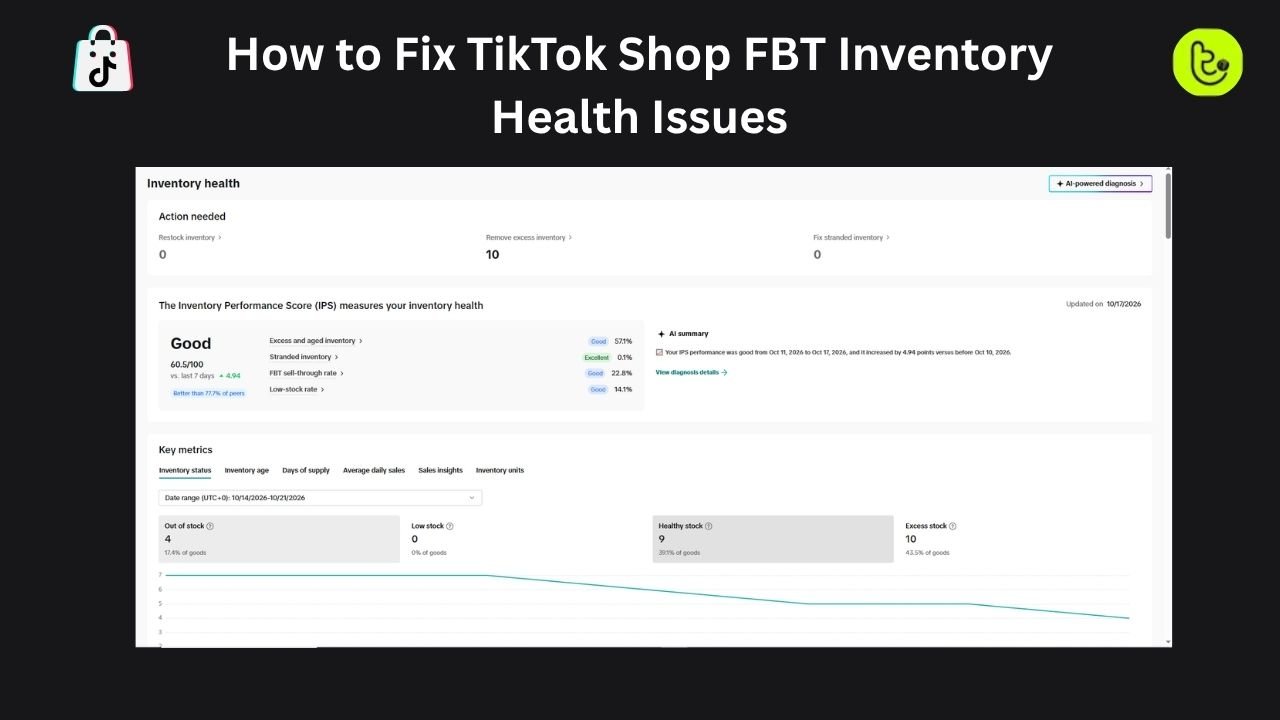
Inventory Health gives sellers an overview of stock conditions that may require attention. Depending on the dashboard, you can review the following metrics:
- Out-of-stock inventory: Products with no available inventory.
- Low-stock inventory: Products approaching a stock threshold that may require replenishment.
- Healthy-stock inventory: Products with sufficient stock according to the dashboard’s criteria.
- Excess inventory: Products flagged as having more stock than needed.
- Stranded inventory: Inventory that cannot be purchased or sold as expected because of a listing or another issue.
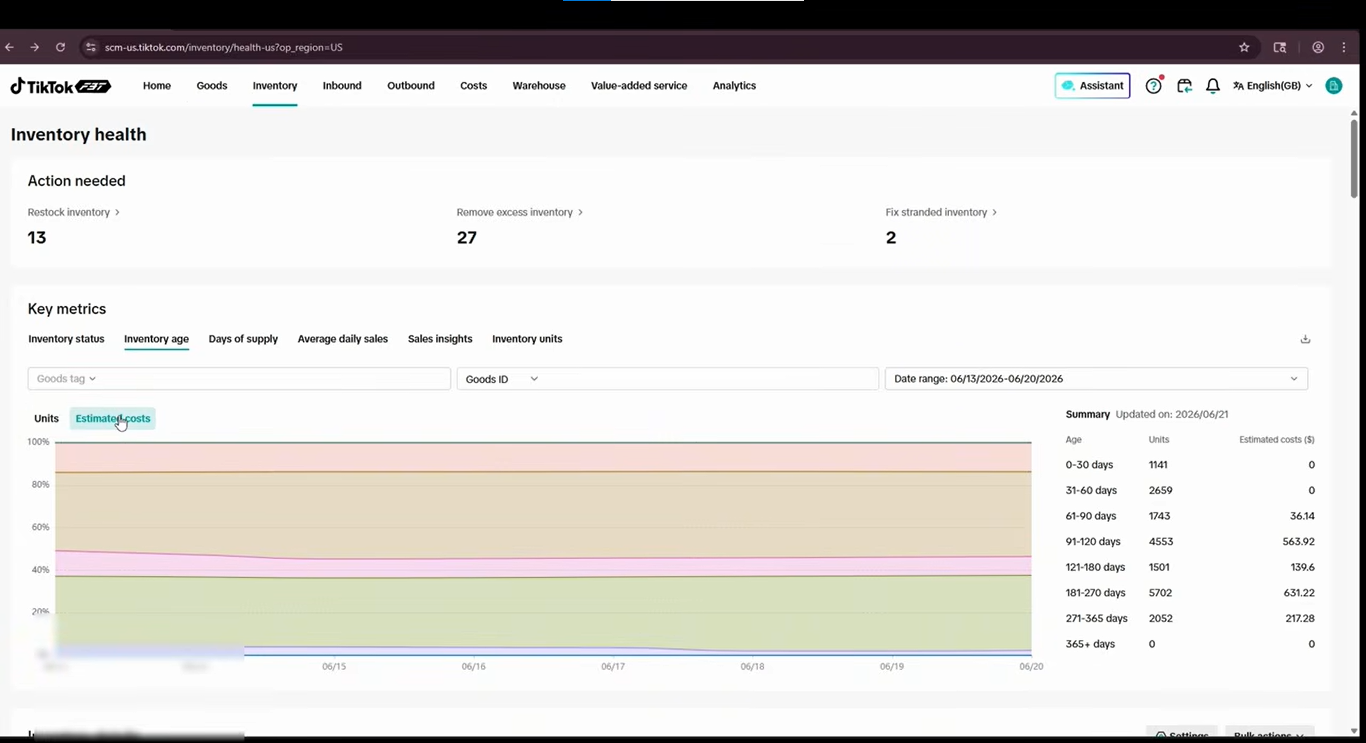
- Inventory age: Information about how long inventory has been held.
- Days of supply: An estimate of how long available inventory may last at the current sales rate.
These metrics help you identify which products need attention. The available categories, thresholds, and actions can vary by account, so check the information displayed in your Seller Center.
How to Check TikTok Shop FBT Inventory Health
Before making inventory changes, review the dashboard to understand which products need attention and why.
Step 1: Open the Inventory Health dashboard
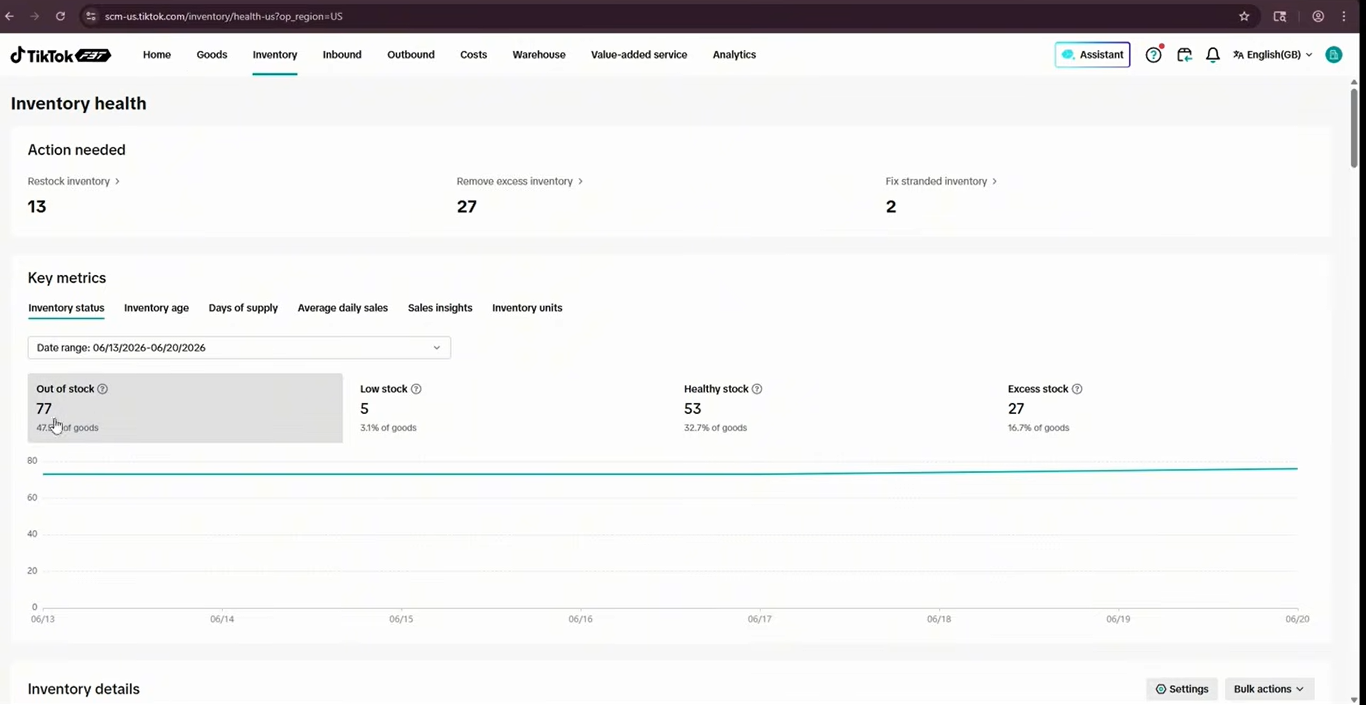
Log in to TikTok Shop Seller Center and open the relevant FBT inventory management section. Navigate to Inventory Health and review the Action Needed section.
This section helps you identify products that require restocking, excess inventory that needs reviewing, and other inventory issues that may affect your store.
Start by recording the number of affected products in each category. This gives you a clearer picture of your inventory situation before you make changes.
Source: Tiksly
Step 2: Review the key inventory metrics
Open each inventory category to see which products or SKUs are affected. Check the available quantity and the status displayed for each item.
Pay attention to individual variants rather than relying only on product-level totals. A product may have several variants, and one SKU can be out of stock while another remains available.
Step 3: Prioritize the inventory issues
Review the affected products and decide which issues need attention first.
For example, a popular product with low stock may need replenishment sooner than a seasonal product with excess inventory. A stranded product may require a listing or compliance correction before you can address its stock availability.
Prioritize products according to sales demand, inventory status, and the reason for the warning.
How to Fix Out-of-Stock and Low-Stock Inventory
Out-of-stock and low-stock products can limit your ability to meet customer demand. The appropriate action depends on whether you need to replenish inventory, investigate a stock discrepancy, or review the product’s future demand.
Step 1: Open the affected product or SKU
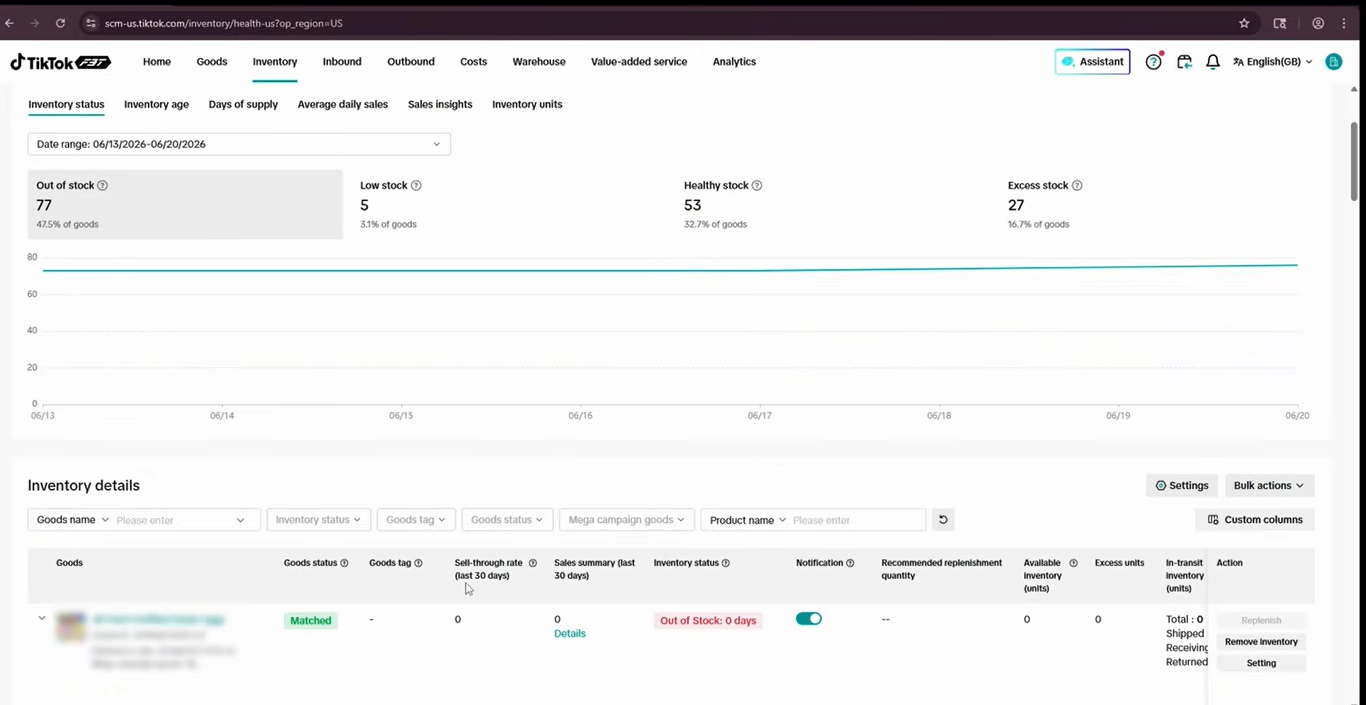
From the Inventory Health dashboard, select the out-of-stock or low-stock category and open the relevant product details.
Review the available quantity, recent sales, and SKU status. Confirm that the product is active and that you intend to continue selling it.
Source: Tiksly
Step 2: Check whether the product needs replenishment
Compare available inventory with recent sales and expected demand. If a product continues to sell, plan replenishment based on the quantity you can realistically send to the FBT warehouse.
Consider the following factors before placing a replenishment order:
- Recent sales and average daily demand.
- Current available stock and days of supply.
- Upcoming promotions or seasonal demand.
- The time required to prepare and deliver inventory.
- Stock already in transit or awaiting warehouse processing.
Avoid sending more units simply because the dashboard shows a warning. Replenishment should reflect expected demand and your existing inventory position.
Step 3: Arrange replenishment through the FBT workflow
If a product needs more stock, follow the current inbound shipment process available in your FBT account. Check the applicable requirements and confirm that product details, SKUs, quantities, and labels are correct.
After the warehouse receives and processes the inventory, review the dashboard to see whether the stock status has updated.
If you already have inventory but the dashboard still shows zero available units, investigate the discrepancy before sending more stock. Some units may be reserved, awaiting processing, or otherwise unavailable for sale.
How to Manage Excess FBT Inventory
Excess inventory can occupy warehouse space without generating enough sales to justify holding it. The Inventory Health dashboard helps you identify products that need closer review.
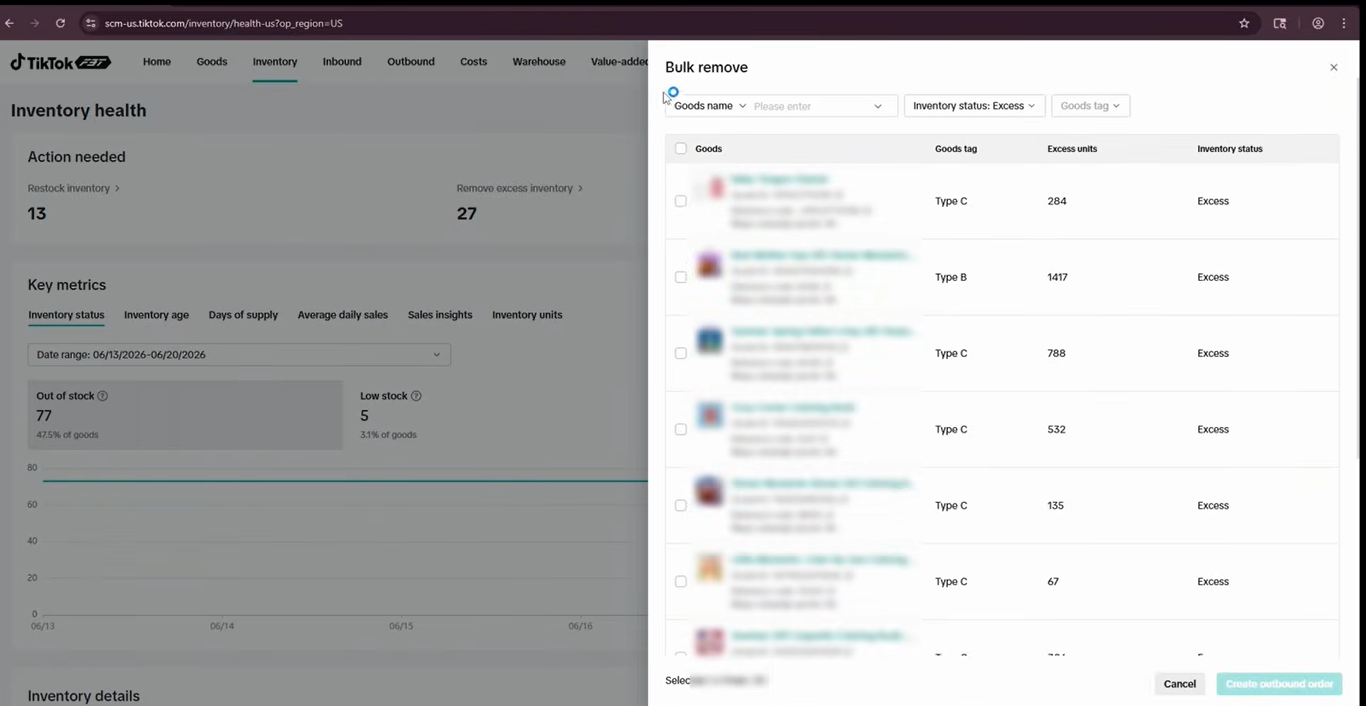
In the video example, the dashboard flags items older than 90 days that generated zero sales during the previous 30 days. These are the criteria shown in that example, not necessarily universal thresholds for every TikTok Shop account.
Step 1: Review the excess inventory list
Open the excess inventory section and inspect the flagged products. Check each item’s inventory age, recent sales, available quantity, and expected demand.
Products with no recent sales may have limited demand, an inactive listing, or a seasonal sales pattern. Identify the likely cause before deciding what to do with the stock.
Step 2: Decide whether to keep or remove the inventory
Consider these factors before taking action:
- Keep the inventory: The product has upcoming seasonal demand or a planned promotion that could generate sales.
- Review the listing: The product may have an issue affecting visibility or purchase availability.
- Consider removal: The product has limited expected demand, and the cost of holding it outweighs the potential benefit of retaining it.
Use sales data, inventory age, and holding costs to guide your decision. Older inventory does not automatically need to be removed if there is a reasonable opportunity to sell it.
Step 3: Submit a removal request if needed
If you decide to remove excess inventory, use the available removal action in your FBT interface. Review the eligible units, destination, applicable fees, and current removal requirements before confirming the request.
After submission, monitor the removal status and review your inventory metrics again. Selecting a removal option does not necessarily mean the units have already left the warehouse.
Source: Tiksly
How to Fix Stranded or Unmatched TikTok Shop Products
Stranded inventory requires a different approach from low-stock or excess inventory. A product can have physical units in the fulfillment network while remaining unavailable for purchase because its listing or product information has an issue.
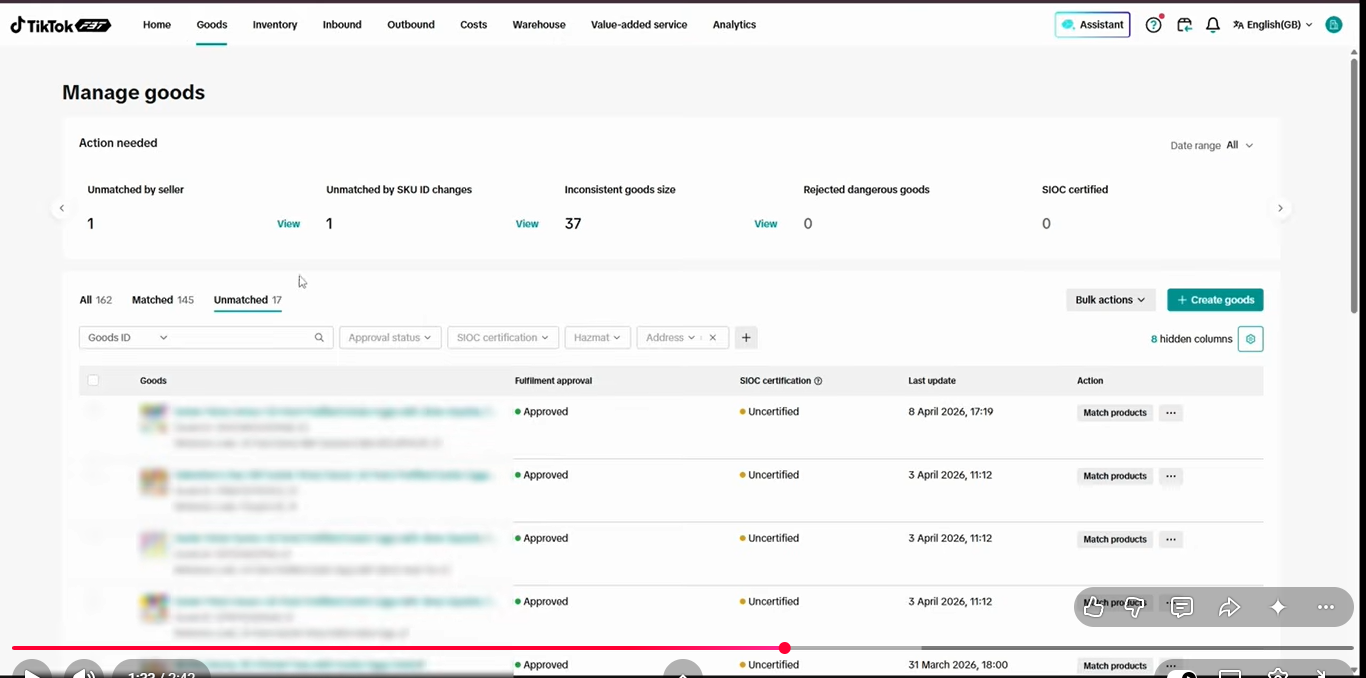
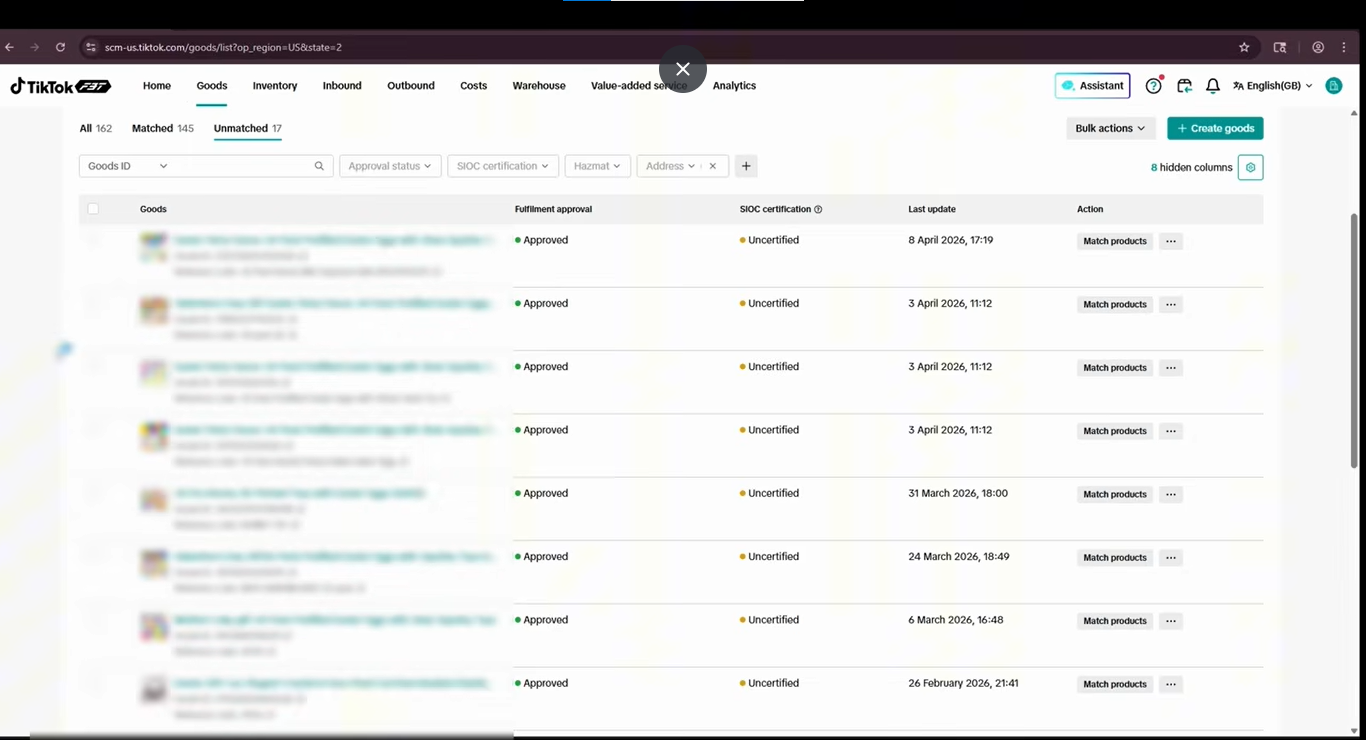
The video shows the stranded inventory section and an unmatched products area. Use these sections to locate affected products, then investigate the specific reason for each issue.
Step 1: Open the stranded inventory section
Navigate to the stranded inventory area and review the affected products or SKUs. Check the status, warning, or reason displayed for each item.
Possible causes include inactive listings, compliance issues, or incorrect SKU information. Confirm the reason shown in your account before changing the product details.
Source: Tiksly
Step 2: Check the product listing and SKU details
Open the affected product in Seller Center and verify that the listing is active and complies with the applicable TikTok Shop policies.
Compare the SKU and product information against your inventory records. If the product has multiple variants, confirm that the affected SKU corresponds to the correct variant.
If a compliance warning appears, follow the instructions provided in Seller Center and submit any required information or documentation.
Step 3: Investigate unmatched products
Open the unmatched products section and identify products that have not been associated correctly with the relevant listing or inventory record.
Check product identifiers, SKU details, and variant information. Correct any discrepancies through the available product management workflow.
For example, if an inventory record refers to a different variant from the listing, confirm the correct product details before making changes. Avoid creating duplicate listings or changing identifiers without understanding the cause.
Source: Tiksly
Step 4: Recheck the inventory status
After addressing the identified issue, return to the inventory dashboard and check whether the product status has changed.
If the inventory remains stranded or unmatched, review the displayed error details and contact TikTok Shop Support through the appropriate channel if you cannot resolve the issue in the Seller Center.
How to Use Inventory Age and Days of Supply to Prevent Future Issues
Fixing current inventory problems is only part of inventory management. Reviewing sales trends and stock age regularly can help you identify potential shortages and excess inventory earlier.
Monitor inventory age
Inventory age indicates how long units have been held in the fulfillment network. Older inventory may need closer attention, particularly when sales have slowed.
Review aging products alongside recent sales and upcoming seasonal demand. If you sell seasonal products, account for their expected selling periods before deciding whether to replenish or remove stock.
Check days of supply
Days of supply estimates how long available inventory may last at the current sales rate. A low number can indicate that replenishment planning is needed, while a high number may suggest that you should review demand before sending additional stock.
Use this metric alongside your sales forecast rather than treating it as a guarantee. Sales can change because of promotions, pricing, seasonality, and shifts in customer demand.
Track average daily sales and sell-through
Review average daily sales and sell-through rates to understand how quickly products are moving. Compare these figures across SKUs to identify products that deserve closer attention.
For example, a product with high daily sales and few days of supply may need replenishment planning. A product with low sales and aging stock may require a demand review before you send more units to the warehouse.
Set up stock alerts where available
If your TikTok Shop account provides stock alerts, configure the available thresholds based on your inventory and sales needs. Alerts based on stock quantity or days of supply can help you identify products that are approaching a replenishment point.
Source: Tiksly
Common Mistakes to Avoid When Fixing FBT Inventory Health
Avoid these common mistakes when reviewing and correcting inventory issues:
- Replenishing without checking demand: Sending more stock to a product with weak sales can increase excess inventory.
- Removing stock too quickly: Seasonal products may have no recent sales but could sell again during the next relevant season.
- Ignoring SKU-level problems: A product can appear available overall while one variant remains out of stock or unmatched.
- Changing listings without checking the cause: Unnecessary listing or SKU changes can create additional discrepancies.
- Assuming a submitted action is complete: Review the dashboard and request status to confirm that the issue has been addressed.
- Ignoring recurring alerts: Review inventory health regularly so that the same problems do not continue unnoticed.
How Tiksly Can Help With TikTok Shop Inventory Management
Managing a TikTok Shop requires ongoing attention to inventory, product listings, fulfillment, marketing, and daily store operations. Tiksly offers TikTok Shop management, virtual assistant support, influencer outreach, and paid TikTok advertising to help brands manage their stores and support their growth in the US and UK.
From managing day-to-day store operations to coordinating influencer campaigns and running paid ads, Tiksly provides services based on your business needs.
Final Thoughts
TikTok Shop FBT inventory health issues are easier to manage when you identify the cause before taking action. Replenish products that need more stock, assess excess inventory carefully, and investigate stranded or unmatched products through their listing and SKU details.
Keep monitoring inventory age, days of supply, and sales trends to identify potential problems earlier. If you need help managing your TikTok Shop operations, book a free 1:1 consultation with Tiksly experts to discuss your TikTok Shop operations and identify areas that need attention.
FAQs
1. What causes TikTok Shop FBT inventory health issues?
Common issues include out-of-stock or low-stock products, excess inventory, aging stock, and stranded or unmatched products. The dashboard’s status details can help you identify which issue affects each SKU.
2. How do I fix out-of-stock products in TikTok Shop FBT?
Check the affected SKU, review recent sales and available stock, and arrange replenishment through the appropriate FBT inbound workflow if needed. If you already have stock but the dashboard shows zero available units, investigate the discrepancy before sending more inventory.
3. What should I do with excess FBT inventory?
Review inventory age, recent sales, seasonal demand, and the cost of holding the stock. Keep products with reasonable future sales potential, and consider the available removal workflow for inventory you no longer plan to retain.
4. Why is my TikTok Shop FBT inventory stranded?
Stranded inventory may be associated with an inactive listing, a compliance issue, or incorrect product or SKU information. Check the reason displayed in your account and follow the relevant corrective steps.
5. How can I prevent future FBT inventory health issues?
Review inventory health regularly, monitor days of supply and average daily sales, set stock alerts where available, and plan replenishment based on expected demand. Check aging inventory before sending additional units to the warehouse.