 Ayesha Khan
If you need to remove unsold products, recover excess stock, or move inventory to another warehouse, TikTok Shop’s Fulfilled by TikTok (FBT) service lets eligible sellers request inventory removal through an outbound order. You can choose to return your inventory to your business or arrange for disposal, depending on your needs and the options available in your account.
To exit inventory from TikTok Shop FBT, open the FBT dashboard, navigate to Outbound → Exit Inventory, create a new outbound order, select the products and quantities, and choose a removal method. You may also need to arrange a pickup appointment for larger shipments.
In this guide, we will discuss how to create an FBT outbound order, compare the available removal methods, book a pickup appointment, and track your inventory removal request.
What Is Exit Inventory in TikTok Shop FBT?
Exit Inventory is an FBT feature that allows sellers to request the removal of stock held in TikTok’s fulfillment warehouses. Sellers can use it when they need to retrieve products, reduce excess inventory, or discontinue storage for certain items.
When creating an outbound order, you generally choose between two options:
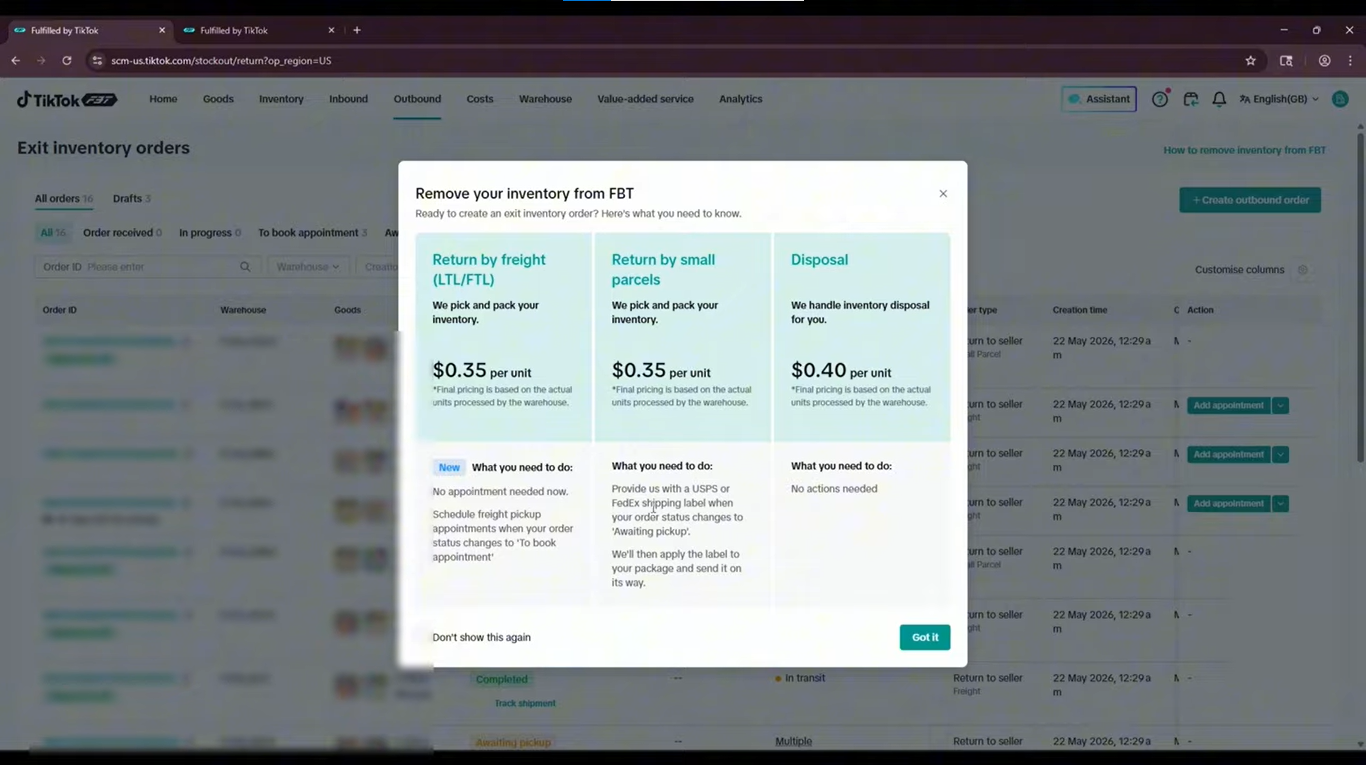
- Return to seller: Have eligible inventory shipped back to your designated location or arrange collection, depending on the available shipping method.
- Disposal: Request that TikTok dispose of the selected inventory instead of returning it to you.
The removal process involves selecting the relevant SKUs, specifying quantities, choosing a removal method, and following any shipping or pickup requirements displayed in Seller Center.
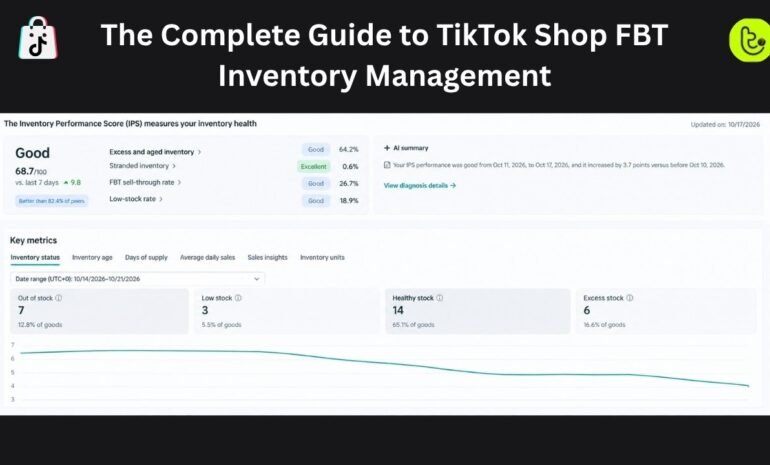
If you are reviewing stock levels before submitting a removal request, understanding TikTok Shop FBT inventory health issues can help you out.. This guide explains how to identify excess, low-stock, and other inventory issues before deciding what action to take.
When Should You Exit Inventory from TikTok Shop FBT?
Removing inventory can help you manage warehouse stock and make informed decisions about products that are no longer needed. Consider an exit request when:
- Products are no longer selling: Stock that generates little or no demand may continue to occupy warehouse capacity.
- You are discontinuing a product: You may want to recover remaining units before removing a product from your catalog.
- You are changing fulfillment arrangements: You might need to transfer stock to your own warehouse or another fulfillment provider.
- You have excess inventory: Reviewing slow-moving stock can help you decide whether to keep, return, or dispose of it.
- You need to reorganize stock: Removing selected SKUs can support changes to your product range or inventory strategy.
Before submitting a request, review the product’s sales history, available stock, storage costs, and expected future demand. Returning inventory incurs costs, and disposal means you will not receive those units back.
Source: Tiksly
Return Inventory vs. Disposal: Which Removal Method Should You Choose?
TikTok Shop FBT provides different ways to remove eligible inventory. The best option depends on the condition of your products, their remaining value, and your plans for the stock.
Feature | Return to Seller | Disposal |
|---|---|---|
Purpose | Recover inventory from the FBT warehouse | Remove inventory without receiving it back |
Physical stock | Returned or made available for collection, depending on the selected method | Disposed of according to the applicable process |
Potential costs | Return shipping, handling, or other applicable fees | Disposal fees and other applicable charges |
Best considered when | You plan to resell, transfer, or store the products elsewhere | The products have little resale value or you no longer need them |
Next step | Follow the shipping or pickup instructions | Confirm the products and quantities before submitting |
The exact removal options and fees depend on your marketplace, shipment method, and current FBT terms. Review the charges displayed in your account before confirming the request.
1. Return Inventory to Your Business
Choose the return option when you want to recover your stock. For example, you might want to move products to another warehouse, sell them through a different channel, or retain them for a future campaign.
Depending on the available options, you may be able to use TikTok’s shipping arrangement or organize collection through your own carrier. Larger shipments may require an appointment.
2. Dispose of Inventory
Choose disposal when you do not want the selected stock returned. This may be worth considering for discontinued products or inventory that is no longer commercially useful.
However, check the disposal fee and confirm the selected SKUs and quantities before submitting the request. Once inventory has been disposed of, you cannot recover those units through the same order.
Source: Tiksly
How to Exit Inventory from TikTok Shop FBT: Step-by-Step Guide
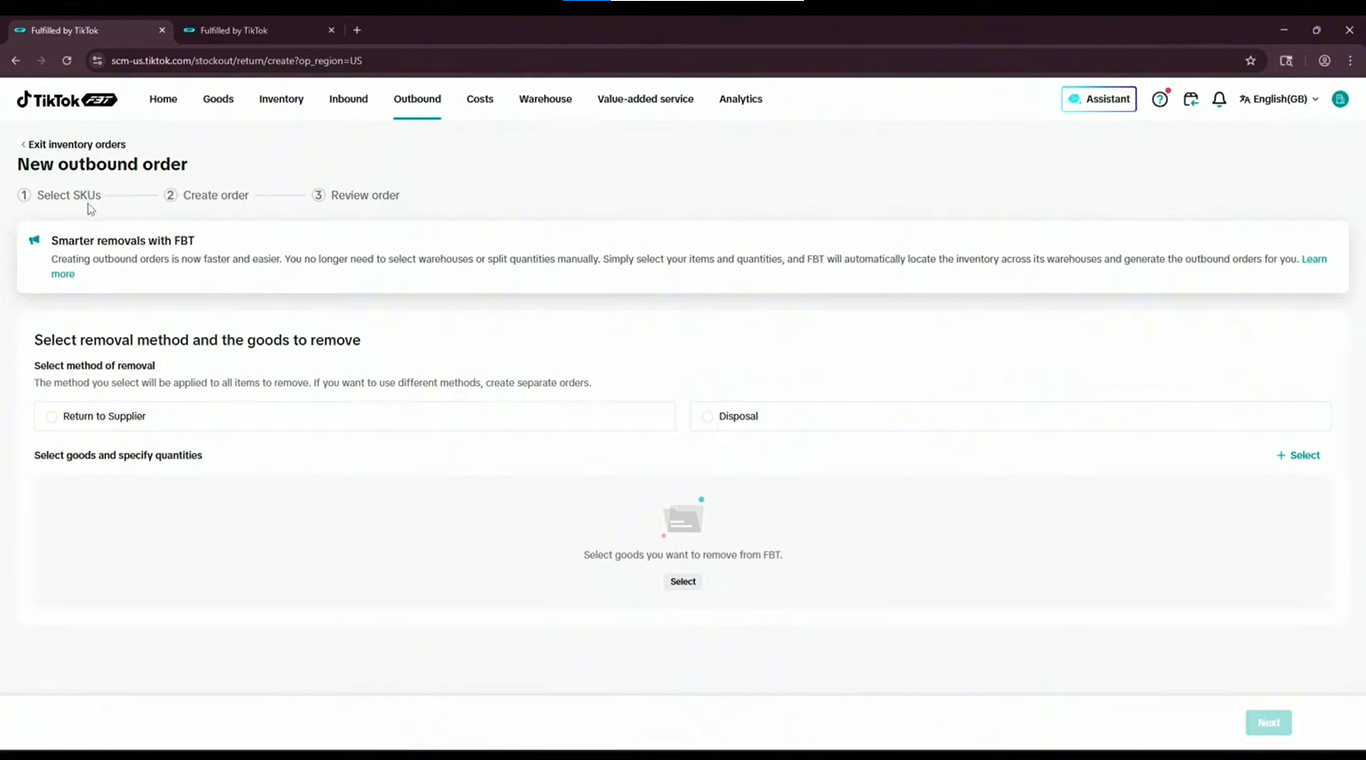
Follow these steps to create an outbound inventory removal order through the FBT dashboard. The exact labels may differ depending on your account interface.
Step 1: Open the FBT Dashboard
Log in to your TikTok Shop Seller Center and open the FBT dashboard or merchant portal associated with your store.
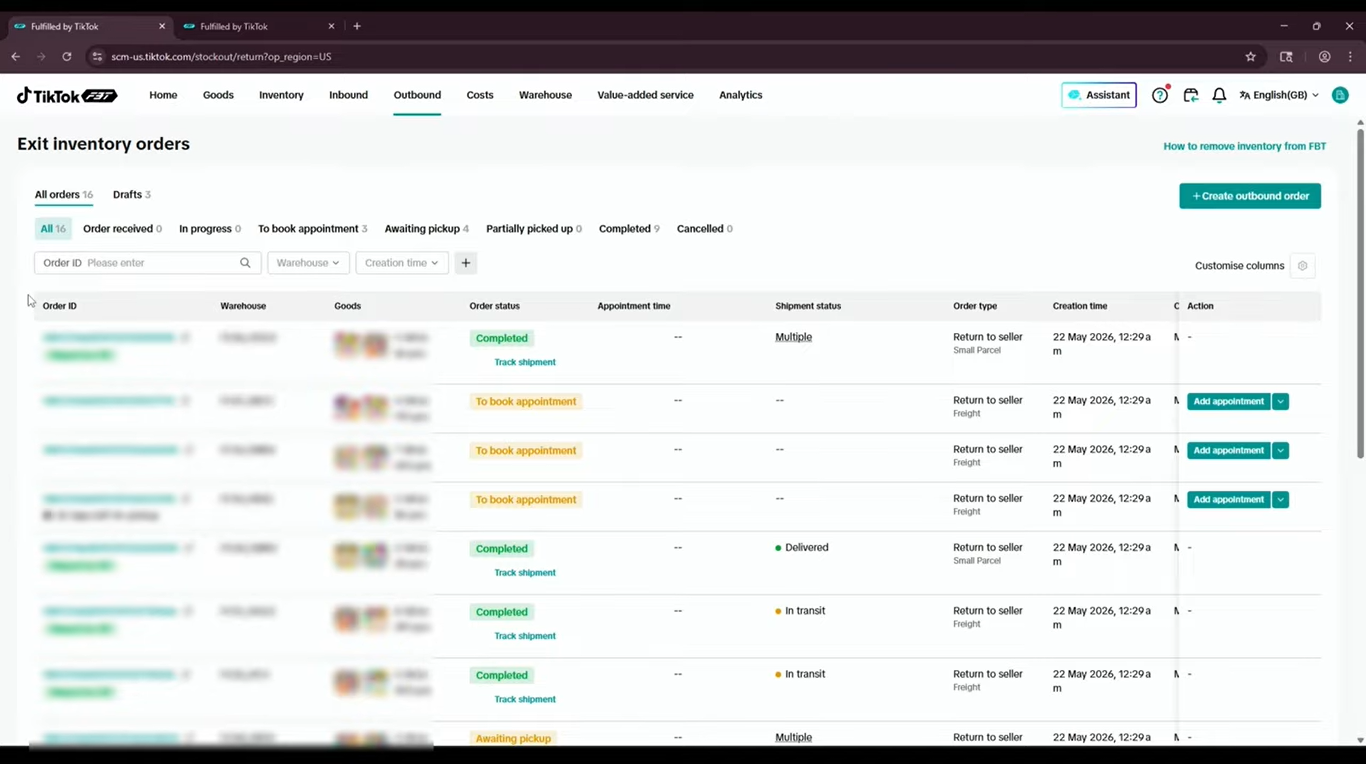
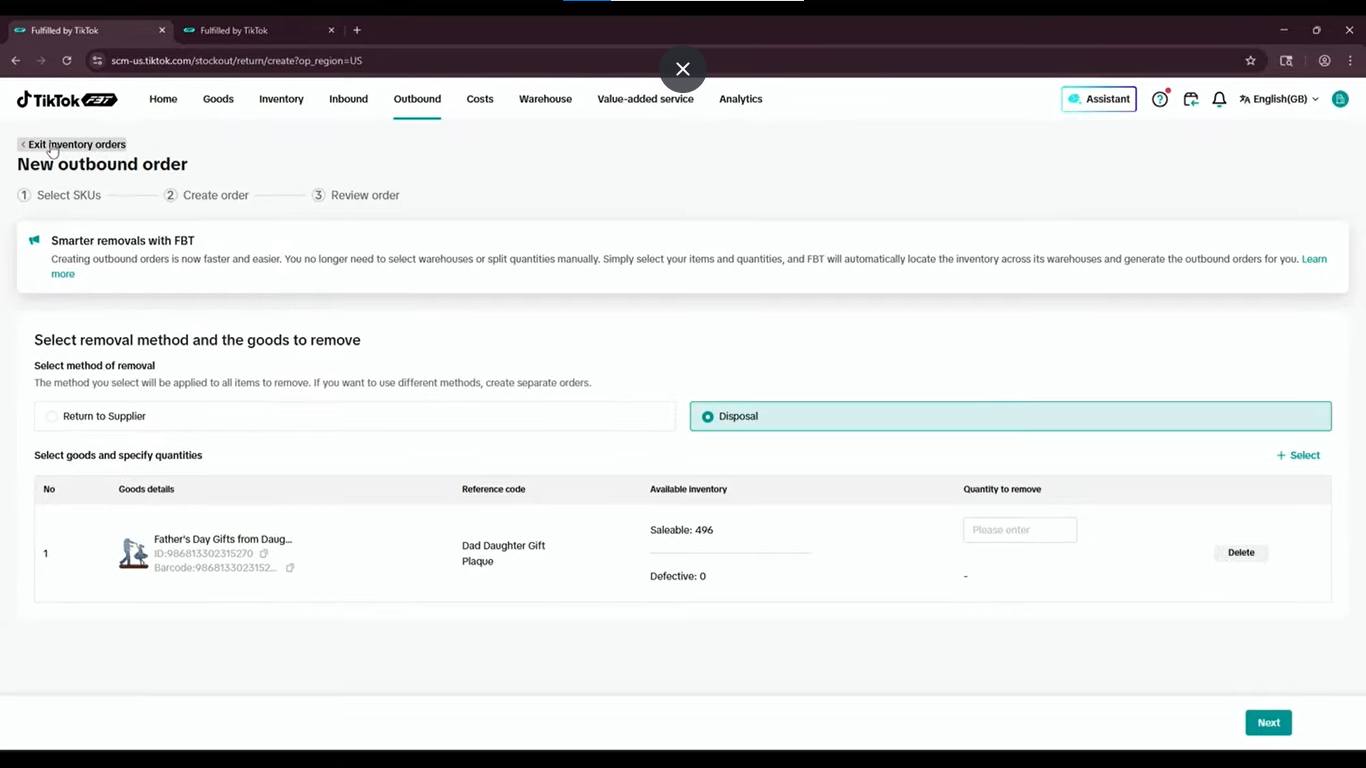
Locate the Outbound section and select Exit Inventory. This area lets you review existing outbound orders and create new inventory removal requests.
Before proceeding, confirm that you are working in the correct shop and marketplace.
Source: Tiksly
Step 2: Create a New Outbound Order
Select the option to create a new outbound order. You should then be able to choose the inventory you want to remove.
Review the available products and identify the relevant SKU. A SKU represents a specific product or variant, so check the item details carefully before selecting it.
If your catalog includes multiple sizes, colors, or other variants, make sure you select the exact inventory you intend to remove.
Source: Tiksly
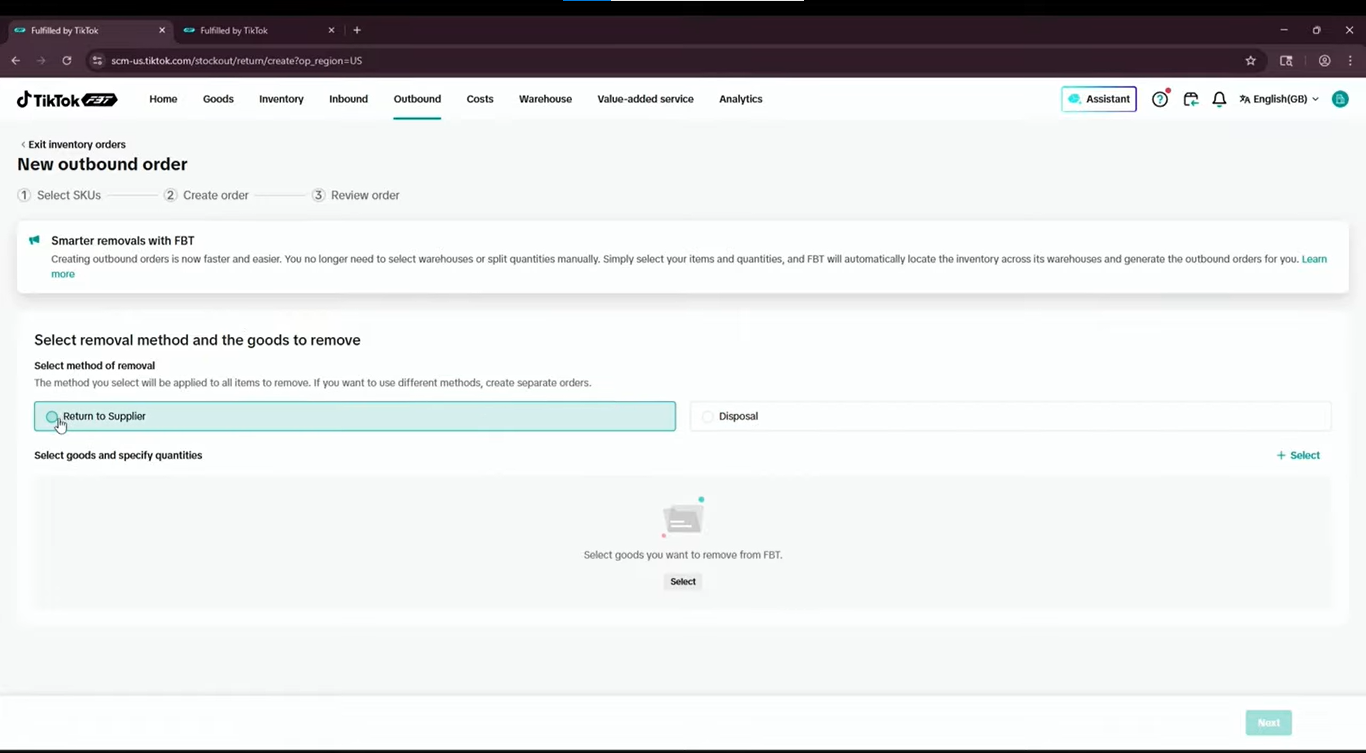
Step 3: Choose the Removal Method
Select the appropriate method for your inventory.
Choose Return to Seller if you want to receive the inventory back.
Choose Disposal if you want the selected inventory removed without returning it.
Follow the prompts shown in your dashboard. If the return option requires a destination or shipping preference, provide the requested details.
Take a moment to confirm your selection. Returning inventory and disposing of inventory have different outcomes, so choosing the wrong option could create unnecessary costs or result in the loss of stock you intended to recover.
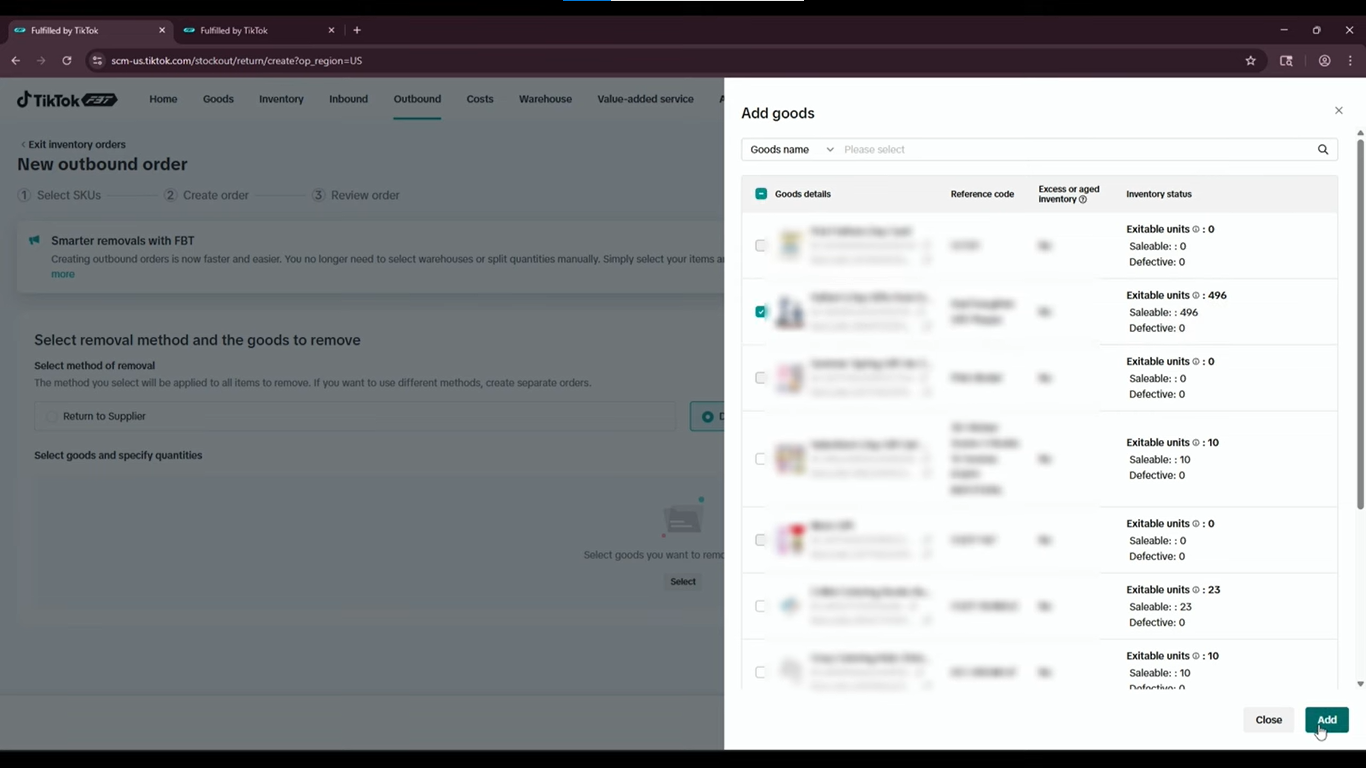
Step 4: Select the Products and SKUs
Choose the products you want to remove from the inventory list. Verify the product names and SKUs before moving to the next stage.
If you need to remove several products, review each selection individually. Avoid selecting an entire product range when you only need to remove certain variants.
Source: Tiksly
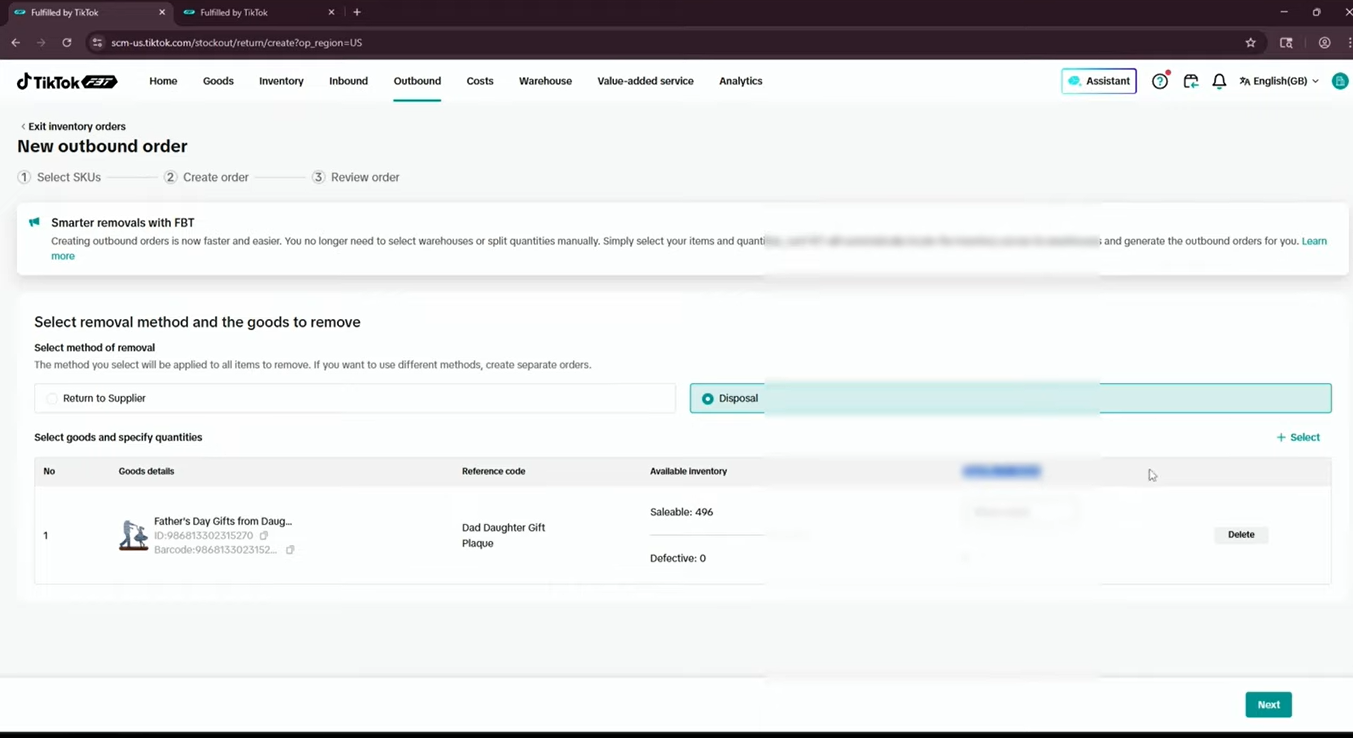
Step 5: Enter the Quantity to Remove
After selecting the products, enter the quantity you want removed for each SKU.
Check the requested quantity against your available inventory. If you intend to retain some units in FBT, enter only the quantity you want to return or dispose of.
Before continuing, verify:
The selected product and SKU are correct.
The requested quantity is accurate.
The removal method is correct.
The destination or shipping details are complete, where required.
You have reviewed the applicable fees.
Once you have checked the details, click Next and follow the remaining instructions shown in your account.
Source: Tiksly
Step 6: Review and Submit the Outbound Order
Review the order details before submitting the request. Make sure the selected products, quantities, removal method, and any required shipping information are correct.
Follow the prompts to submit the outbound order. If the dashboard requests additional information or confirmation, complete those steps before leaving the page.
Creating an outbound order does not mean your inventory has already left the warehouse. You must monitor the order status and complete any required shipping or pickup arrangements.
Source: Tiksly
How to Track Your TikTok Shop FBT Outbound Order
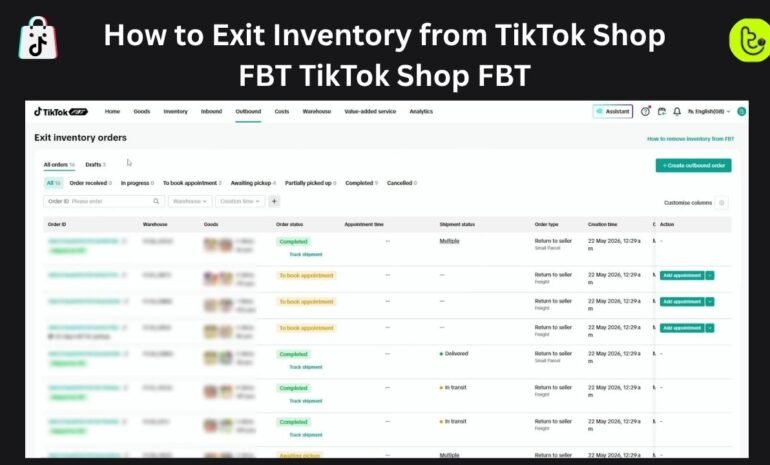
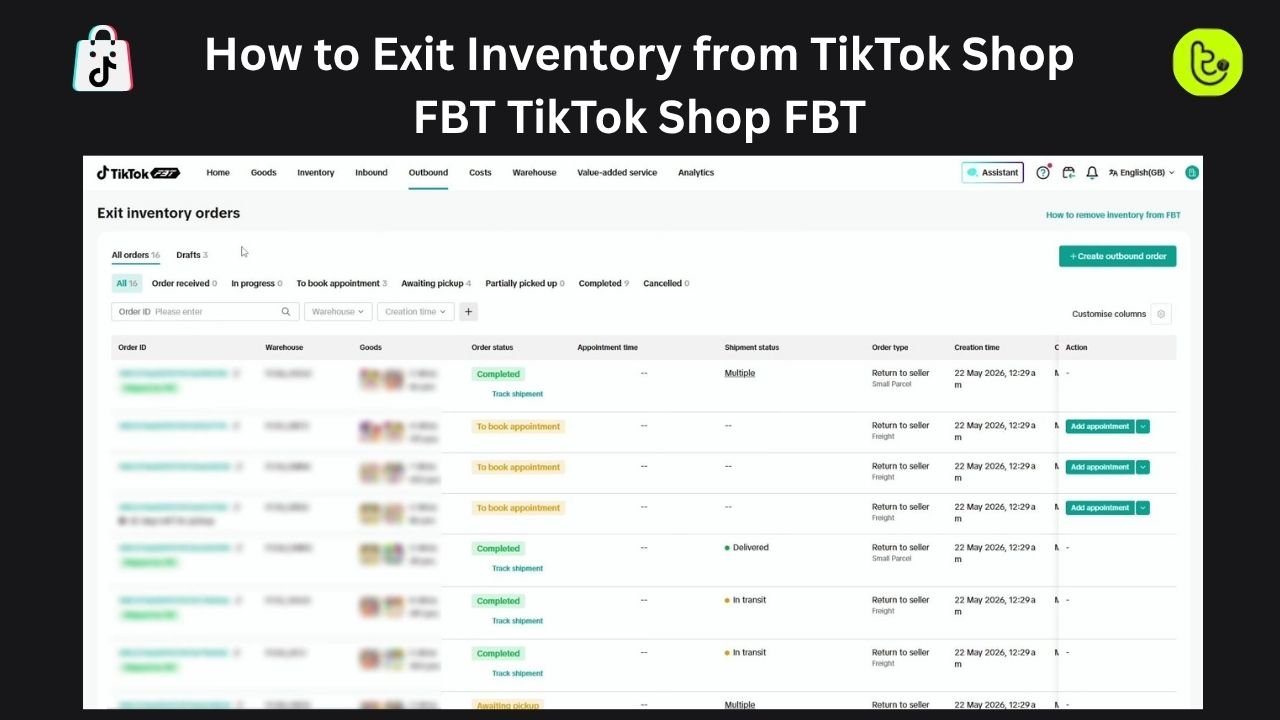
After creating your outbound order, return to the Exit Inventory dashboard to monitor its progress.
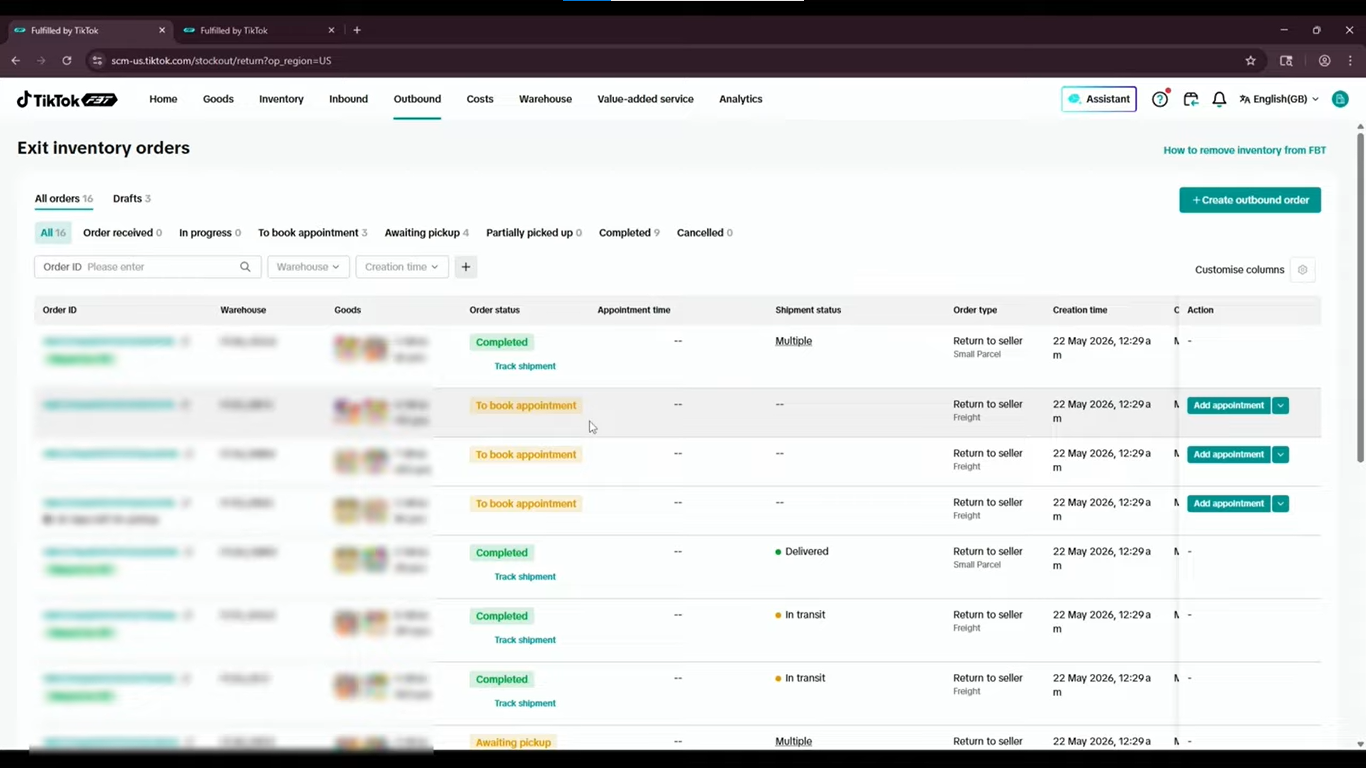
The order list shown in the video includes details such as:
Field | What It Tells You |
|---|---|
Order ID | The reference number for the outbound order |
Warehouse | The warehouse associated with the inventory |
Order status | The current stage of the removal process |
Appointment time | The scheduled pickup time, when applicable |
Order type | The type of removal request, such as return to seller |
Depending on the order, you may see statuses indicating that the shipment is awaiting pickup, has been shipped, or is completed. The exact status labels can vary.
What Do Outbound Order Statuses Mean?
- Awaiting pickup: The inventory is awaiting collection or another required pickup step.
- Appointment required: You need to arrange a pickup appointment before the shipment can proceed, where applicable.
- Shipped: The inventory has been dispatched through the selected shipping arrangement. Tracking information may be available.
- Completed: The outbound order has reached the completed state shown in the dashboard.
Check the order details rather than relying on a status label alone. If the shipment has tracking information, use it to monitor the delivery.
Source: Tiksly
How to Book an FBT Inventory Pickup Appointment
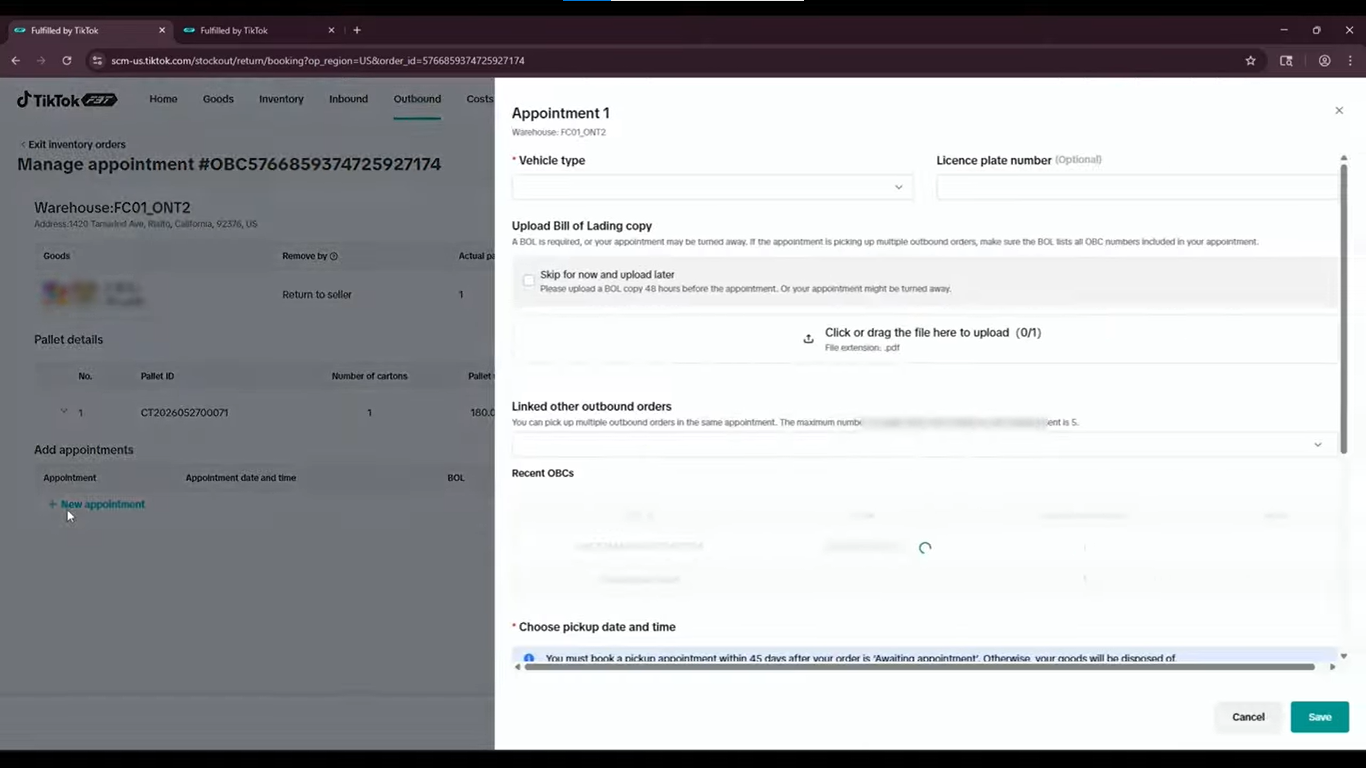
Some inventory removal requests require a pickup appointment, particularly when the shipment involves larger quantities or pallets. If your outbound order displays an appointment requirement, follow the instructions in the dashboard.
Step 1: Open the Appointment Option
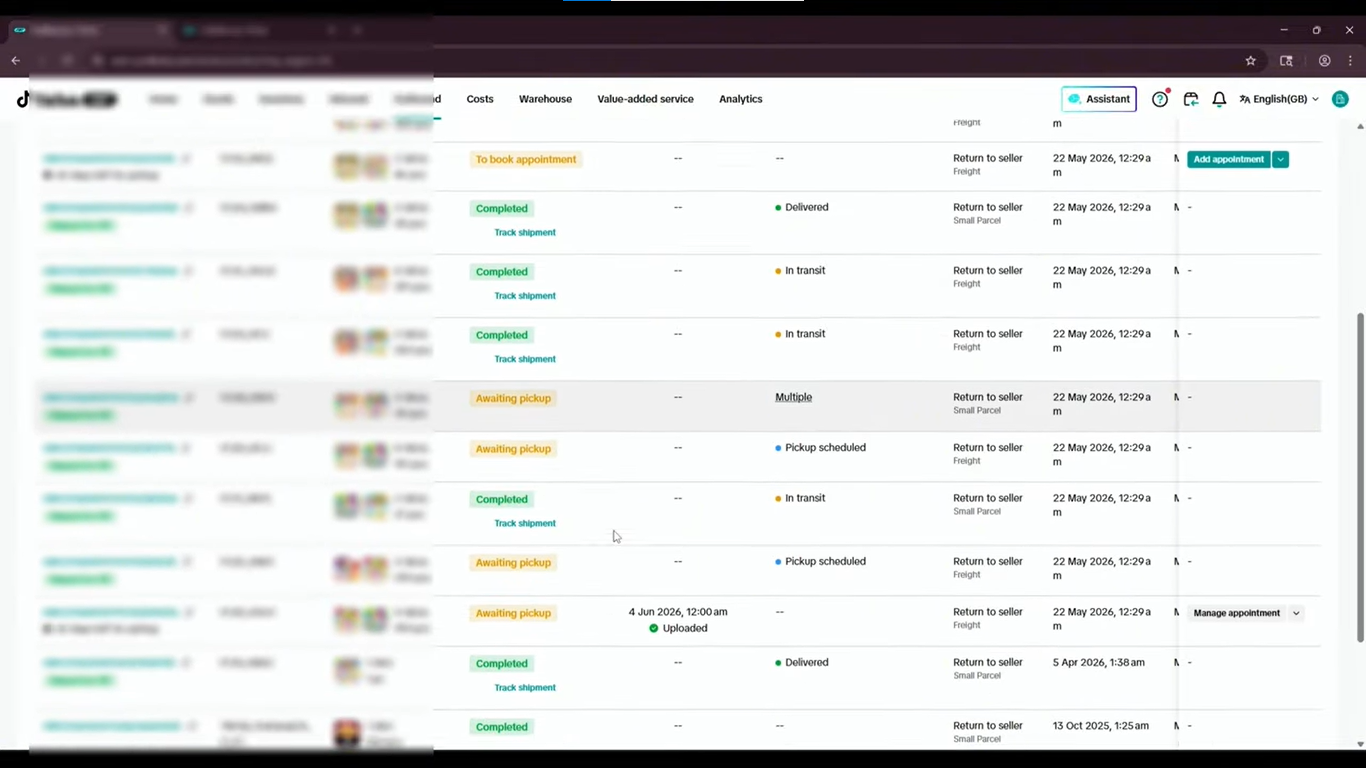
Return to the Exit Inventory dashboard and locate the outbound order that requires a pickup appointment.
Select Add Appointment, then choose the option to create a new appointment.
Source: Tiksly
Step 2: Select the Vehicle Type
Choose the vehicle type you intend to use to collect the inventory. Make sure the selection is appropriate for the shipment size and the warehouse’s requirements.
If you are using a carrier or arranging collection through a logistics provider, confirm the vehicle details with that provider before completing the form.
Source: Tiksly
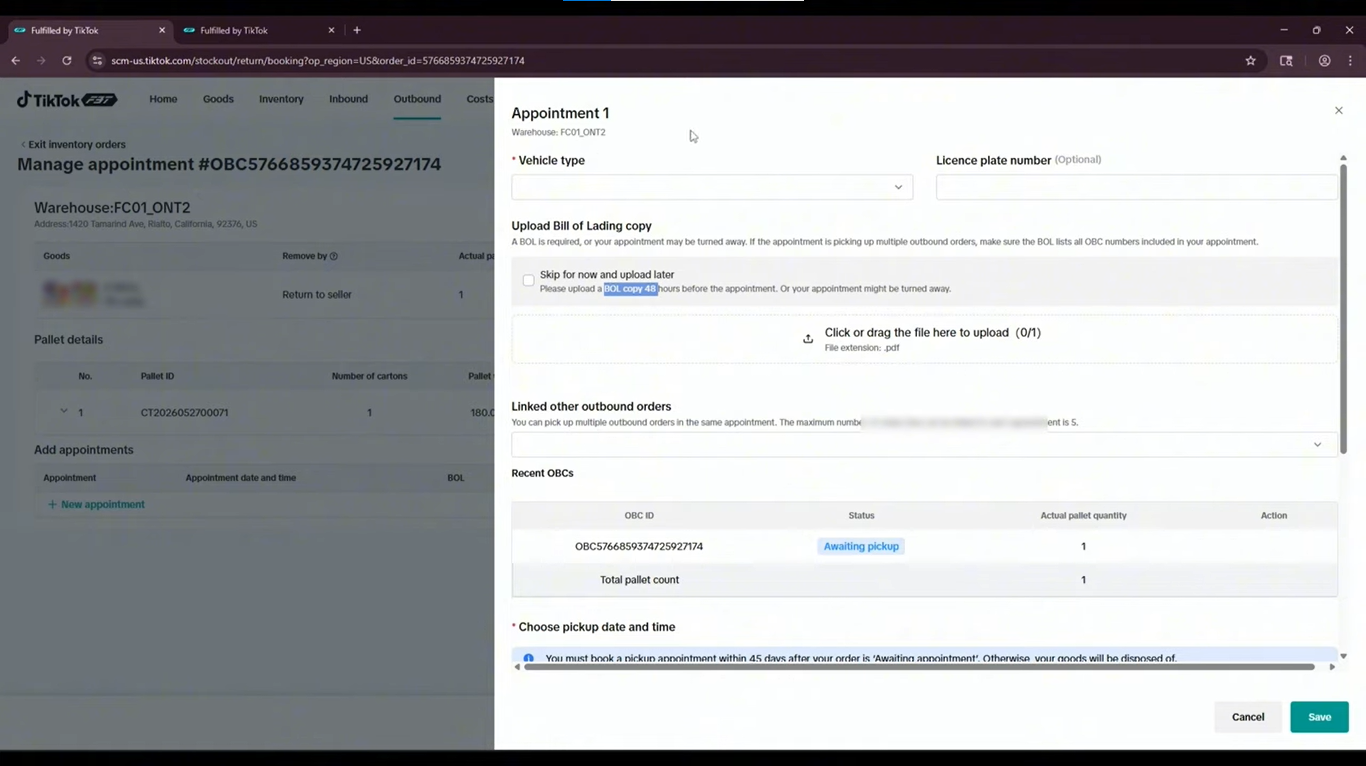
Step 3: Upload the Required Pickup Document
The video demonstrates uploading a document containing information about the goods being collected. It also states that the document should be uploaded 48 hours before the appointment.
Treat that timing as the requirement shown in the video, and verify the current deadline and required document format in your FBT dashboard before scheduling.
Prepare the requested information in advance so the warehouse can identify the shipment and coordinate the collection.
Step 4: Select the Recommended Pickup Date
Review the available pickup dates and choose a suitable option. Check that your carrier or collection team can attend on the selected date.
Make sure the vehicle, documents, and inventory details are ready before confirming the appointment.
Step 5: Save the Appointment
Review the appointment information and click Save. Return to the outbound order details to confirm that the appointment information has been recorded.
Keep a copy of the appointment details and communicate the scheduled time to your carrier or collection team.
Source: Tiksly
What Are the Fees for Exiting Inventory from TikTok Shop FBT?
TikTok Shop FBT inventory removal fees depend on the shipping method and applicable service charges. According to the official US FBT Rate Card, updated July 13, 2026, the current published pricing rules for inventory removal are:
Removal method | Latest published fee information |
|---|---|
FBT-arranged freight return | $0.39 per pound |
FBT-arranged parcel return | Based on the returned package’s weight and dimensions |
Pickup using your own carrier | No FBT shipping fee for the return shipment |
Disposal | Check the applicable disposal fee in the official rate card and your Seller Center account |
How to Check Your Inventory Removal Costs
Before submitting an outbound order, review the charges for your selected removal method. Freight returns require a pickup appointment, so make sure your carrier can attend the scheduled collection. Missing an appointment may result in an additional non-compliance fee.
For parcel returns, check the package weight and dimensions because these determine the shipping charge. If you arrange pickup using your own carrier, confirm the warehouse’s collection requirements before booking.
Important: The $0.35-per-unit return charges and $0.40-per-unit disposal charge shown in our video may not reflect current rates.
For additional help with fulfillment expenses, understanding TikTok Shop FBT warehouse and cost billing can be helpful.
Common Mistakes to Avoid When Exiting FBT Inventory
A few checks can help you avoid delays, unnecessary expenses, and incorrect removal requests.
Selecting the Wrong SKU
Products may have several variants. Check the exact SKU and quantity before submitting the order.
Choosing Disposal Instead of Return
Disposal means you will not receive the selected inventory back. Confirm your intended removal method before proceeding.
Overlooking Shipping Fees
The displayed fees may depend on parcel dimensions, weight, freight arrangements, and other conditions. Review the current charges rather than relying on an older screenshot or tutorial.
Missing a Required Appointment
If your order requires a pickup appointment, complete the booking process and check the scheduled time. Confirm any document deadlines displayed in your account.
Assuming the Inventory Has Already Been Removed
An order can remain pending after it has been created. Track the order until its status confirms completion and follow any outstanding instructions.
Failing to Check the Returned Shipment
When the stock arrives, compare the received units with your outbound order. If units are missing or damaged, preserve the relevant order details and shipment evidence and follow TikTok Shop’s current reimbursement or support process, where applicable.
How Tiksly Can Help With TikTok Shop FBT Inventory Management
Managing FBT inventory involves tracking stock levels, monitoring outbound orders, and controlling fulfillment costs. Tiksly supports sellers with daily shop operations and inventory management.
Our TikTok Shop management services can help you monitor inventory, track outbound orders, organize stock records, and manage routine store tasks.
TikTok controls inventory removal approvals and warehouse processes, but Tiksly can help you organize your shop operations and follow the required steps
Conclusion
Exiting inventory from TikTok Shop FBT involves selecting the right products, choosing between return and disposal, entering the quantities, and submitting an outbound order. Depending on the shipment, you may also need to book a pickup appointment and provide the required documents.
Before confirming your request, check the current removal fees, verify the selected SKUs, and review the shipping or pickup instructions in your account. Track the outbound order until the dashboard confirms its completion.
If you need help managing inventory, outbound orders, or other TikTok Shop operations, book a free 1:1 consultation with Tiksly experts. Our team can discuss your requirements and help you plan the next steps for your shop.
FAQs
1. How do I remove inventory from TikTok Shop FBT?
Open the FBT dashboard and navigate to Outbound → Exit Inventory. Create a new outbound order, select the SKUs and quantities you want to remove, choose return or disposal, and follow the instructions to submit the request. Track the order until the removal process is complete.
2. Can I get my inventory back from TikTok Shop FBT?
Yes, eligible sellers can request inventory to be returned through the Exit Inventory process. Select the return-to-seller option and follow the available shipping or pickup instructions. Fees and collection requirements depend on the removal method and your marketplace.
3. How much does it cost to remove inventory from TikTok Shop FBT?
The cost depends on the removal method and applicable FBT fees. The tutorial shows example charges of $0.35 per unit for return options and $0.40 per unit for disposal. These figures may not reflect current rates, so check the latest rate card and the fees displayed in your account before submitting an order.
4. How do I book a pickup appointment for FBT inventory removal?
Open the relevant outbound order, select Add Appointment, and create a new appointment if required. Choose the vehicle type, upload the requested pickup document, select an available date, and save the appointment. Check your dashboard for the current document deadline and any additional requirements.
5. How can I check the status of my TikTok Shop FBT inventory removal order?
Open the Exit Inventory section and review the outbound orders list. Check the order ID, warehouse, order status, appointment details, and tracking information where available. Follow any outstanding pickup or shipping instructions until the order reaches its completed status.