 Ayesha Khan
TikTok Shop FBT outbound consign orders allow sellers to monitor orders fulfilled through TikTok’s warehouse network using their inventory. To manage these orders effectively, sellers need to understand the information displayed in Seller Center, recognize fulfillment statuses, and check tracking updates for delivery problems.
This guide explains how to review TikTok Shop FBT outbound consign orders using the dashboard demonstrated in our video tutorial. You will learn where to find consign orders, how to interpret order details, what different statuses mean, and how to investigate abnormal delivery notifications. These steps can help you monitor existing orders and identify shipments that may need further attention.
What Are TikTok Shop FBT Outbound Consign Orders?
Fulfilled by TikTok (FBT) is a fulfillment service that allows eligible sellers to store inventory in TikTok’s fulfillment network. TikTok handles applicable warehouse and shipping activities according to the service terms.
In the consign orders workflow demonstrated in the video, the seller owns the inventory stored in FBT, while TikTok handles fulfillment and shipping for the order.
The video shows three sections under the outbound area:
- Consign Orders: Review orders and monitor their fulfillment and shipping statuses.
- Exit Inventory: Access the relevant inventory removal section.
- Incident List: Review the incident section shown in the dashboard.
This article focuses on Consign Orders and the information sellers can use to monitor their shipments.
How to Process TikTok Shop FBT Outbound Consign Orders
The video demonstrates how to review existing consign orders and track their progress. It does not show the initial creation or submission of a consign order, so the following steps focus on the dashboard workflow shown in the footage.
Step 1: Open the Consign Orders Section
Open TikTok Shop Seller Center and navigate to the outbound section of your FBT dashboard. Select Consign Orders to access the order records shown in the tutorial.
The outbound dashboard also displays Exit Inventory and Incident List. These are separate sections, so select Consign Orders when you want to review outbound consign shipments.
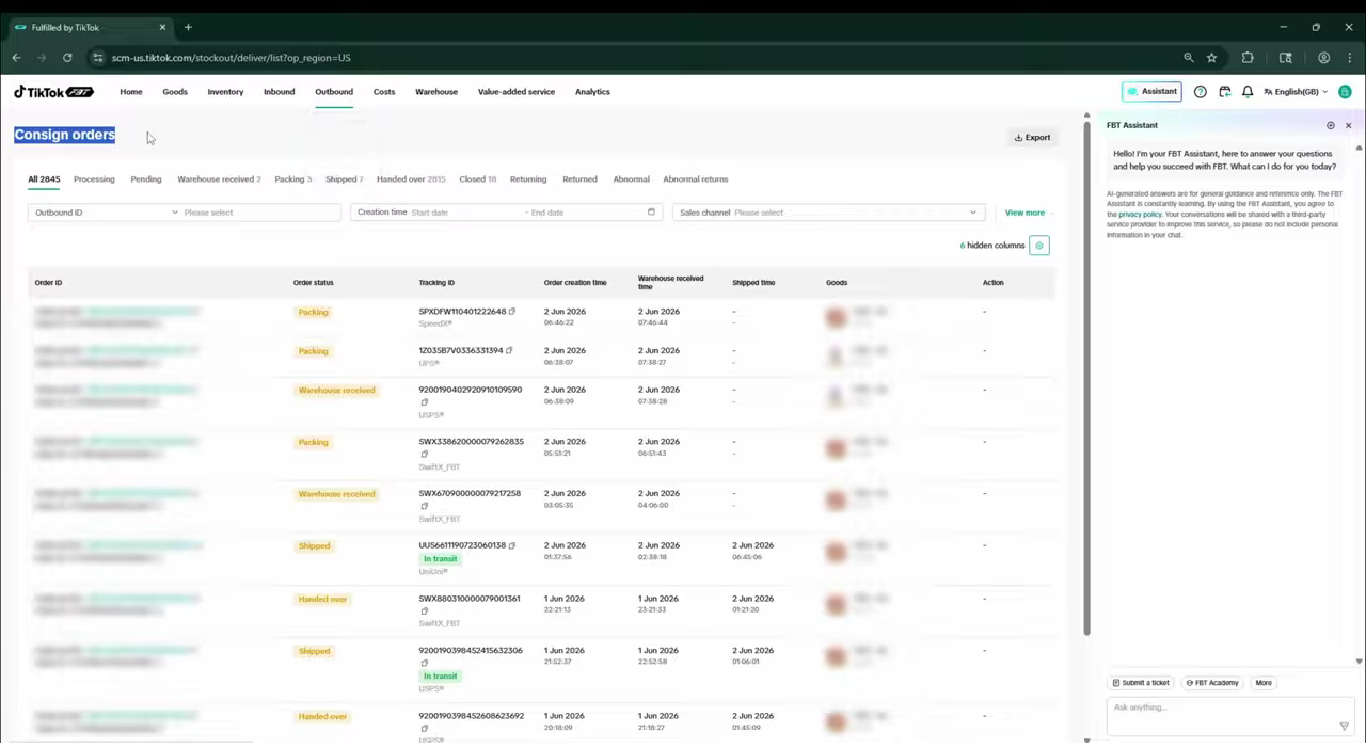
Alt text: TikTok Shop FBT outbound dashboard displaying Consign Orders, Exit Inventory, and Incident List.
Source: Tiksly
The opening section establishes where the consign order workflow is located. Once you open the relevant view, you can review individual order records and their current statuses.
Step 2: Review the Order Details
The Consign Orders table displays several fields that help you identify orders and monitor their fulfillment progress.
The video shows the following information:
Dashboard field | What it means |
|---|---|
Order ID | Identifies the customer order. |
Outbound ID | Identifies the outbound record displayed in the dashboard. |
Order status | Shows the order’s current fulfillment status. |
Tracking ID | Provides the identifier used to follow shipment progress. |
Order creation time | Records when the order was created. |
Warehouse received time | Shows the recorded warehouse receipt time, where available. |
Ship time | Shows the shipping time recorded in the dashboard. |
Goods | Displays the goods associated with the order. |
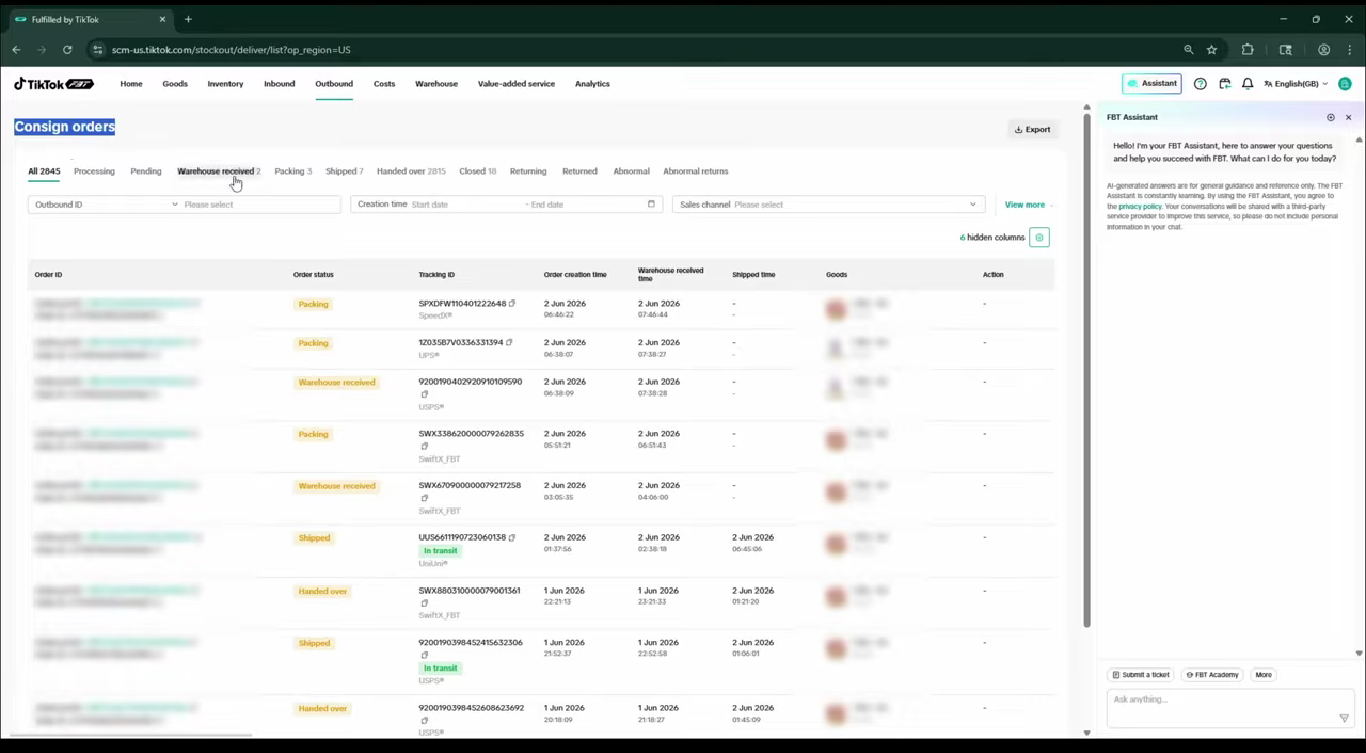
Alt text: TikTok Shop FBT consign order table showing Order ID, Outbound ID, order status, Tracking ID, timestamps, and goods.
Source: Tiksly
Review these fields when investigating an individual order. The Order ID helps you locate the correct record, while the order status and tracking details provide information about its progress.
The timestamps can also help you establish when an order was created or when a warehouse or shipping event was recorded. Some fields may be blank if the relevant event has not occurred or the information is unavailable.
Step 3: Understand the Consign Order Statuses
The order status indicates the fulfillment stage recorded in Seller Center. The video demonstrates Packing, Warehouse Received, Handed Over, and Shipped.
Understanding these labels helps you identify the stage an order has reached.
Packing
Packing indicates that the order is undergoing packing at the warehouse, according to the tutorial.
At this stage, review the order details if you need to check its progress. The video does not establish a specific processing deadline, so use the information available in your account to assess whether further investigation is necessary.
Warehouse Received
Warehouse Received indicates that the warehouse has recorded receipt of the relevant order or goods, as represented by the dashboard status.
The tutorial shows orders under this status. You can review their details and available timestamps to understand which orders have reached this stage.
Handed Over
Handed Over indicates that the order has been handed to the carrier, according to the video.
Check the associated Tracking ID to follow the shipment after handover. The tracking information may provide further details about the shipment’s progress.
Shipped
The tutorial explains that the order status changes to Shipped after the Handed Over stage shown in the dashboard.
Shipped indicates that the order has progressed to the shipping stage. It does not, by itself, confirm that the buyer has received the package.
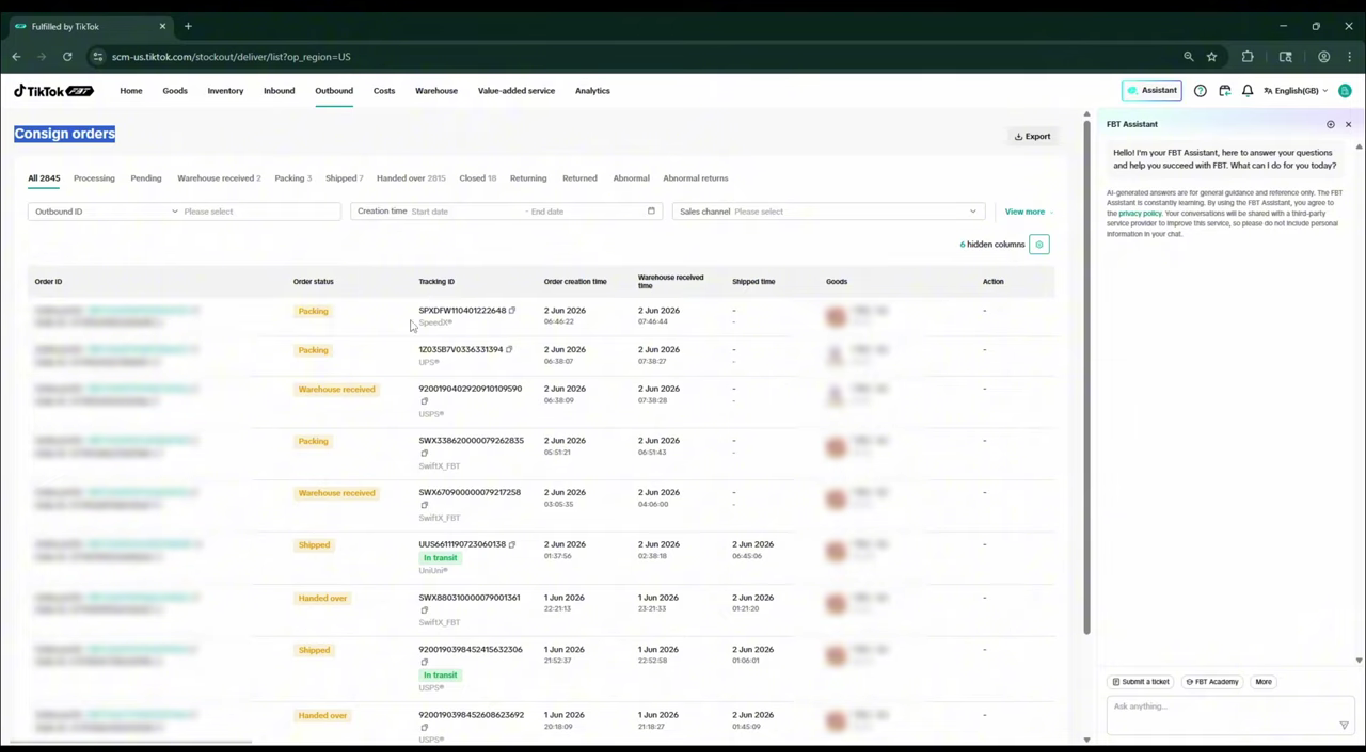
Alt text: TikTok Shop FBT consign order dashboard showing Warehouse Received and Handed Over statuses.
Source: Tiksly
Use the status displayed for each order rather than assuming that all orders follow an identical timeline. The dashboard provides the recorded information for the orders in your account.
Step 4: Check Processing, Pending, and Warehouse Received Orders
The video shows separate views for Processing, Pending, and Warehouse Received orders.
In the demonstrated account, the Processing section appears empty. The tutorial then opens Pending and shows two orders under Warehouse Received.
These are examples from the account displayed in the video. Your dashboard may contain a different number of orders depending on your store’s activity.
When reviewing these sections, consider the following:
- Processing: Check whether any orders appear in this section and review their available details.
- Pending: Inspect the listed orders and check the status information provided in the dashboard.
- Warehouse Received: Review orders recorded as received by the warehouse and check their associated timestamps.
An empty Processing section does not necessarily indicate a problem. It simply means no orders are displayed in that section in the recorded example.
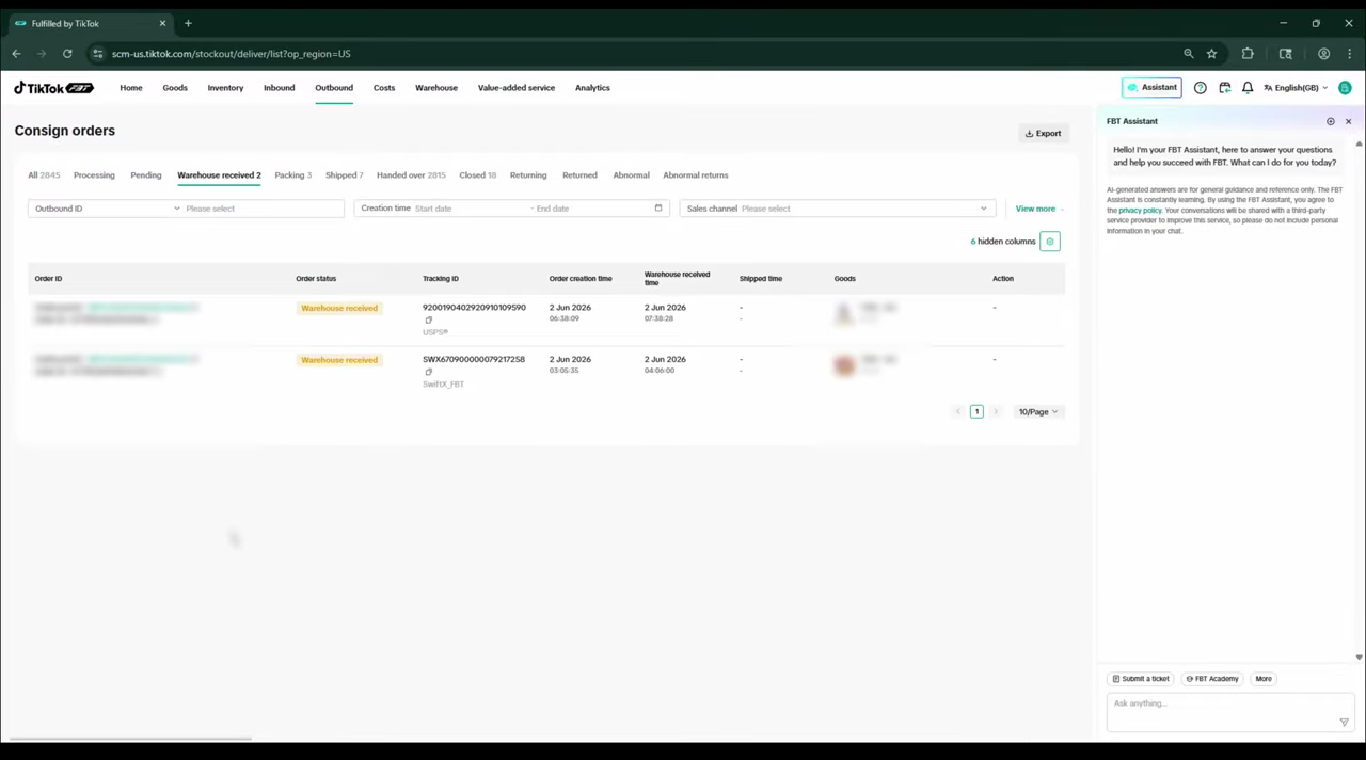
Alt text: TikTok Shop FBT outbound dashboard showing an empty Processing section and orders listed under Warehouse Received.
Source: Tiksly
When investigating an order, compare the information available in the relevant sections and use the Order ID to avoid confusing separate shipments.
Step 5: Track Shipments Using the Tracking ID
After an order reaches the shipping stage, check its Tracking ID and the associated tracking information to monitor delivery progress.
The video demonstrates two tracking statuses: In Transit and Delivered.
In Transit
In Transit indicates that the tracking information shows the shipment moving through the delivery network.
Check the latest available tracking update when reviewing the order. If the shipment appears delayed, compare the tracking information with the expected delivery details available in your account.
Delivered
Delivered indicates that the tracking information records the shipment as delivered to the buyer.
If a buyer reports that the package has not arrived, review the available tracking details and follow the applicable TikTok Shop process to investigate the discrepancy.
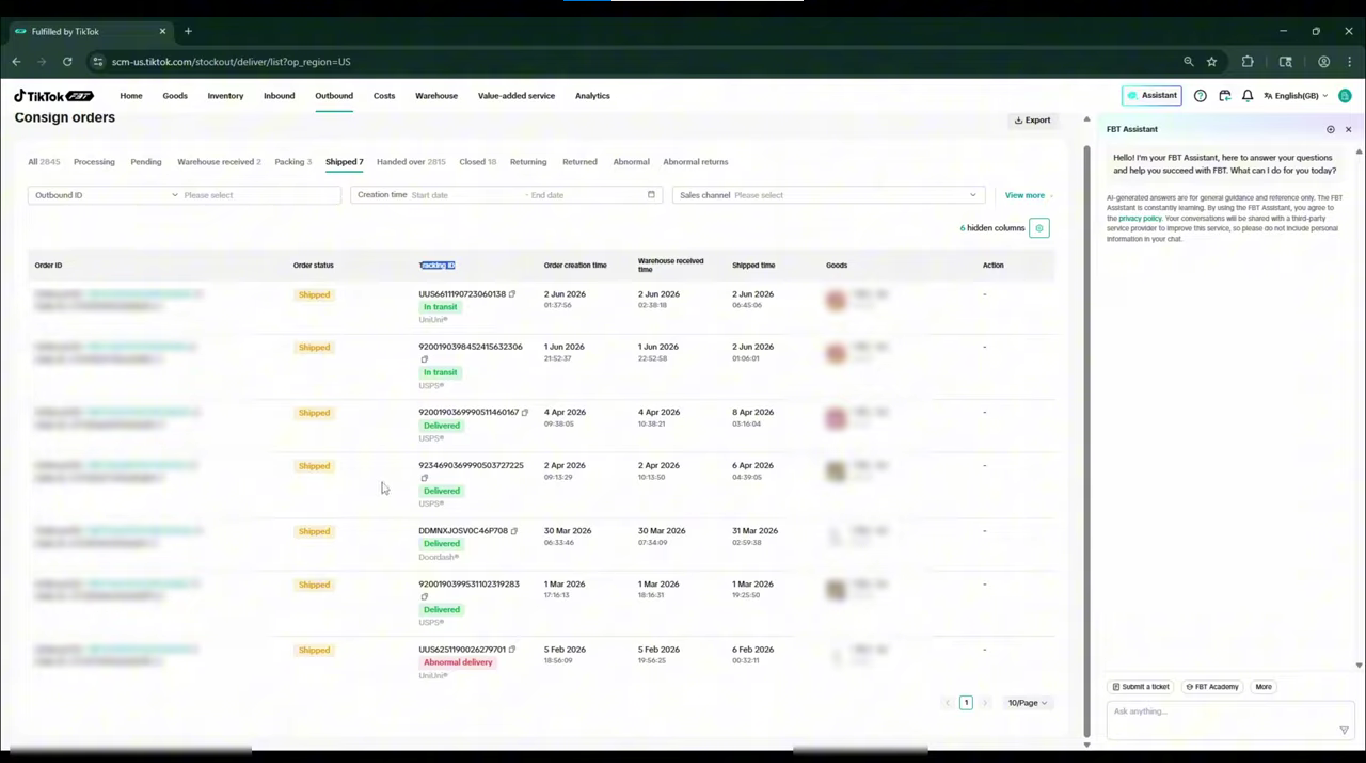
Alt text: TikTok Shop FBT order tracking showing In Transit and Delivered shipment statuses.
Source: Tiksly
Remember that the order’s fulfillment status and its carrier tracking status provide different information. The order status shows the fulfillment stage, while the tracking details help you follow the shipment’s delivery progress.
Step 6: Investigate Abnormal Delivery Notifications
The video shows an order associated with an abnormal delivery notification. This signals that the shipment has an issue requiring closer review.
The transcript does not identify the cause of the notification, so sellers should examine the information available for the specific order rather than assuming a particular delivery problem.
Follow these checks when you encounter an abnormal delivery notification:
- Locate the affected order. Use its Order ID to open the relevant record.
- Review the current status. Check the order status and associated tracking information.
- Read the notification details. Look for any explanation or instructions displayed in Seller Center.
- Check the latest tracking update. Review the information available about the shipment’s progress.
- Follow the applicable process. If the notification requires further action, use the instructions provided in your account or contact TikTok Shop support when necessary.
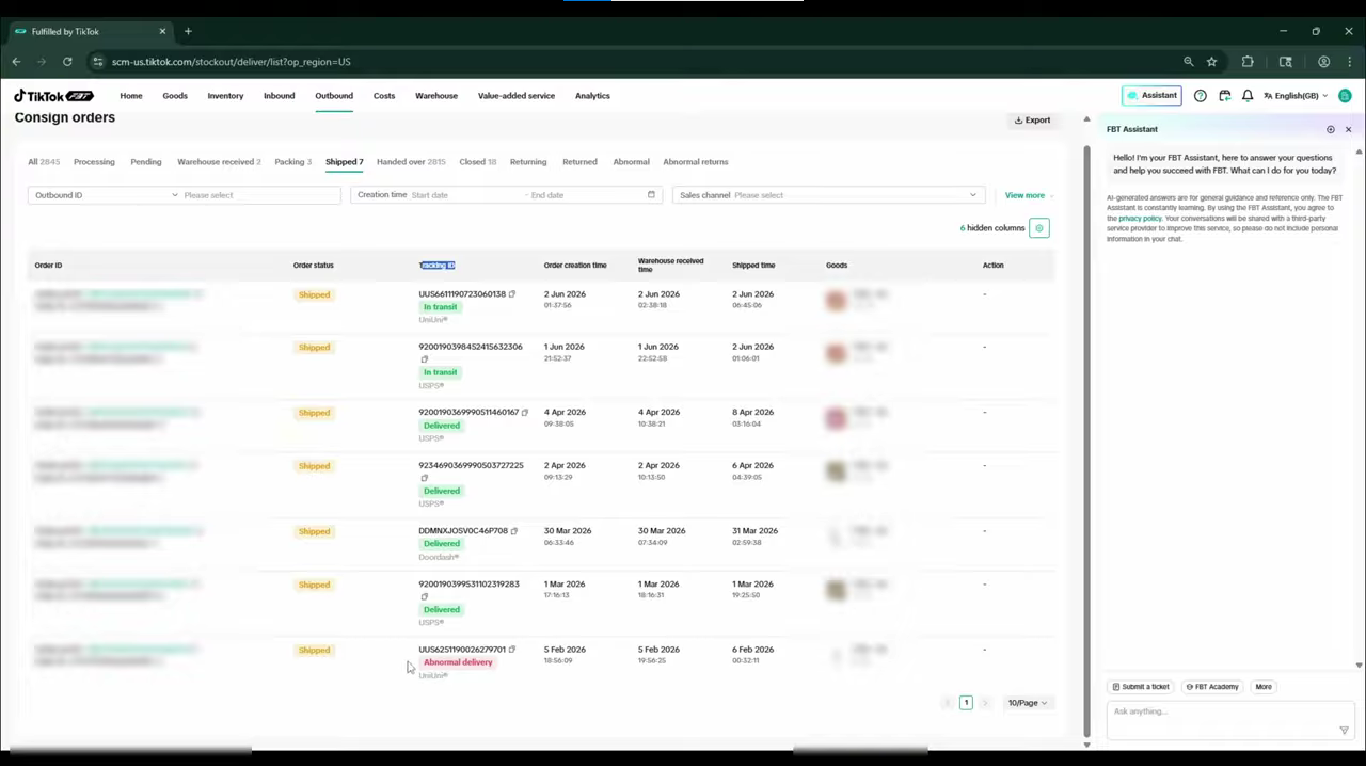
Alt text: TikTok Shop FBT consign order tracking showing shipment statuses and an abnormal delivery notification.
Source: Tiksly
Keep a record of the affected Order ID and the information you review. This can help you follow up on the issue without confusing it with other shipments.
Step 7: Review Handed Over Orders and Return-Related Sections
The final part of the video revisits Handed Over orders and refers to closed orders, returns, and abnormal returns.
These references indicate that the outbound dashboard includes additional order-related views beyond the initial fulfillment stages.
When reviewing these records, check the status and details displayed in your own account. Do not assume that a closed order, a return, and an abnormal return require the same action.
The transcript does not clearly establish the exact names or functions of all the final sections. Confirm the visible dashboard labels before following any specific return workflow.
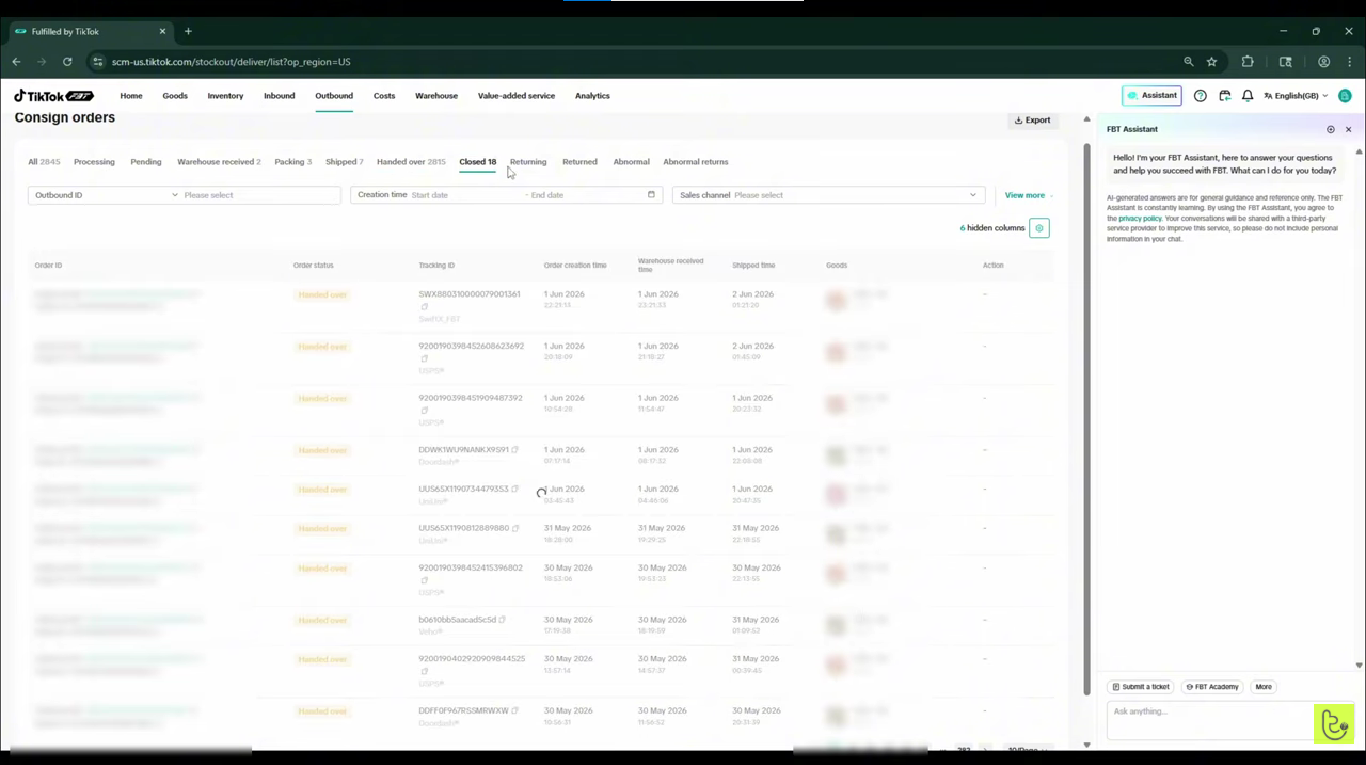
Alt text: TikTok Shop FBT outbound dashboard showing Handed Over orders and the return-related sections visible in the tutorial.
Source: Tiksly
Use this screenshot only if the original footage clearly shows the relevant section labels. If the final labels are not legible, use a clearer frame from the same segment rather than adding unverified text to the caption.
Best Practices for Managing TikTok Shop FBT Outbound Consign Orders
Regularly reviewing outbound consign orders helps you monitor shipments and identify records that may need further attention.
Use these practices when managing your orders:
- Check statuses regularly. Review the available order sections to understand the progress recorded for each shipment.
- Use Order IDs when investigating issues. This helps you locate the correct order and keep records organized.
- Review tracking updates. Check the available tracking information when monitoring shipments or responding to delivery questions.
- Investigate abnormal notifications. Read the notification details and follow the instructions provided in Seller Center.
- Keep records of unresolved issues. Note the relevant Order ID, current status, and any steps taken to investigate the problem.
- Check the current dashboard instructions. Available sections and actions may vary, so rely on the information displayed in your account.
Inventory management can also affect the wider fulfillment workflow. TikTok Shop FBT Inventory Health Issues helps review inventory problems, assess excess stock, and identify issues that need attention.
How Tiksly Can Help With TikTok Shop FBT Operations
Monitoring orders, reviewing shipment updates, and investigating delivery exceptions can take time, particularly when your store handles a large number of orders.
Tiksly provides TikTok Shop Management Services to support sellers with day-to-day store operations, order handling, shipping coordination, customer communication, and performance tracking.
Depending on your requirements, our team can help with:
- Order processing and tracking: Support order handling and shipment tracking as part of your store’s operational workflow.
- Inventory monitoring: Review inventory information and identify stock-related issues that require attention.
- Customer communication: Help manage customer questions about orders and delivery updates.
- Returns and issue handling: Support the review of returns and order-related problems through the applicable workflow.
- Daily store management: Help manage routine Seller Center tasks so you can devote more time to your wider business priorities.
If you need ongoing help with order processing, shipping coordination, and customer support, explore our TikTok Shop Virtual Assistant Services.
Conclusion
Learning how to process TikTok Shop FBT outbound consign orders starts with understanding the information available in the Seller Center. By reviewing the Consign Orders section, checking Order IDs and tracking details, and recognizing statuses such as Packing, Warehouse Received, Handed Over, and Shipped, you can monitor your shipments more effectively.
Pay attention to tracking updates and abnormal delivery notifications, and use the details displayed in your account to determine when further investigation is needed. For return-related records, confirm the exact status and follow the applicable instructions before taking action.
Need support with your TikTok Shop operations? Book a consultation with Tiksly’s experts to discuss how our team can assist with order handling, inventory monitoring, and day-to-day store management.
FAQs
1. What are TikTok Shop FBT outbound consign orders?
TikTok Shop FBT outbound consign orders are orders fulfilled through TikTok’s fulfillment network using inventory owned by the seller. TikTok handles applicable fulfillment and shipping activities according to the service terms.
2. How do I check TikTok Shop FBT consign order statuses?
Open the outbound section in Seller Center and select Consign Orders. Locate the order and review its Order ID, Outbound ID, current order status, Tracking ID, and available timestamps.
3. What does Handed Over mean in TikTok Shop FBT?
Handed Over indicates that the order has been handed to the carrier, as shown in the tutorial. Check the associated tracking information to monitor the shipment’s subsequent progress.
4. What should I do if a TikTok Shop FBT order shows an abnormal delivery notification?
Locate the affected order, review its current status and tracking information, and read the notification details in Seller Center. Follow the instructions provided for that order and contact TikTok Shop support if further investigation is necessary.
5. How can I track a TikTok Shop FBT order after it ships?
Open the relevant consign order and review its Tracking ID and associated tracking information. Statuses such as In Transit and Delivered help you understand the shipment’s progress and recorded delivery outcome.